
Your customer wants a quote.
They visit your website, fill in your contact form, and hit send. You get an email with their name and a vague description of what they need.
But where is the logo file? Where is the artwork? Where is the reference photo of the job they want done?
It is not there. So you reply, asking them to send it. They send it in a separate email. Now the details are in one thread, and the file is in another. You are manually piecing together a quote before you have even started the actual work.
This guide shows you how to fix that in under 20 minutes using a free HTML template and Formgrid as the form backend. No coding experience required. No monthly fees to get started. No backend to build.
What You Will End Up With
By the end of this guide, you will have:
- A professional multi-section quote request page deployed live on the internet
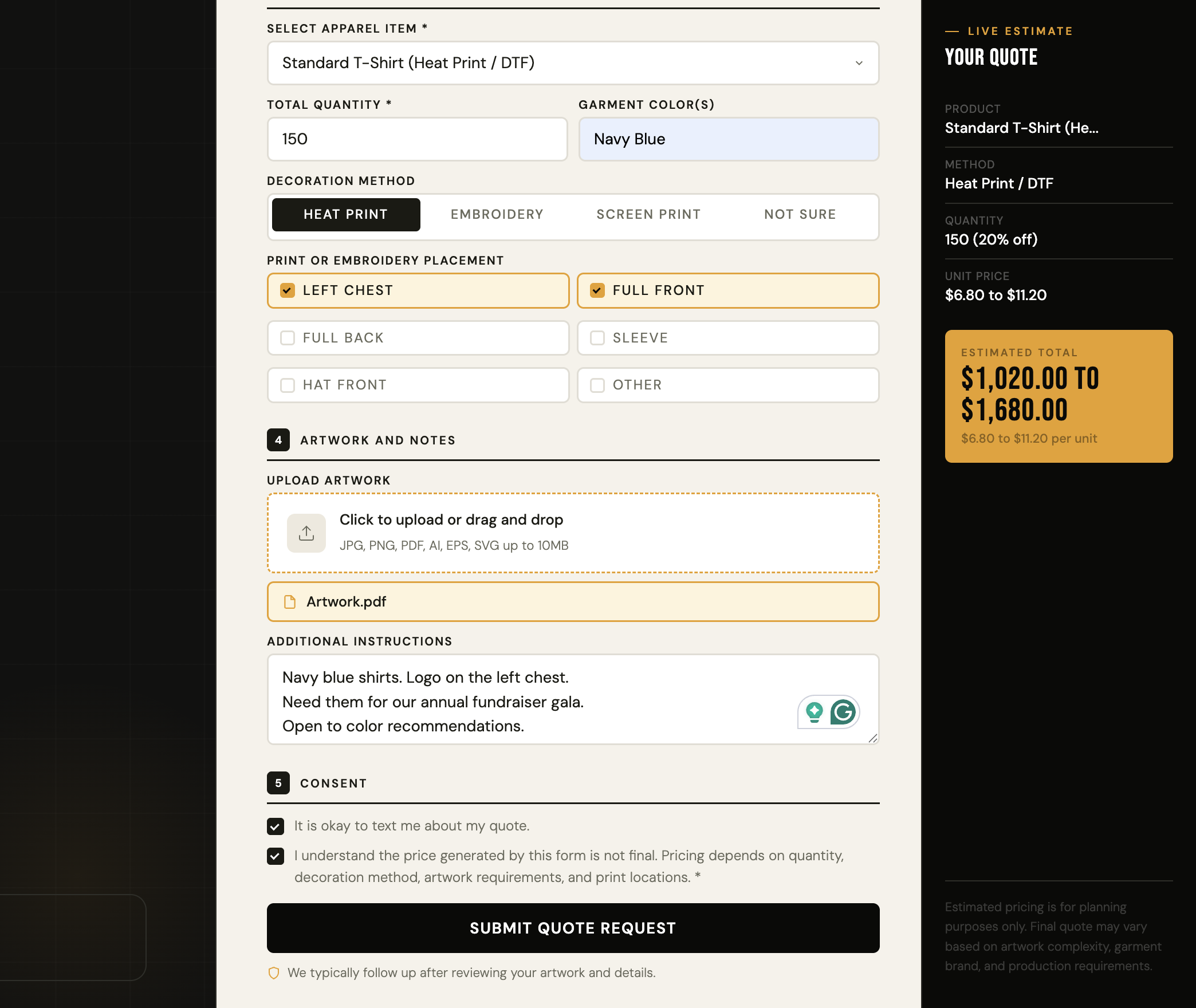
- A file upload field that accepts artwork, logos, photos, and design files from customers
- An instant email notification every time someone submits a quote request with all their details and their uploaded file
- A submissions dashboard where you can view and manage every quote request in one place
- A live pricing estimate that updates as the customer fills in the form
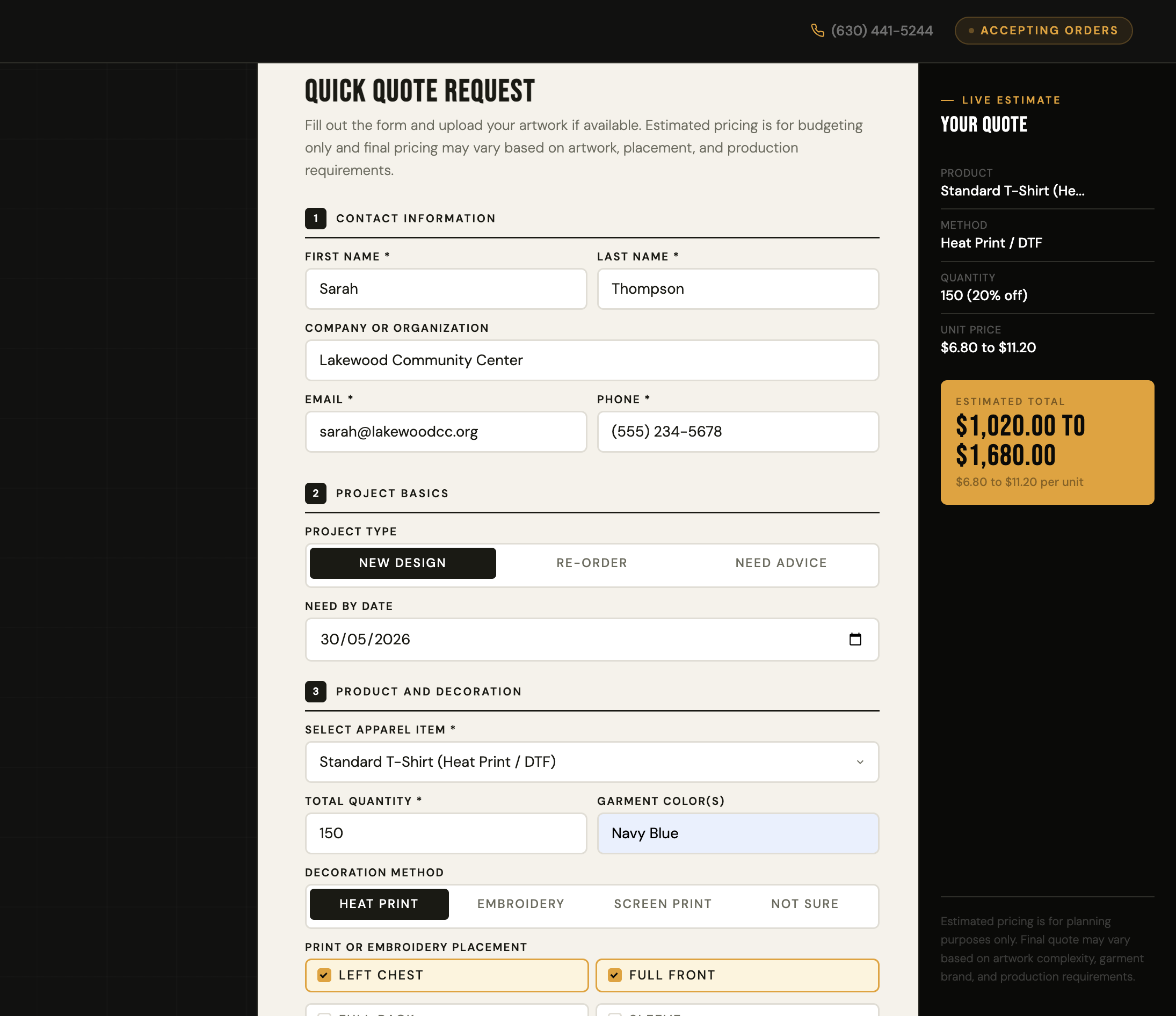
Here is what the finished quote request page looks like:
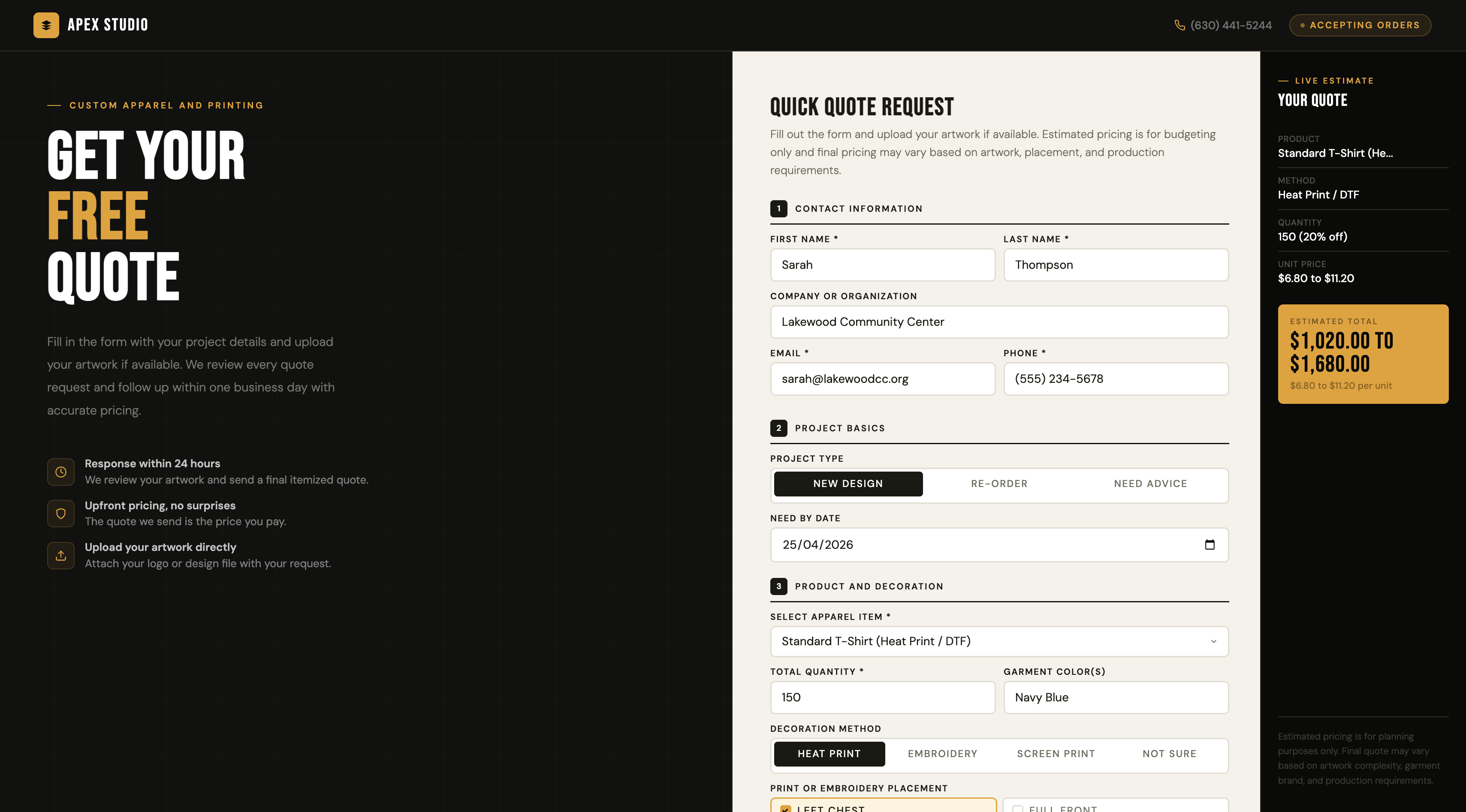
The template includes a branded hero panel with trust points and stats, a five-section quote form with file upload, a live pricing estimate panel, and a slim footer with your contact details. All in one self-contained HTML file.
Who This Is For
This guide is for small business owners who need customers to submit files alongside a quote request:
- Custom apparel and print shops collecting artwork files for t-shirts, hats, and hoodies
- Photographers asking clients to upload reference images before a shoot
- Graphic designers collecting client logos and brand assets
- Contractors asking customers to upload photos of the job site
- Embroidery shops receiving design files from customers
- Any business where customers need to send you a file before you can give them a price
What You Need Before You Start
- A free Formgrid account at formgrid.dev
- A free Netlify account at netlify.com
- A text editor (VS Code, Sublime Text, or even Notepad works fine)
- About 20 minutes
No Node.js. No build tools. No command line required.
Step 1: Get the Template From GitHub
Go to the Formgrid examples repository:
👉 github.com/allenarduino/formgrid-examples
You will see a collection of free HTML templates built for different industries. Find the Quote Request template. You will see
quote-request-form: A clean, focused version with just the brand panel, form, and live estimate. Best for businesses that want to embed or share a standalone quote page.
You have two options to get the files:
Option A: Clone with Git
If you have Git installed, open your terminal and run:
git clone https://github.com/allenarduino/formgrid-examples.gitThen navigate to the quote request template folder.
Option B: Download as ZIP
Click the green Code button on the GitHub page and select Download ZIP. Extract the folder to your desktop.
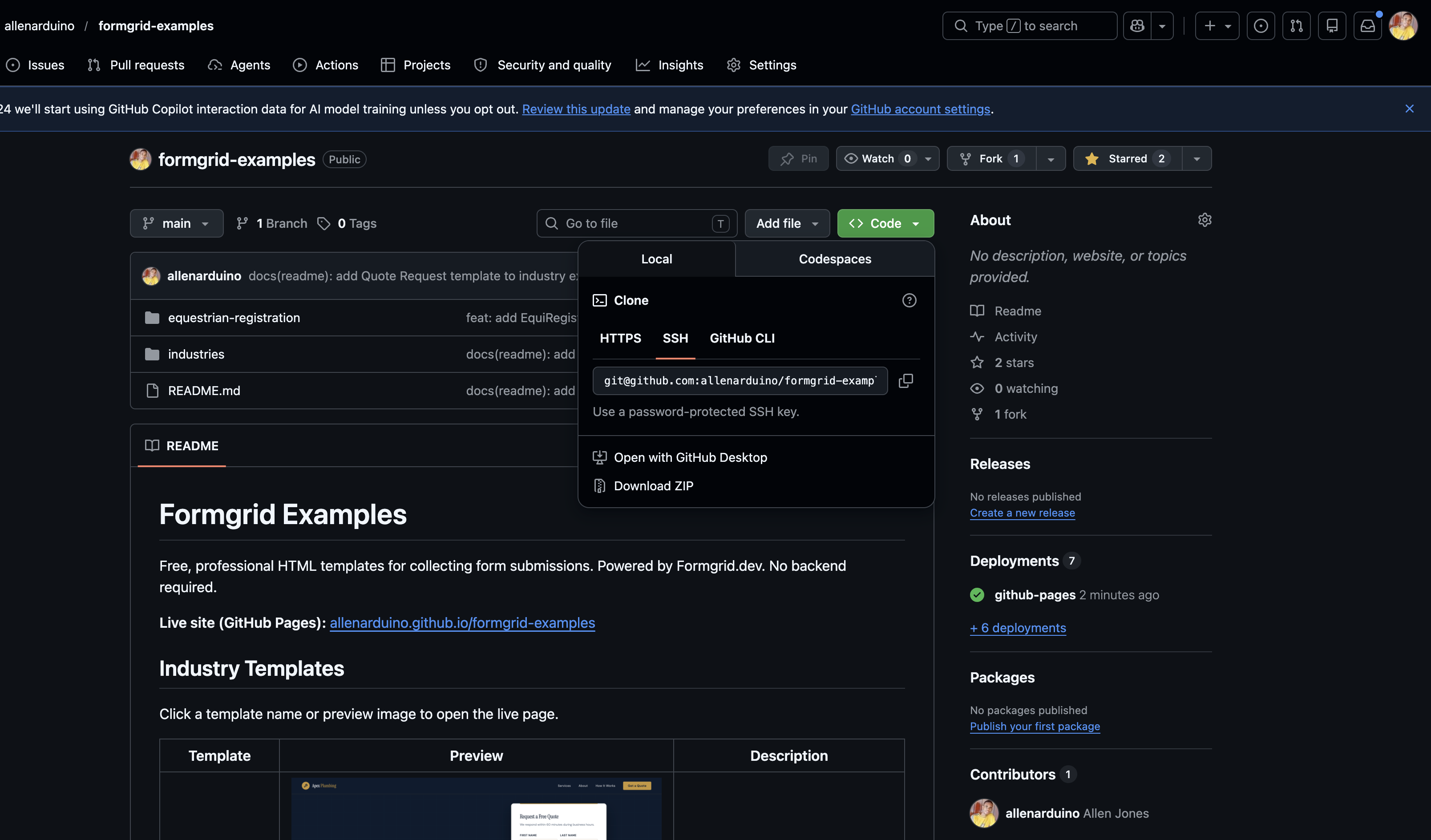
Open the folder, and you will find either quote-request-form/index.html or
Open it in your browser right now by double-clicking it. You will see the full professional quote request page working locally on your computer. The only thing missing is a real form endpoint so submissions go somewhere.
That is what Formgrid provides.
Step 2: Create Your Formgrid Account
Go to formgrid.dev and sign up with Google or your email address.
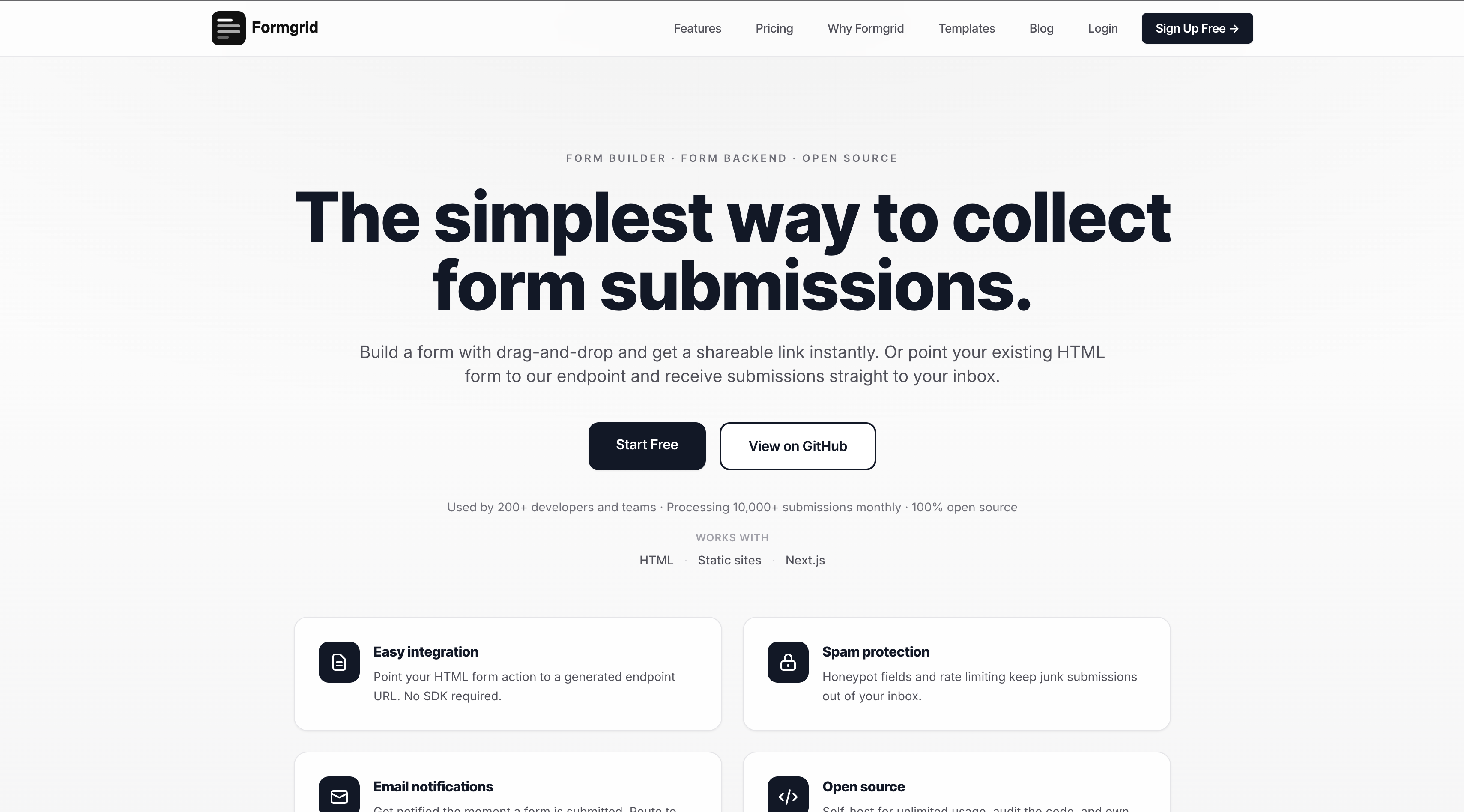
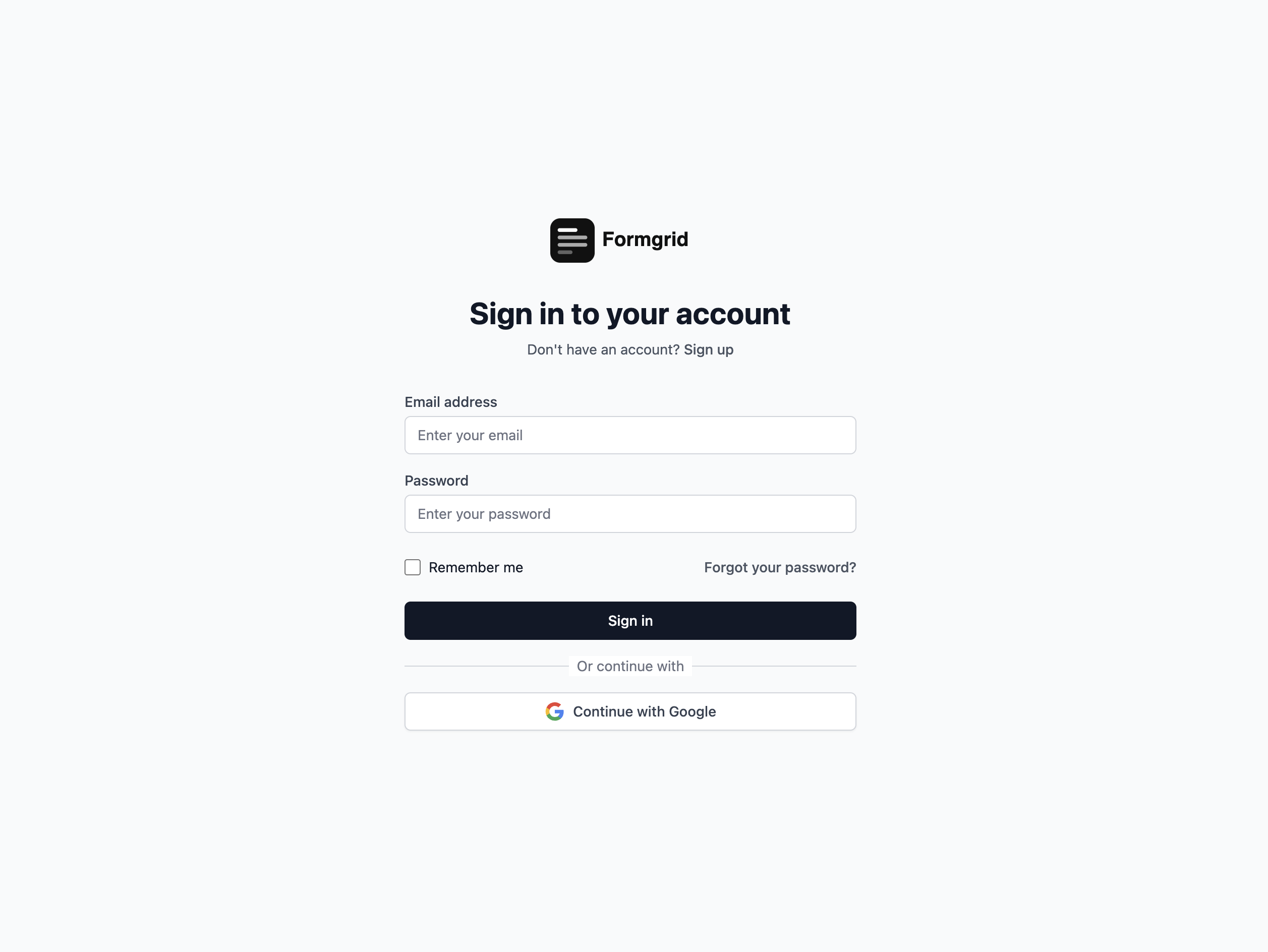
No credit card required. The free plan gives you 25 submissions per month, which is enough to test your entire setup before you go live.
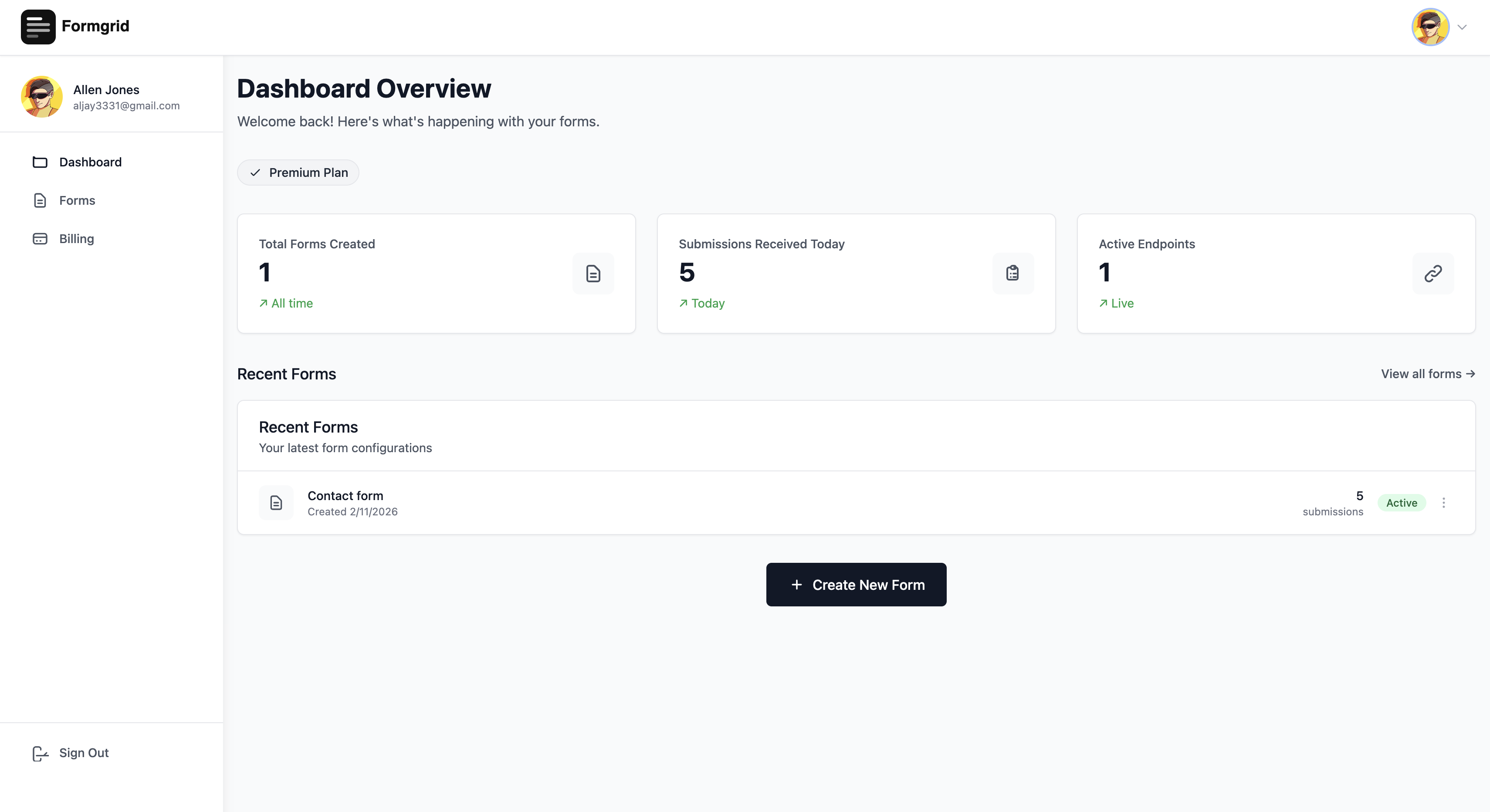
Once you sign up, you land on the Formgrid dashboard.
Step 3: Create a New Form
From the dashboard click New Form.
Give it a name that reflects your business. Something like:
- Apex Studio: Quote Requests
- LP Custom Tees: Quote Form
- Studio Quote Requests 2026
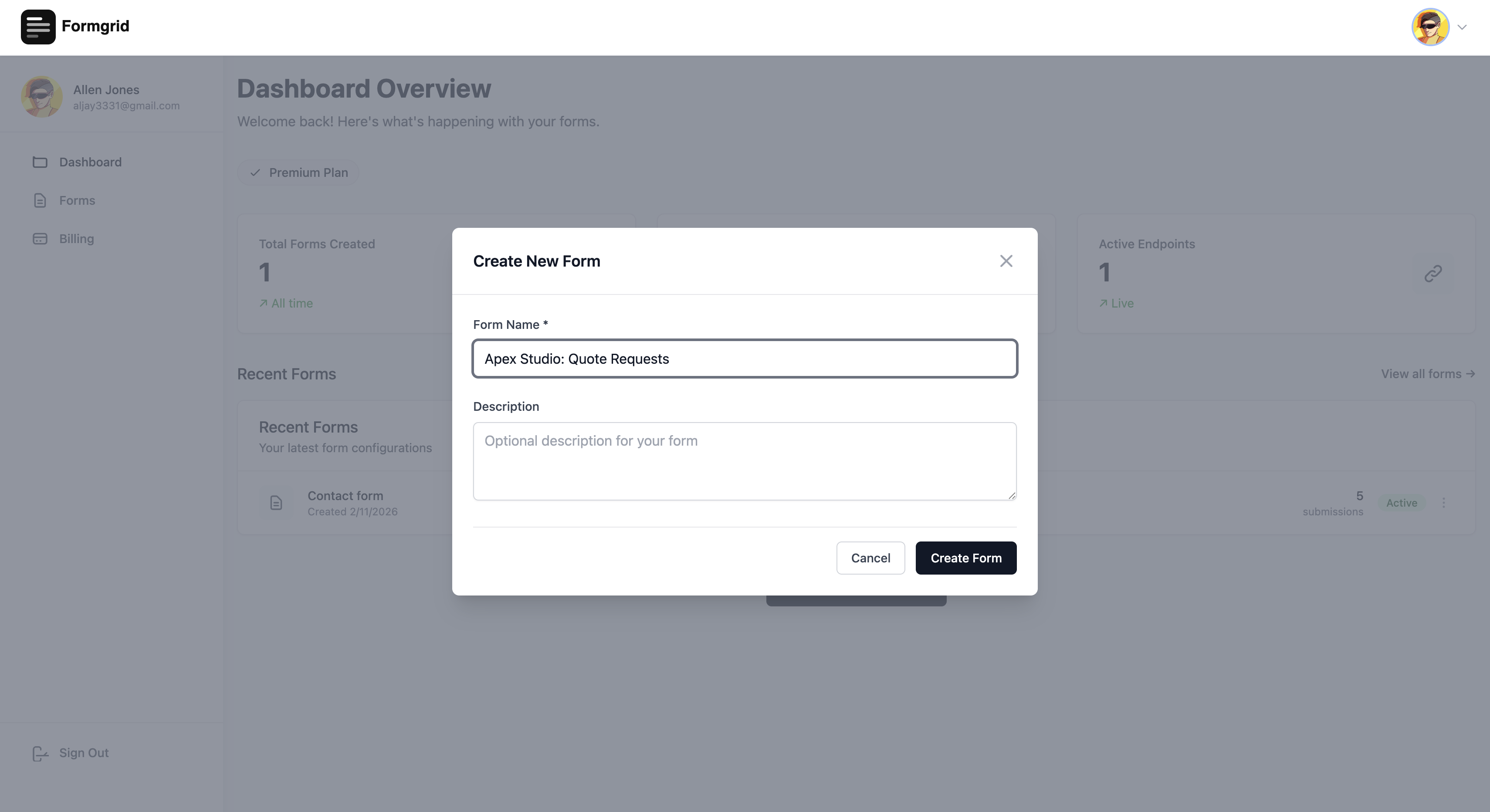
Click Create Form and you will be taken to the form details page.
Step 4: Copy Your Endpoint URL
On the form details page, you will see a section called Endpoint Information.
Your endpoint URL looks like this: https://formgrid.dev/api/f/your-form-id
Click Copy next to the endpoint URL.
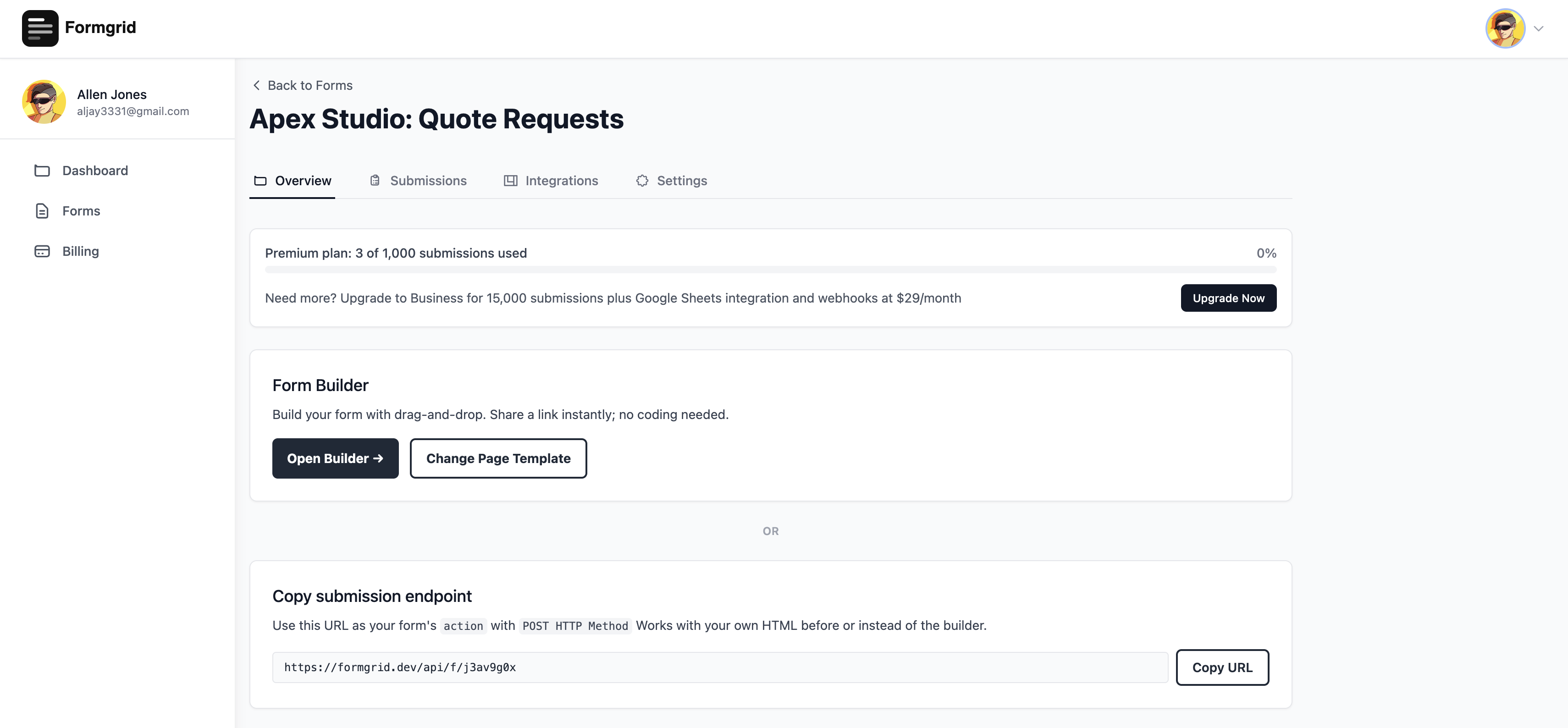
This URL is your form backend. When a customer fills in the quote request form and uploads their artwork file, everything is sent to this URL. Formgrid receives it, stores it in your dashboard, and sends you an instant email notification with all the details and a link to download the file.
Keep this URL copied. You need it in the next step.
Step 5: Enable File Uploads
File uploads are available on the Premium plan at $8 per month.
Go to your billing page at formgrid.dev/app/dashboard/billing and upgrade to Premium.
Once you are on Premium, your form will accept file uploads, and the files will be delivered to your inbox alongside the submission details.
Step 6: Add Your Endpoint URL to the Template
Open the HTML file in your text editor.
Use the Find function (Ctrl+F or Cmd+F) and search for: YOUR_FORMGRID_ENDPOINT_URL
You will find it in the JavaScript section near the bottom of the file:
const res = await fetch('YOUR_FORMGRID_ENDPOINT_URL', {
  method: 'POST',
  body: new FormData(form)
});
Replace YOUR_FORMGRID_ENDPOINT_URL with your actual Formgrid endpoint URL. It should look like this after the change:
const res = await fetch(
  'https://formgrid.dev/api/f/your-form-id',
  {
    method: 'POST',
    body: new FormData(form)
  }
);
Save the file.
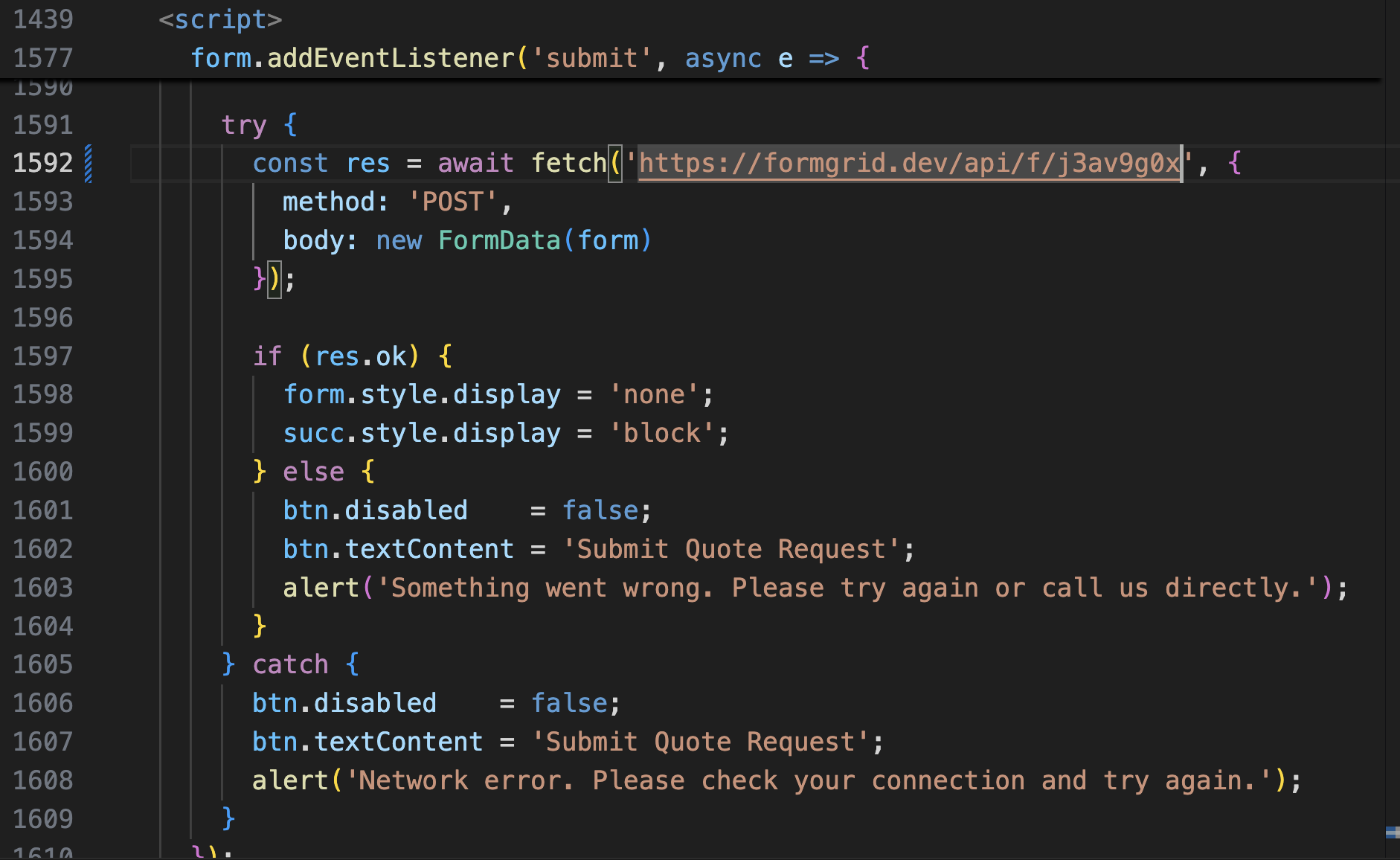
That one change connects your quote request page to Formgrid. Every submission, including the uploaded file, now goes directly to your inbox and your dashboard.
Step 7: Customize the Template for Your Business
Now open the file in your text editor and make the template your own.
Here are the key things to update:
The page title
Find this near the top of the file:
<title>Get a Quote — Apex Studio</title>Change it to your business name.
The business name in the nav
Find the nav logo section:
<span class="nav-name">Apex Studio</span>Change this to your business name.
The phone number
Find the nav phone link:
<a href="tel:+16304415244" class="nav-phone">
  (630) 441-5244
</a>
Replace with your actual phone number.
The hero headline
Find the h1 in the brand panel:
<h1 class="brand-h1 anim-2">
  GET YOUR<br />
  <em>FREE</em><br />
  QUOTE
</h1>
You can leave this as is or change it to something more specific to your business.
The trust points
Find the three trust items and update the text to reflect your actual business promises:
<div class="trust-text">
  <strong>Response within 24 hours</strong>
  We review your artwork and send a final
  itemized quote.
</div>
The stats
Find the three stat boxes and update them to reflect your business:
<div class="bstat-num">600<em>+</em></div>
<div class="bstat-label">Orders Completed</div>
The product dropdown
Find the product selector and update the options to match what your business actually offers:
<select id="product" name="product" required>
  <option value="">Select a product</option>
  <option>Standard T-Shirt (Heat Print / DTF)</option>
  <option>Standard T-Shirt (Screen Printed)</option>
  <!-- Add your own products here -->
</select>
The pricing data
Find the PRICING object in the JavaScript section and update the price ranges to match your actual pricing:
const PRICING = {
  'Standard T-Shirt (Heat Print / DTF)': {
    base: { min: 8.50, max: 14.00 },
    minQty: 6,
    // ...
  },
};
Update the min and max values for each product to reflect what you actually charge. The live estimate panel updates automatically.
The footer contact details
Find the footer and update the email, phone, and address:
<a href="mailto:hello@apexstudio.com">
  hello@apexstudio.com
</a>
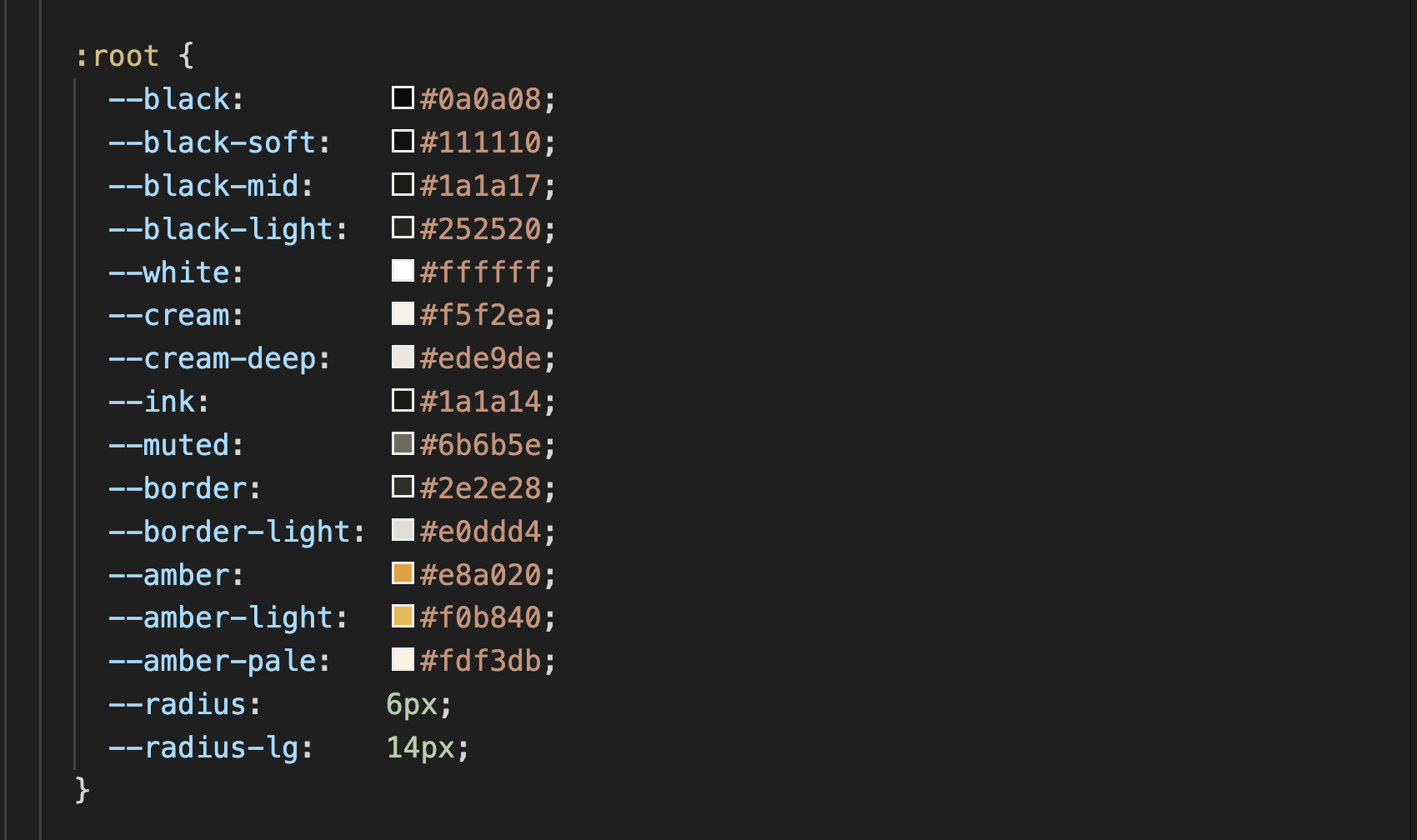
The colors
At the top of the file in the CSS variables section, you will find:
:root {
  --amber: #e8a020;
  --black: #0a0a08;
  --cream: #f5f2ea;
}
Change the amber accent color to match your brand. Every button, highlight, and accent across the page updates automatically.
Step 8: Test Your Form Locally
Before you deploy, test that the form submission and file upload work correctly.
Open the HTML file in your browser by double-clicking it. Fill in all the fields, attach a test file, and hit submit.
Check two things:
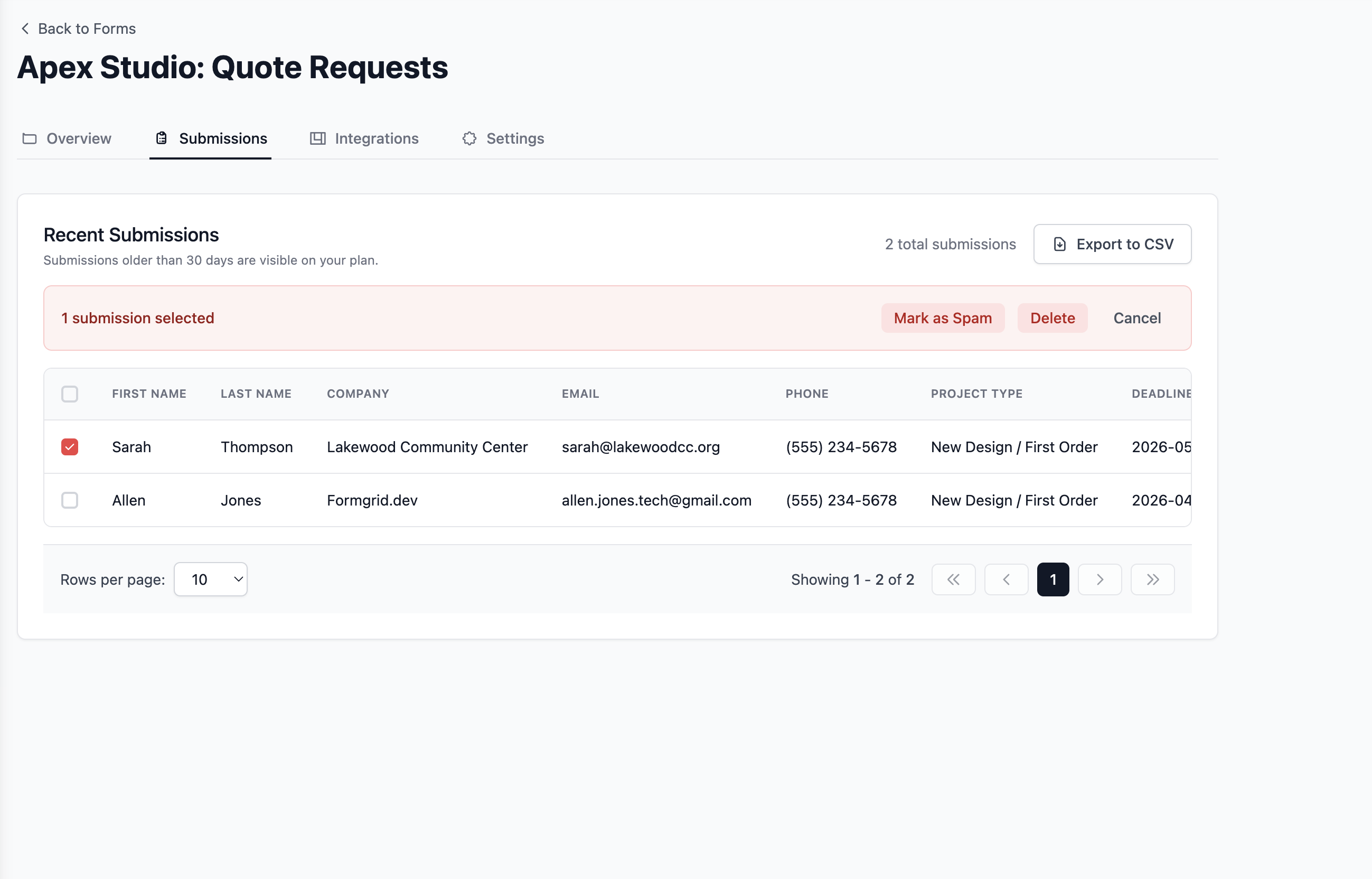
Your Formgrid submissions dashboard
Go to your form on formgrid.dev and click the Submissions tab. Your test submission should include all fields and a download link for the uploaded file.
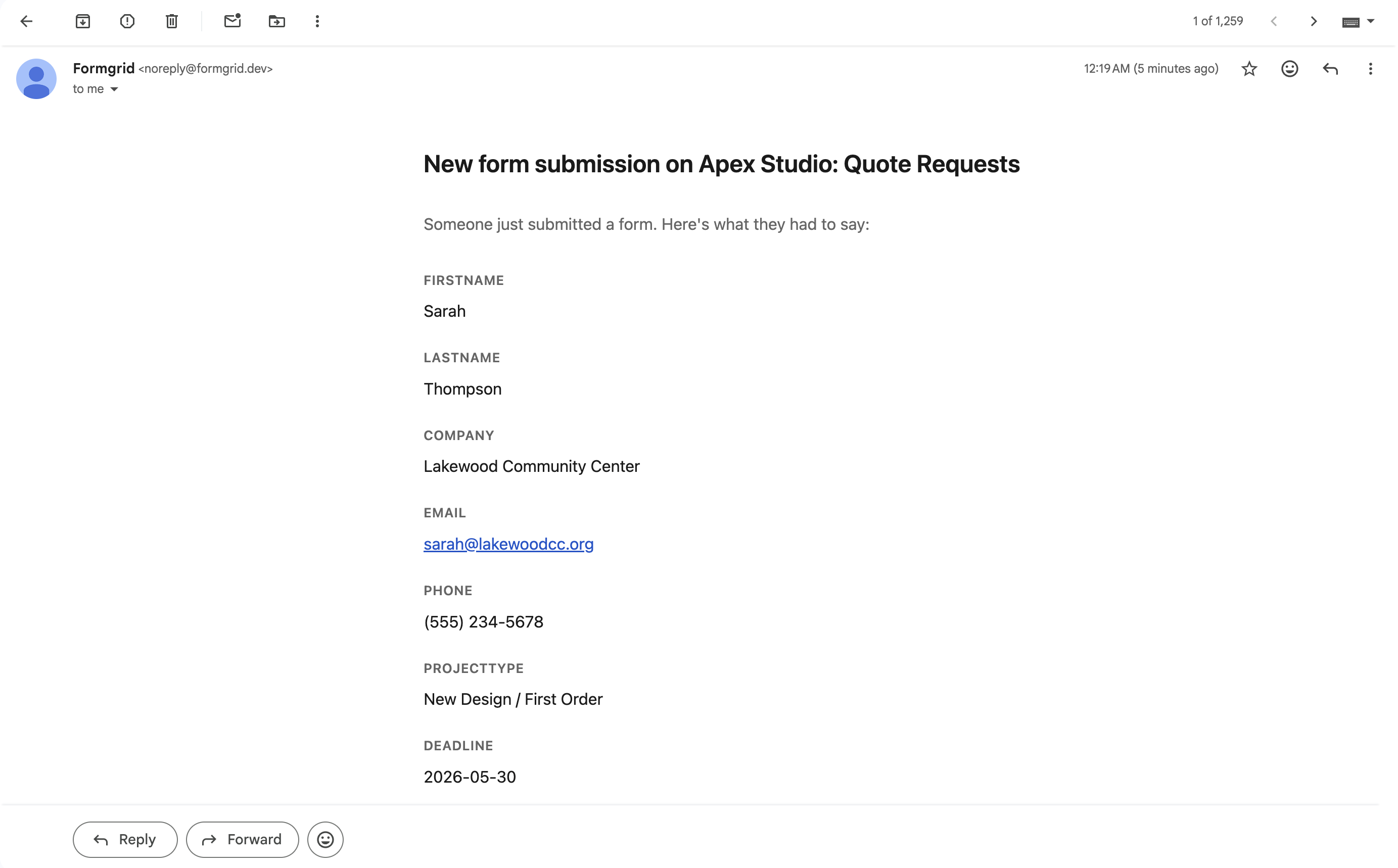
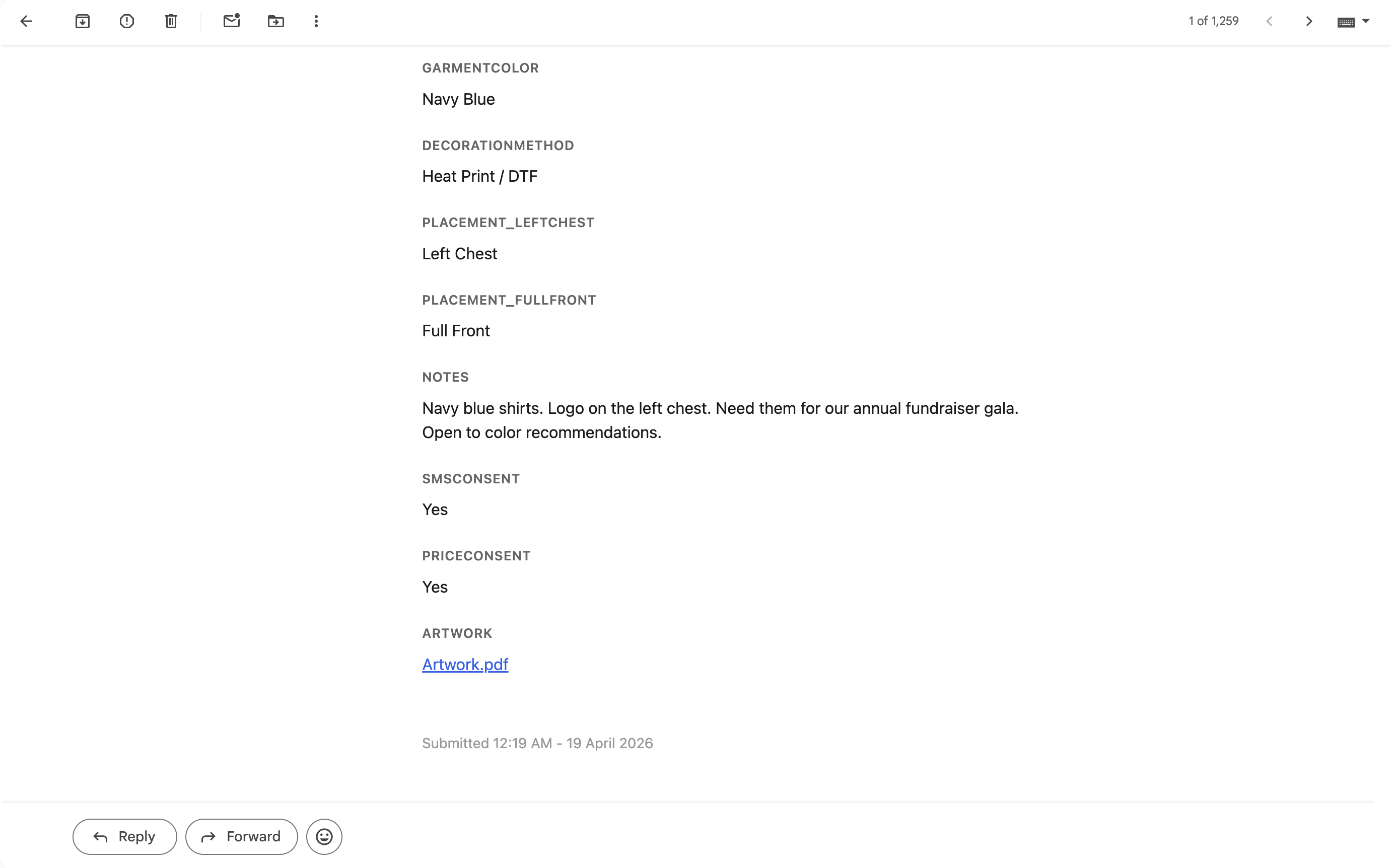
Your email inbox
You should have received an instant notification with all the quote details formatted cleanly and a link to download the attached file.
If both of those worked, your template is connected and ready to deploy.
Step 9: Deploy to Netlify
Netlify is the simplest way to get a static HTML file live on the internet for free.
Go to netlify.com and create a free account if you do not have one already.
Once you are logged in to the Netlify dashboard, you will see a large drag-and-drop area that says:
"Want to deploy a new site without connecting to Git? Drag and drop your site output folder here."
Take the folder containing your HTML file and drag it directly onto that area.
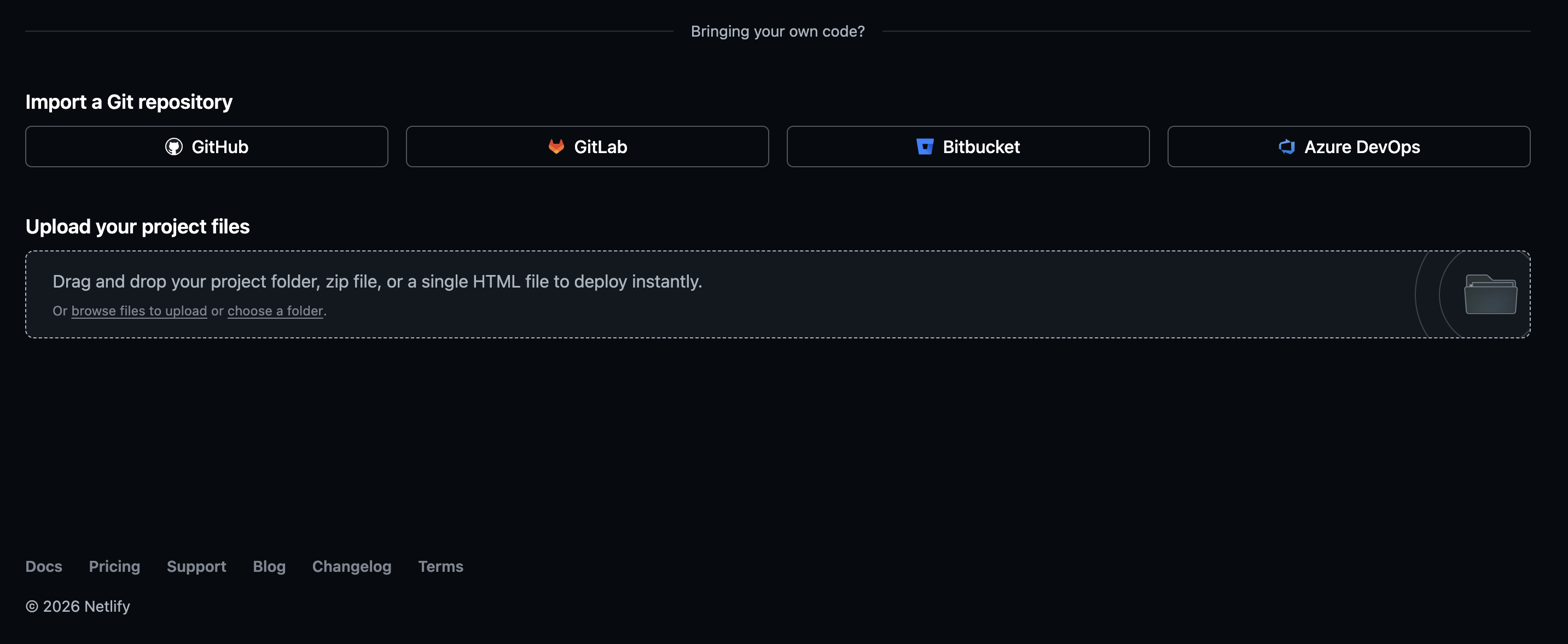
Netlify uploads your file and gives you a live URL in about 30 seconds. It looks something like: https://random-name-abc123.netlify.app
Click the URL, and your quote request page is live on the internet.
Step 10: Give Your Site a Better URL
The random Netlify URL works, but it is not what you want to put on your business cards.
Option A: Custom Netlify subdomain (free)
In your Netlify site settings, go to Site Configuration then Change site name.
You can change it to something like: apex-studio-quote.netlify.app
Option B: Your own domain (if you have one)
If you already own a domain, you can point it to Netlify in the Domain Management section of your site settings. Netlify handles the SSL certificate automatically.
What Arrives in Your Inbox
Every time a customer submits a quote request, you receive an email that looks like this: New Quote Request First Name: Sarah Last Name: Thompson Company: Lakewood Community Center Email: sarah@lakewoodcc.org Phone: (555) 234-5678 Project Type: New Design / First Order Product: Standard T-Shirt (Heat Print / DTF) Quantity: 150 Decoration Method: Heat Print / DTF Placement: Full Front, Left Chest Need By Date: May 30, 2026 Artwork: community-event-logo.pdf [Download File] Additional Instructions: Navy blue shirts. Logo on the left chest. Need them for our annual fundraiser gala. Open to color recommendations.
Everything in one email. Name, contact details, what they need, how many, when they need it, and the artwork file ready to download.
No back and forth asking for missing information. No hunting through two separate email threads. Just a complete quote request you can act on immediately.
Managing Your Quote Requests
Go to the Submissions tab on your form details page on formgrid.dev to see every quote request in one place.
You can:
- Search for a specific customer by name or email
- View the full details of any submission
- Download attached files
- Export all quote requests as a CSV spreadsheet
- Mark submissions as read or responded to
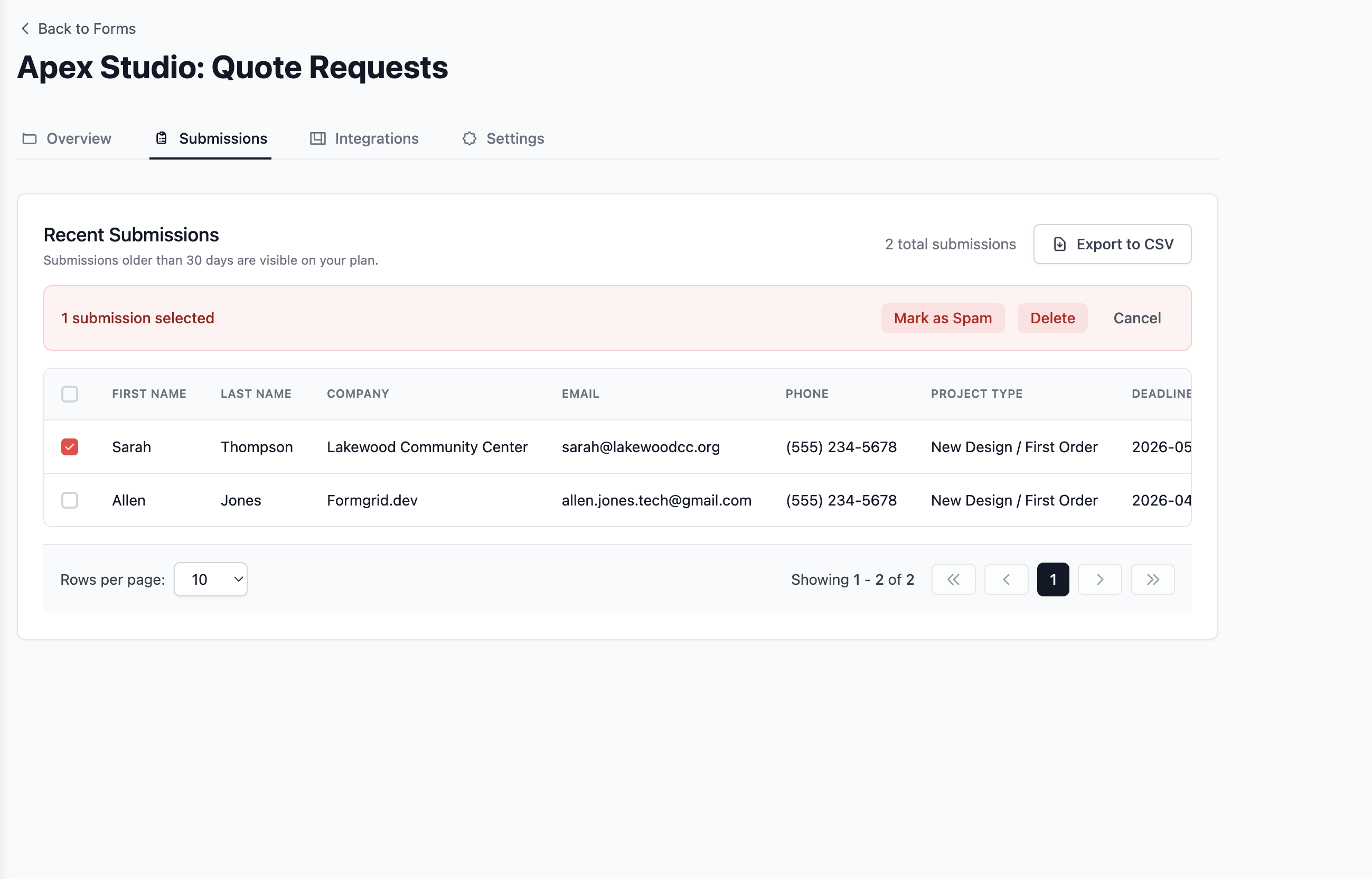
The CSV export is useful at the end of each month if you want to review your quote volume or track which products are most requested.
Upgrading When You Go Live
The free plan gives you 25 submissions per month, which is enough to test your setup.
When you go live, and quote requests start coming in you will want to upgrade:
Premium at $12 per month gives you 1,000 submissions per month with file uploads included. This is the plan you need to accept artwork files from customers.
Business at $29 per month gives you 15,000 submissions per month, plus auto-responder emails so every customer automatically receives a confirmation the moment they submit their quote request. Something like:
Hi Sarah, we have received your quote request for 150 t-shirts and will review your artwork and get back to you within one business day. Questions? Call us at (555) 000-1234.
That one automated email eliminates a significant number of follow-up calls from customers asking whether their request came through.
Why This Beats Every Alternative
Over a basic contact form
Standard contact forms do not support file uploads. Your customer fills in their name and hits send. The artwork arrives in a separate email. You spend time matching the two. Formgrid receives everything together in one submission.
Over Google Forms
Google Forms cannot accept file uploads unless the submitter has a Google account. Formgrid accepts files from anyone with no account required.
Overbuilding your own backend
Building a file upload backend from scratch requires server configuration, file storage setup, security handling, and ongoing maintenance. Formgrid handles all of that so you can focus on your actual business.
Over-expensive form tools
Jotform charges $49 per month. Typeform charges $29 to $99 per month. Formgrid is $12 per month for 1,000 submissions with file uploads included.
A Real Example
Jose Pineda runs LP Custom Tees, a custom apparel shop in Aurora, Illinois. He was using a basic contact form, but it could not accept artwork files.
He used AI to build a more advanced quote form and then searched for a form backend that could receive file uploads. He found Formgrid, added his endpoint URL, upgraded to Premium, and his new quote form was live the same day.
Now every customer who requests a quote submits their artwork alongside their order details in one submission. Jose gets everything he needs to prepare an accurate quote in a single email.
Get the Template
The quote request templates and all other Formgrid HTML templates are available for free on GitHub:
👉 github.com/allenarduino/formgrid-examples
Star the repo to stay updated as new templates are added.
Templates currently available:
- Quote Request with Live Estimate (this guide)
- Event Registration
- Horse Ride Registration
- Wedding RSVP
- Photography Booking
- Cleaning Service Booking
- Personal Trainer Enquiry
- Real Estate Enquiry
Each template follows the same pattern. Clone it, add your Formgrid endpoint URL, customize the text and colors, and deploy.
Start Collecting Quote Requests Today
Your customers are sending you files in separate emails right now. Or they are filling in a bare contact form, and you are chasing them for their artwork afterward.
This template fixes both of those problems in under 20 minutes.
Clone the template. Sign up for Formgrid. Deploy to Netlify. Share the link.
Your customers get a professional quote request experience that makes your business look established. You get complete quote requests in your inbox, artwork file included, ready to respond immediately.
No credit card required. Free plan available to test your setup. Upgrade to Premium at $8 per month when you are ready to go live with file uploads.
Have questions about the template or the Formgrid setup? Email allen@formgrid.dev and I will help you get it working for your specific business.
Comments
Leave a comment