
You installed Contact Form 7 on your WordPress site. Someone fills out your contact form. You receive the email.
And it looks like this:
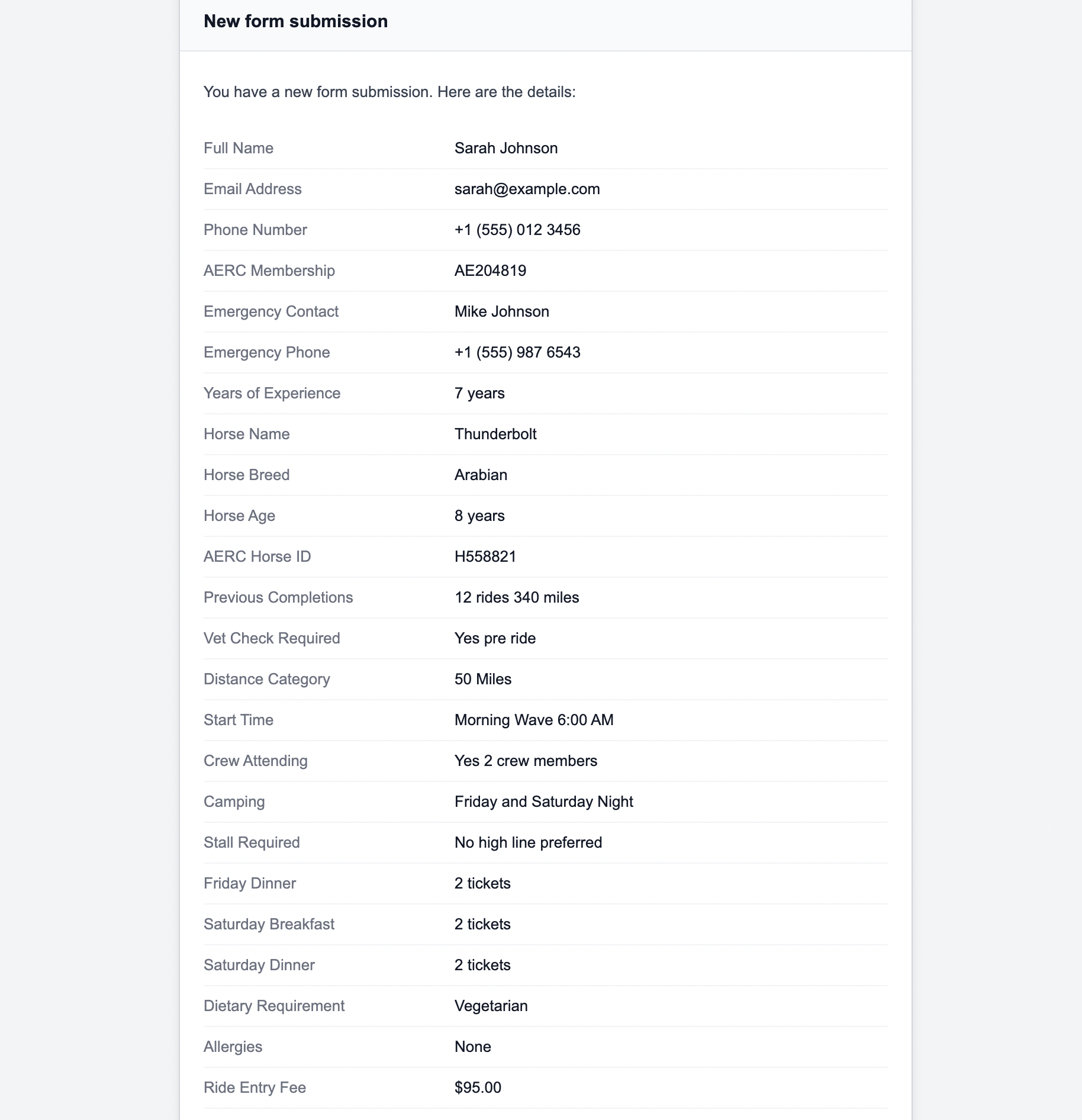
Or if you are lucky, it looks like this:
From: John Smith
Email: john@example.com
Message: Hello there
_wpcf7: 1234
_wpcf7_version: 5.7
_wpcf7_locale: en_US
_wpcf7_unit_tag: wpcf7-f1-p2-o1
_wpcf7_container_post: 2
Raw field data. Internal WordPress variables. No structure. No labels. No context.
If you are an event manager receiving 20 registrations a day, or a small business owner trying to act quickly on client inquiries, this email is a nightmare to read.
This guide explains exactly why CF7 emails look the way they do and gives you two ways to fix it permanently.
Why Contact Form 7 Emails Look So Bad
Contact Form 7 sends notification emails by dumping whatever data it receives into the email body. It does not know your form's structure. It does not know which fields are important. It does not know that your recipient needs to see Contact Information, Event Details, before Payment Summary.
It just sends everything in one flat list, including internal WordPress fields that your recipient should never see.
Here are the most common problems CF7 users complain about:
Internal fields showing up in every email
CF7 includes internal WordPress variables
like _wpcf7, _wpcf7_version,
_wpcf7_unit_tag, and
_wpcf7_container_post in every
notification email. These are not your
data. They are WordPress internals.
But CF7 sends them anyway.
No section headers
All fields appear in one flat list with no grouping. Name, email, message, event selection, dietary requirements, and payment details are all running together with no separation.
No formatting on long text
Long text values appear as one unbroken paragraph with no line breaks. Reading a multi-paragraph message in a CF7 email is genuinely difficult.
Wrong field order
Fields appear in the order they were submitted, not in a logical reading order. If your form has 20 fields, the email is impossible to scan.
Generic subject line
Every email says "New message from your contact form" with no context about who submitted or what they selected. If you receive 50 submissions per day, every email looks identical in your inbox.
Looks like spam
Because CF7 relies on WordPress PHP mail for delivery and includes internal fields and raw data. Gmail and Outlook increasingly treat CF7 notifications as suspicious. Many CF7 emails end up in spam folders or get rejected entirely.
The problem gets worse the more fields your form has. A simple 3-field contact form is manageable. But event registration forms, client intake forms, and job application forms can have 20 to 40 fields. When all of that arrives as one unformatted block, the person reading it has to hunt for the information they need every single time.
What a Professional Form Email Should Look Like
Instead of a raw data dump, imagine receiving this for every registration:
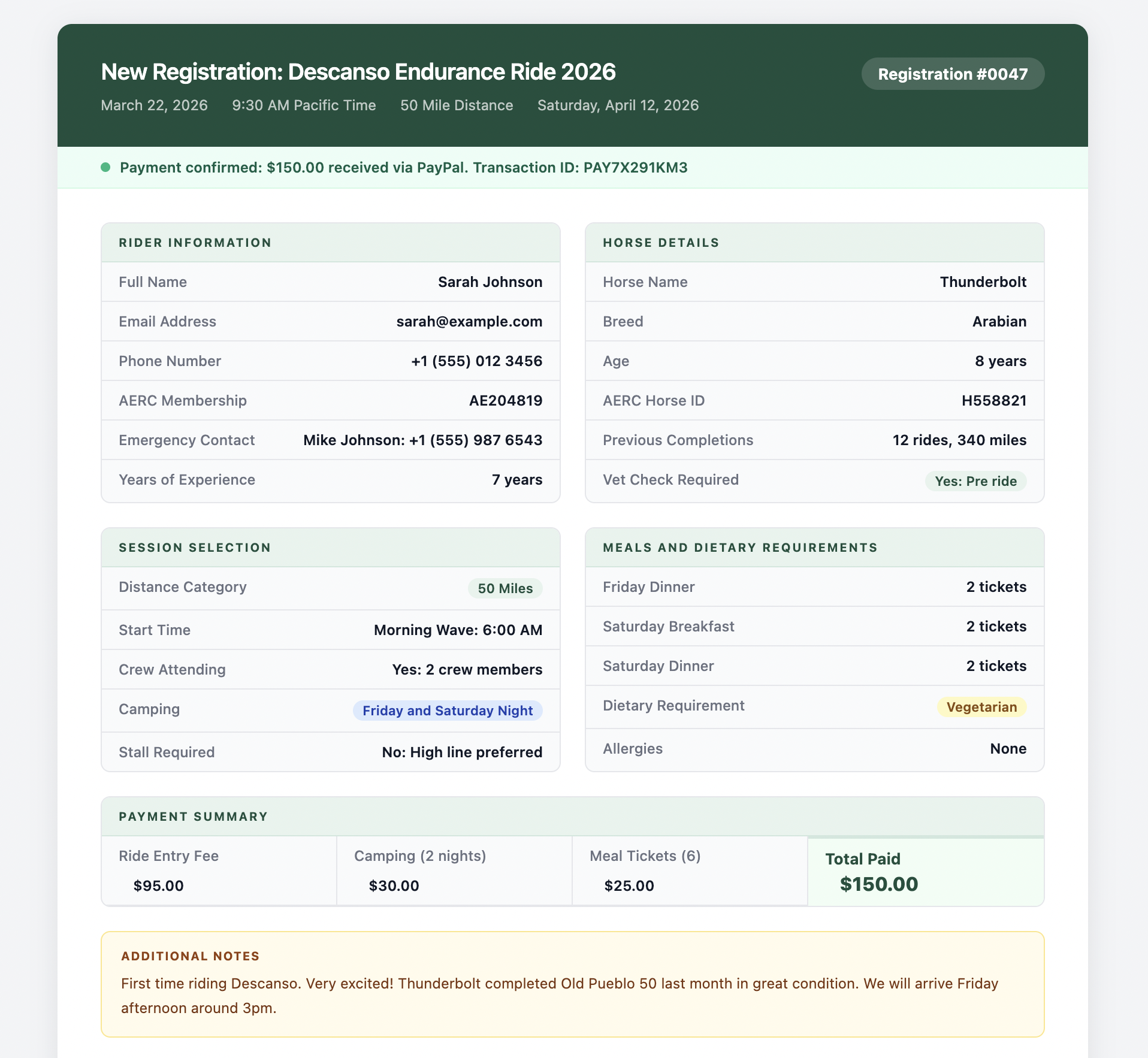
Clean. Organized. Readable by anyone. Whether they are a developer, an event coordinator, or an office manager who just needs to know who is coming and what they paid.
That is what you should be receiving. Here is how to get there.
Who Does This Problem Affect Most
Event organizers
Workshop registrations, conference entries, and seminar signups. Your coordinator needs to see attendee details in a logical order, not a random field dump. For a 200-person event, receiving unreadable registration emails is hours of unnecessary work every time.
Small businesses
Client intake forms, service booking forms, and quote request forms. Your team needs to act on submissions quickly. A clean email means faster response times and fewer mistakes.
Freelancers and consultants
Project brief forms, onboarding forms. When a new client submits their project brief, you want it formatted like a document you can actually work from, not a wall of raw text.
Nonprofits and community organizations
Volunteer applications, membership forms, and donation forms. Your coordinator needs to process applications efficiently without deciphering raw data.
If you are sending form submission emails to anyone who is not a developer, the default CF7 email format is not good enough.
Fix 1: Customize CF7 Email
Templates Directly
Contact Form 7 does let you customize your email template. It is not beautiful, but it works for simple forms.
Step 1: Open your CF7 form settings
In your WordPress dashboard, go to Contact and click on your form. Click the Mail tab at the top.
Step 2: Edit the message body
By default, the message body uses the [all_fields] shortcode, which
dumps everything. Replace it with your specific field shortcodes:
From: [your-name]
Email: [your-email]
Phone: [your-phone]

Message:
[your-message]
Replace [your-name], [your-email],
[your-phone], and [your-message]
with the actual field names from your form.
Step 3: Customize the subject line
Change the subject line from the generic default to something meaningful:
New inquiry from [your-name]
via [_site_title]
This gives every email a subject line that shows who submitted and where it came from.
Step 4: Remove internal fields
Make sure your message body only includes fields you actually want
to see. Do not include
[_wpcf7], [_wpcf7_version], or any other internal WordPress
variables.
The limitation of this approach
CF7 email customization is plain text. You can control which fields appear and in what order, but you cannot add section headers, styled layouts, colored backgrounds, or anything that makes the email look genuinely professional.
For a simple contact form, this is probably enough. For complex registration forms with 10 or more fields, you will still end up with a long flat list that is hard to scan.
Fix 2: Use Formgrid for Fully Customizable Email Templates
If you want complete control over how your notification emails look including section headers, branded colors, grouped fields, and custom subject lines, consider switching to Formgrid as your form backend.
Formgrid is an open-source form backend and form builder. On the Business plan at $29/month, you get full HTML email template control using Mustache templating. A simple, widely used templating language that lets you write an HTML email with placeholders that get replaced with real submission data automatically.
The available template variables
{{ _formName }}
Name of your form

{{ _time }}
Submission timestamp

{{ fieldName }}
Any field by its exact name attribute

{{# fields }}
Loop through all fields
  {{ _name }}      Field label
  {{ _value }}     Field value
{{/ fields }}
Close the loop
Option A: The simple loop for any form
If you just want clean formatted emails without thinking too much about structure use the fields loop. This works for any form automatically:
<div style="font-family: sans-serif;
            max-width: 600px;
            margin: 0 auto;">

  <h2 style="color: #1d4f3d;">
    New Submission: {{ _formName }}
  </h2>

  {{# fields }}
  <div style="margin-bottom: 16px;
              border-bottom: 1px solid #eee;
              padding-bottom: 16px;">
    <p style="margin: 0;
              font-size: 12px;
              color: #888;
              text-transform: uppercase;">
      {{ _name }}
    </p>
    <p style="margin: 4px 0 0;
              font-size: 15px;
              color: #333;">
      {{ _value }}
    </p>
  </div>
  {{/ fields }}

  <p style="font-size: 12px;
            color: #999;">
    Submitted: {{ _time }}
  </p>

</div>
This renders every field cleanly with its label above and value below. No internal fields. No raw data. No mess. Clean, readable output for every submission automatically.
Option B: Sectioned template for complex registration forms
If your form has multiple sections, like a workshop registration with attendee details, session selection, dietary requirements, and payment. You can group fields into sections with clear headers:
<div style="font-family: sans-serif;
            max-width: 600px;
            margin: 0 auto;
            color: #1f2937;">

  <h2 style="color: #1d4f3d;
             border-bottom: 2px solid #e8f3ee;
             padding-bottom: 10px;">
    New Registration: {{ _formName }}
  </h2>

  <h3 style="color: #1d4f3d;">
    Attendee Information
  </h3>
  <p><strong>Name:</strong> {{ name }}</p>
  <p><strong>Email:</strong> {{ email }}</p>
  <p><strong>Company:</strong> {{ company }}</p>
  <p><strong>Phone:</strong> {{ phone }}</p>

  <h3 style="color: #1d4f3d;
             margin-top: 24px;">
    Session Selection
  </h3>
  <p>
    <strong>Workshop:</strong>
    {{ workshopName }}
  </p>
  <p><strong>Date:</strong> {{ date }}</p>
  <p><strong>Format:</strong> {{ format }}</p>

  <h3 style="color: #1d4f3d;
             margin-top: 24px;">
    Payment
  </h3>
  <p>
    <strong>Ticket Type:</strong>
    {{ ticketType }}
  </p>
  <p>
    <strong>Total:</strong>
    {{ totalAmount }}
  </p>

  <h3 style="color: #1d4f3d;
             margin-top: 24px;">
    Notes
  </h3>
  <p>{{ notes }}</p>

  <hr style="margin-top: 32px;
             border: none;
             border-top: 1px solid #e5e7eb;" />
  <p style="font-size: 12px;
            color: #9ca3af;
            margin-top: 12px;">
    Submitted: {{ _time }}
  </p>

</div>
The variable names like {{ name }},
{{ workshopName }}, and
{{ totalAmount }} must match the
name attributes of your HTML form
inputs exactly:
<input type="text" name="name" />
<select name="workshopName">...</select>
<input type="hidden" name="totalAmount" />
This gives you complete control over the layout, grouping, and order of every notification email.
Custom subject lines
You can control the email subject
line using the _subject hidden
field in your HTML form:
<input
  type="hidden"
  name="_subject"
  value="New Registration from {{ name }}"
/>
This means every submission email has a meaningful subject line like "New Registration from Sarah Johnson" instead of the generic "New form submission."
How to Set Up Custom Email Templates in Formgrid
Custom email templates are available on the Business plan at $29/month.
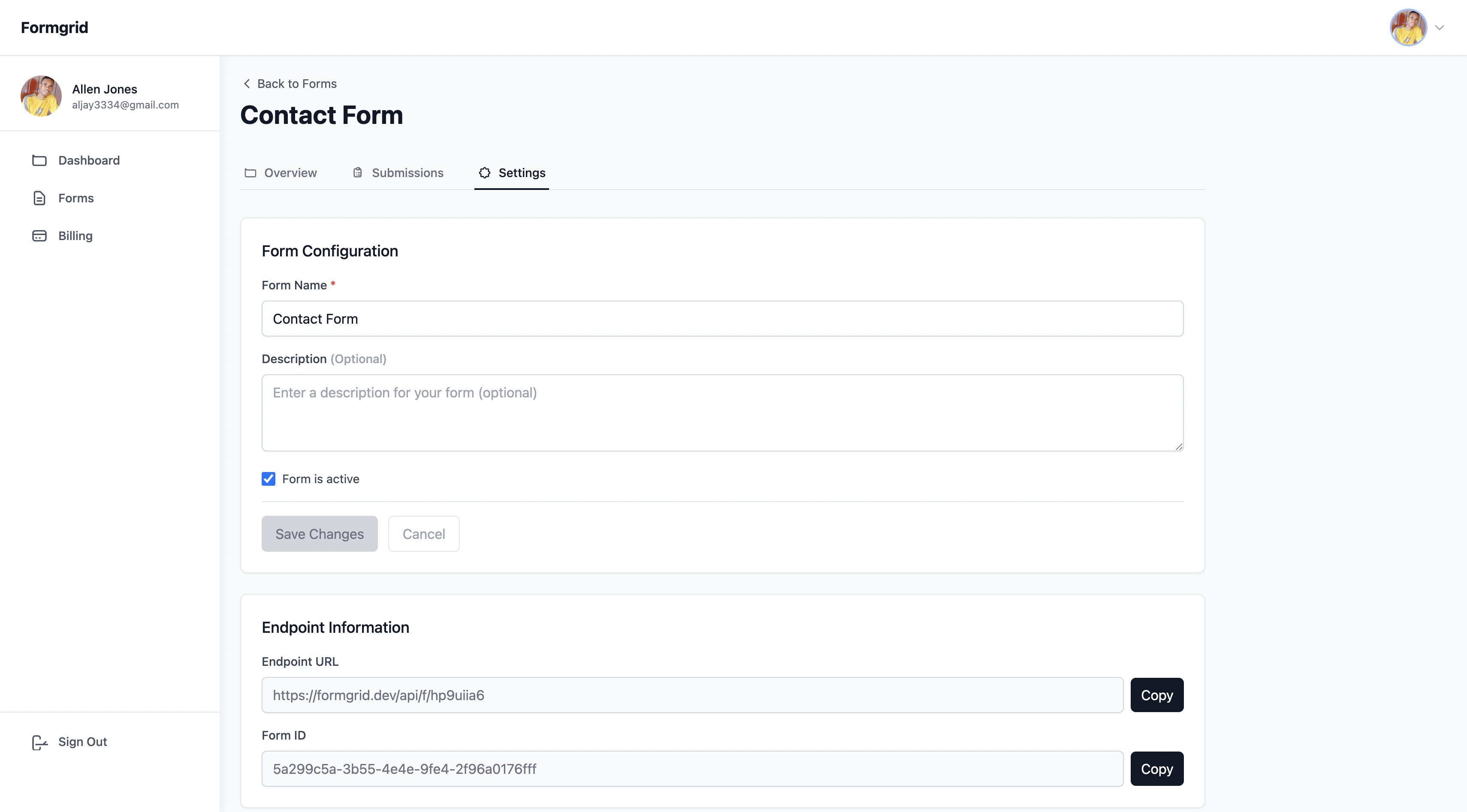
Step 1: Go to your form settings
Log in to your Formgrid dashboard, open your form, and click the Settings tab.
Step 2: Find the Custom Email
Template section
Scroll down to the Custom Email Template section. If you are on the Business plan, you will see the full template editor. If you are on the free or Premium plan ($12/month), you will see a prompt to upgrade to Business.
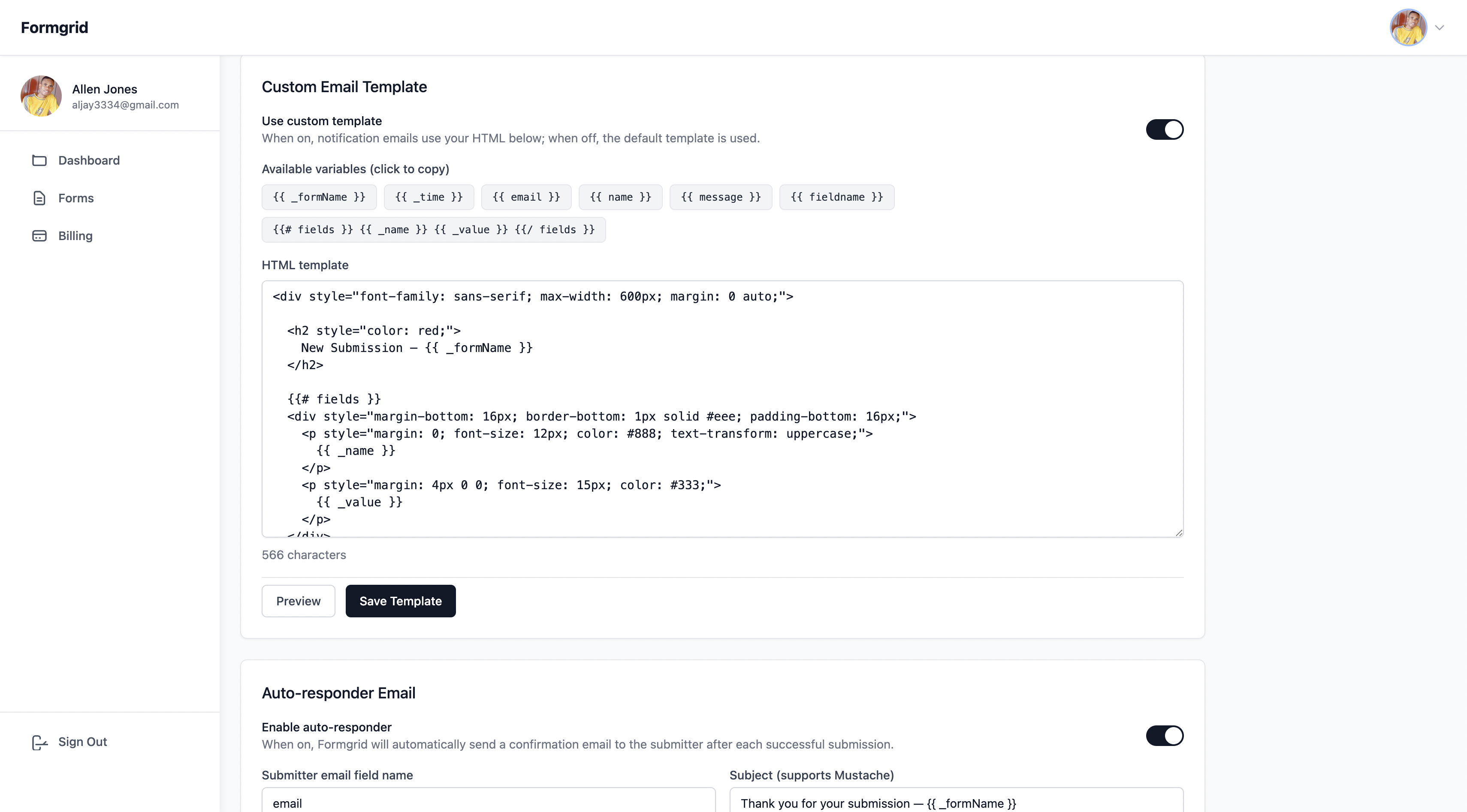
Step 3: Enable the custom template
Toggle the custom template on. The editor pre-populates with a starter template using the simple fields loop. A clean starting point that works for any form immediately.
Step 4: Customize your template
Edit the HTML to match your needs. Use the simple loop for basic forms or build a sectioned template for complex registration forms. The available variables panel shows every variable you can use.
Step 5: Preview and save
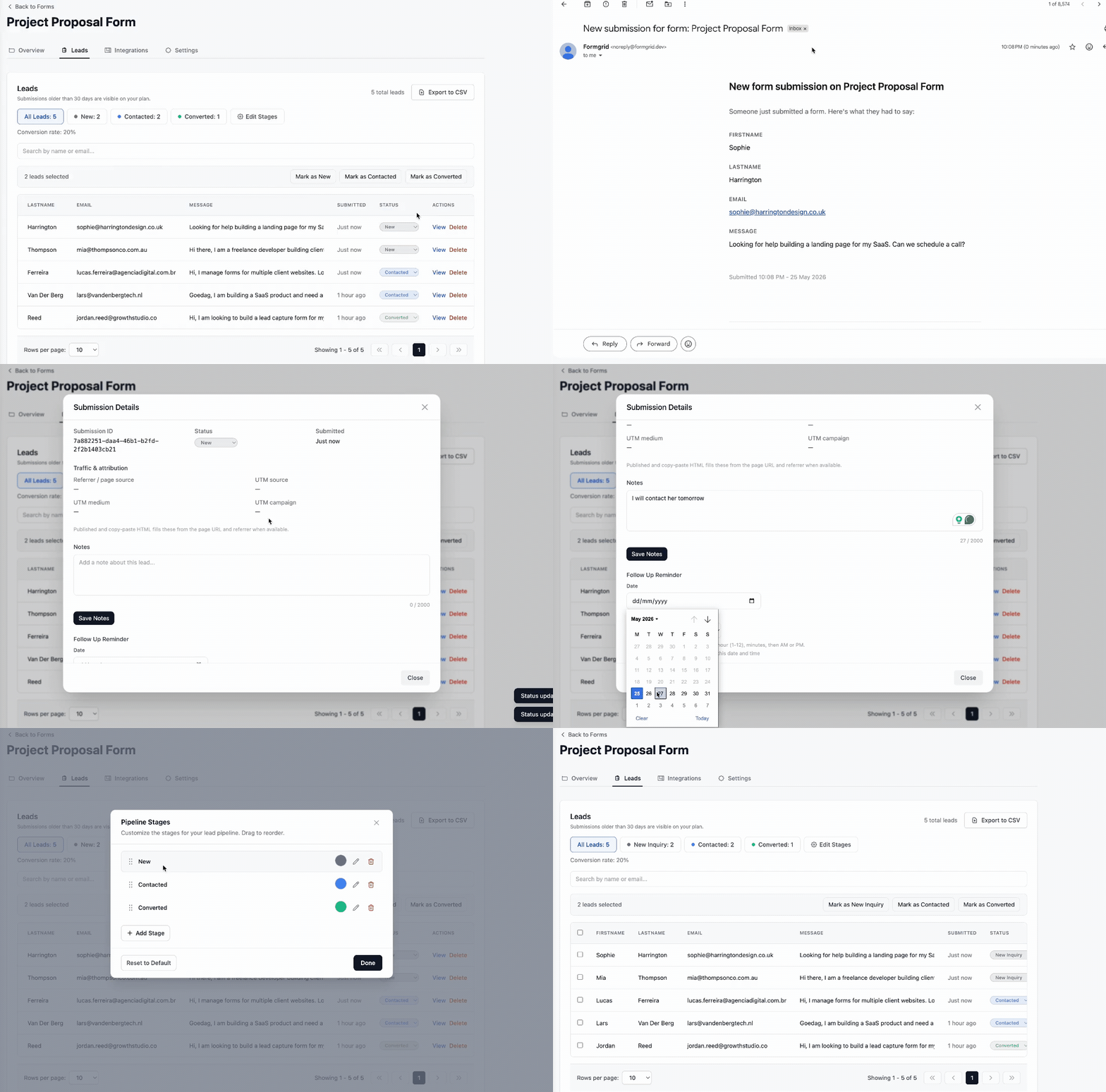
Click Preview to see exactly how your email will look with sample data substituted in. When you are happy, click Save Template.
From this point on, every submission to your form will use your custom template. Clean, organized, and formatted exactly the way you designed.
Step 6: Test it
Submit a test entry on your form and check your inbox. Your notification email should arrive formatted exactly as you designed.
How to Use Formgrid With WordPress
Formgrid is not a WordPress plugin. It works through a simple HTML form or iframe embed in your WordPress Custom HTML block.
Option A: Replace CF7 with an
HTML form
Step 1: Sign up free at formgrid.dev. No credit card required.
Step 2: Create a new form and copy your endpoint URL from the Overview tab:
https://formgrid.dev/api/f/your-form-id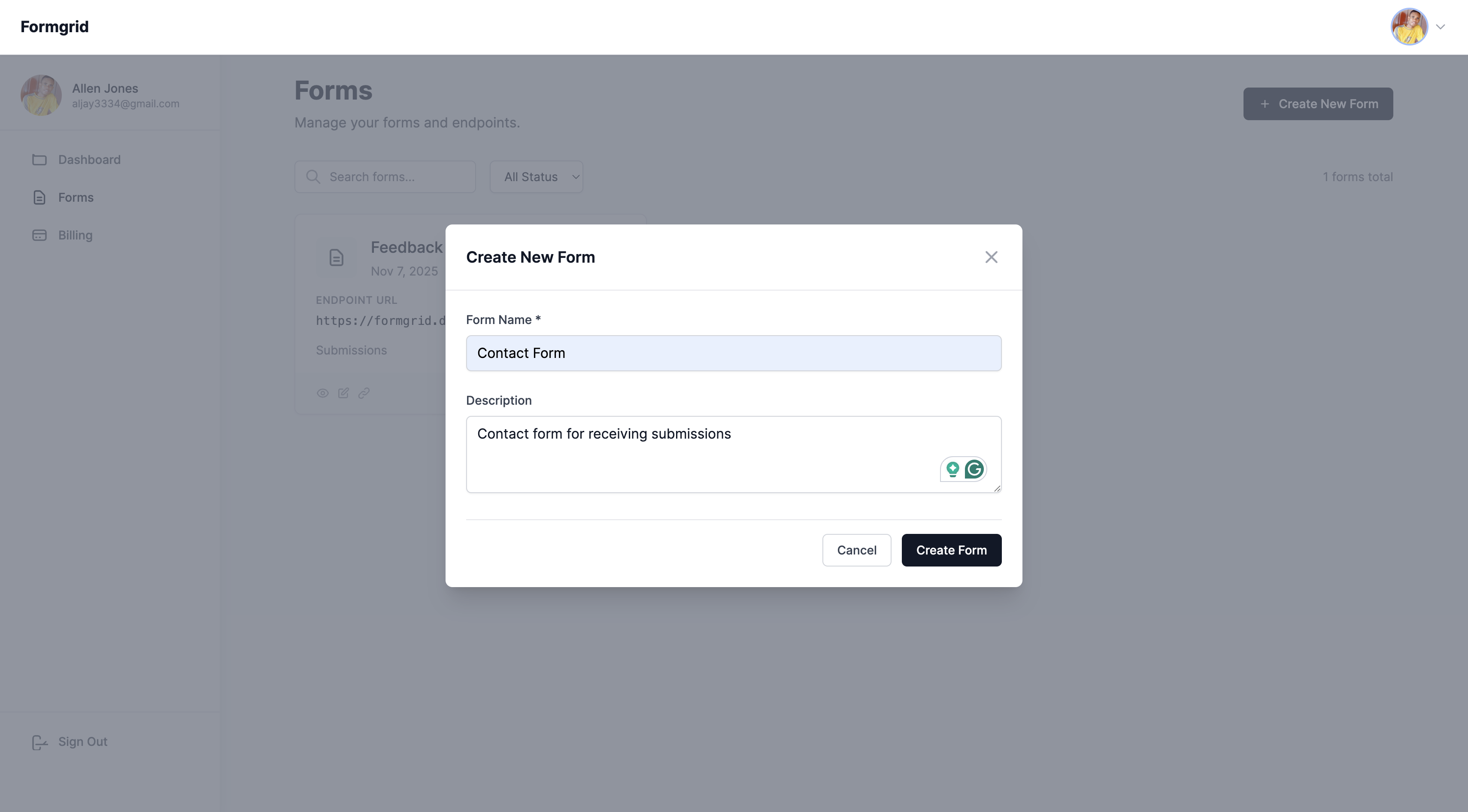
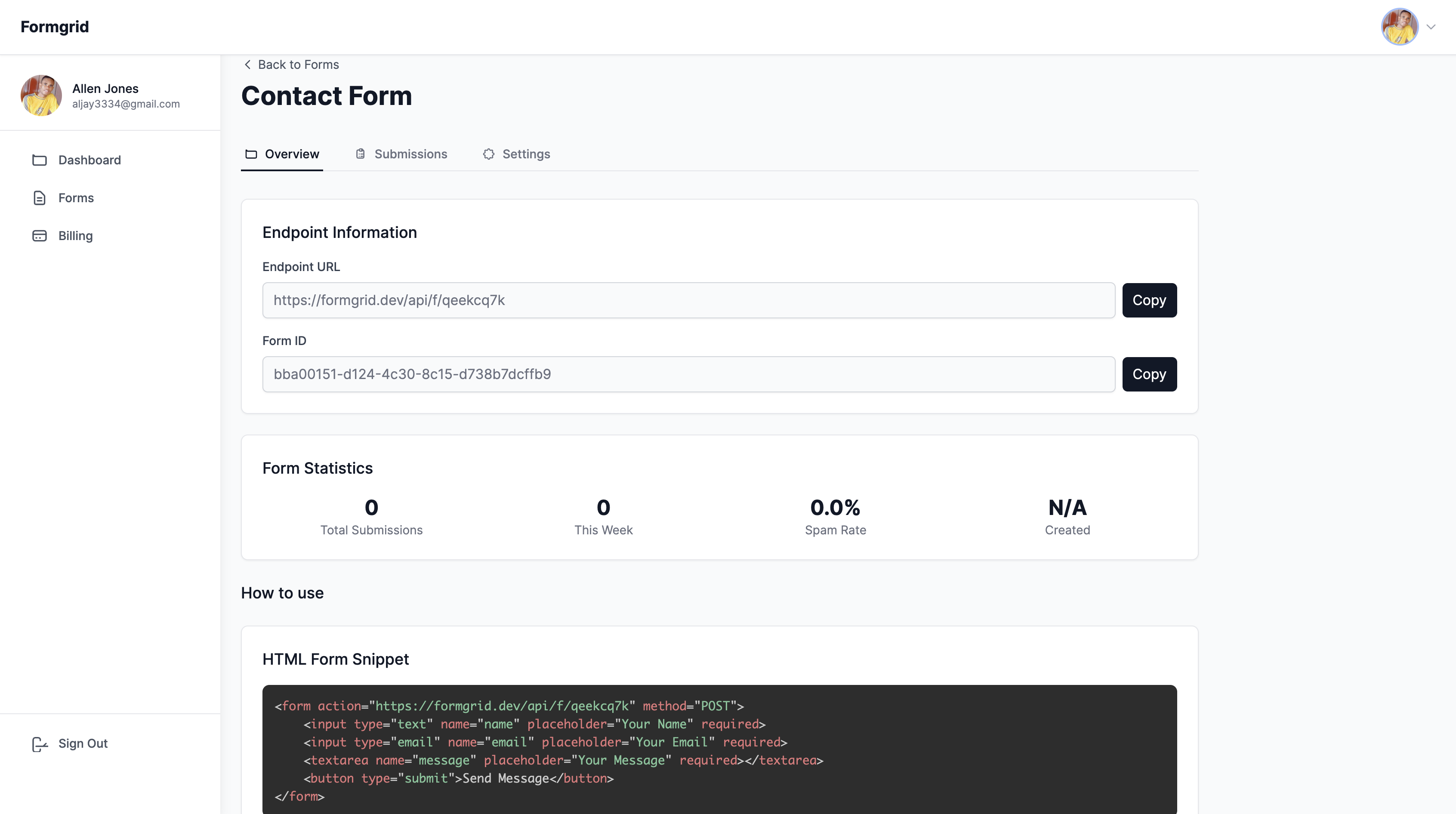
Step 3: In your WordPress page editor add a Custom HTML block and replace your CF7 shortcode with this:
<form
  action="https://formgrid.dev/api/f/your-form-id"
  method="POST">

  <div>
    <label for="name">Your Name</label>
    <input
      type="text"
      id="name"
      name="name"
      required />
  </div>

  <div>
    <label for="email">Email Address</label>
    <input
      type="email"
      id="email"
      name="email"
      required />
  </div>

  <div>
    <label for="message">Message</label>
    <textarea
      id="message"
      name="message"
      rows="5"
      required></textarea>
  </div>

  <input
    type="text"
    name="_honey"
    style="display:none" />

  <button type="submit">Send Message</button>

</form>
Step 4: Publish the page and submit a test entry.
Option B: Embed the Formgrid form builder
If you do not want to write any HTML, you can build your form using Formgrid's drag-and-drop form builder and embed it in WordPress using an iframe.
Step 1: Build your form in the Formgrid form builder. Drag and drop your fields, customize labels, and click Save.

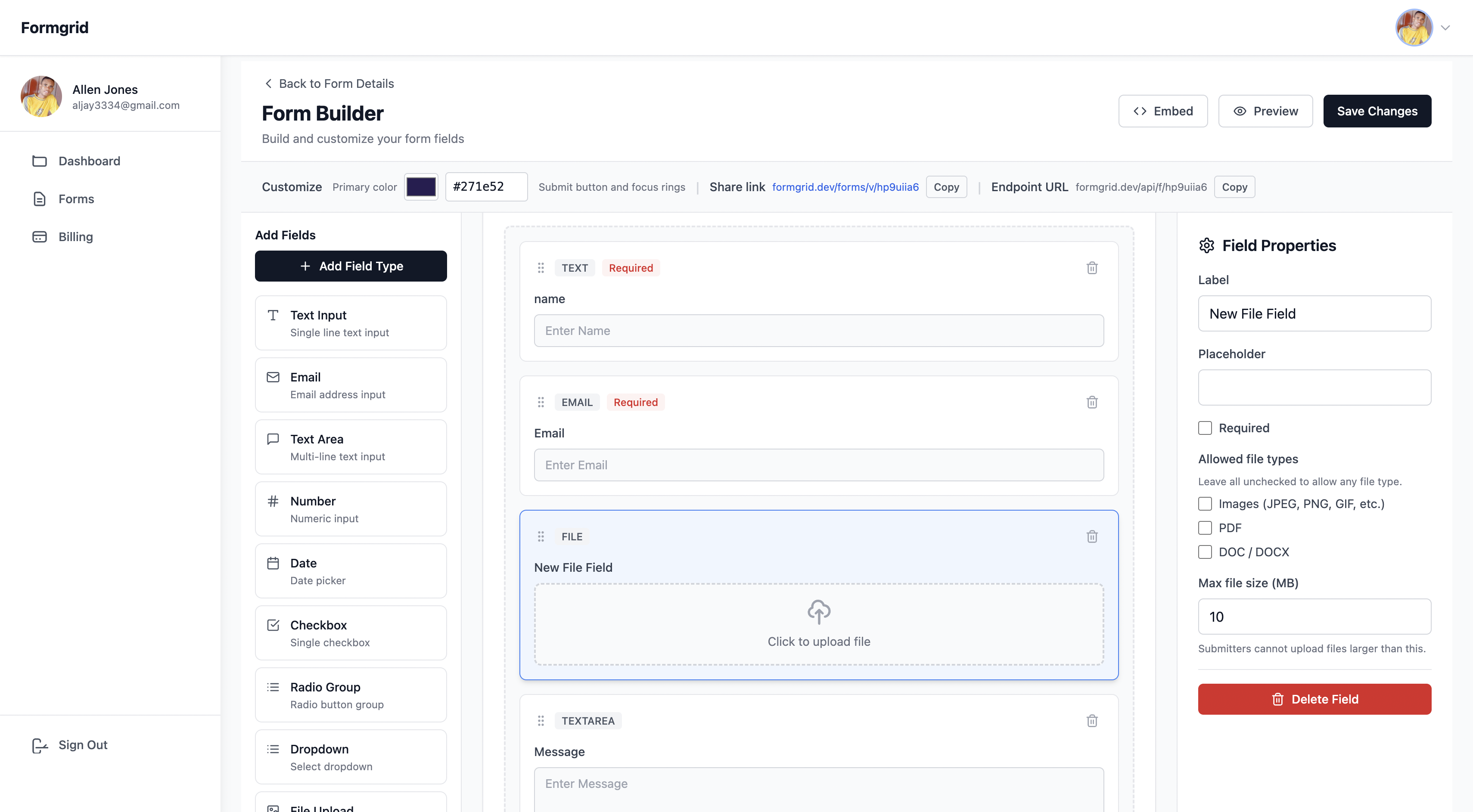
Step 2: Copy your shareable form link from the Overview tab.
Step 3: In your WordPress page editor, add a Custom HTML block and paste this embed code:
<iframe
  src="https://share.formgrid.dev/f/your-form-id"
  width="100%"
  height="600"
  frameborder="0"
  style="border: none;">
</iframe>
Your form is now embedded in your WordPress page, and all submissions go directly to Formgrid.
Formgrid Business Plan Includes
More Than Just Email Templates
Custom email templates are part of the Formgrid Business plan at $29/month which also includes:
15,000 submissions per month
Auto-responder emails Automatically send confirmation emails to your form submitters. Every person who registers gets an instant professional confirmation.
Multiple notification recipients Send submissions to your whole team simultaneously. Everyone who needs to see registrations gets them in their inbox.
Custom subject lines Every email has a meaningful subject line showing who submitted and what they selected.
Google Sheets sync Every submission appears automatically as a new row in your spreadsheet. No Zapier. No manual copying.
Webhooks Connect to Slack, Notion, and other tools when a submission arrives.
Priority support Direct access to the founder for any issues.
CF7 vs Formgrid: Which One
Should You Use
You have a simple 3-field contact
form and just need basic improvements:

Customize CF7 directly using field shortcodes.
Takes 10 minutes.
Free.


You have a complex registration form with multiple sections, and your team needs to read submissions quickly:

Switch to Formgrid. Full HTML email template control. Section
headers.
Branded colors. Clean, organized notifications.
Business plan at $29/month.


You are non-technical and do not want to touch any code:

Use Formgrid's form builder via iframe. Build your form with drag
and drop. Upgrade to Business for professional email templates.
The Real Cost of Unreadable
Form Emails
It is easy to think of messy form emails as just a minor annoyance. But the real cost is higher than it looks.
Every time you receive an unformatted registration email and have to hunt through raw field data to find the information you need, that is time wasted. For a small team processing 50 registrations per event, that waste adds up to hours.
Every time you forward an unformatted submission to a colleague, and they have to decode it, that is friction that slows your whole operation down.
And every time a submission arrives looking like spam and gets filtered by Gmail before it ever reaches you. That is a lead or registration you never knew you missed.
Clean, organized notification emails are not a luxury. They are the difference between a form that works or your business and a form that creates extra work every single day.
Frequently Asked Questions
Can I fix CF7 email formatting without switching tools?
Yes. Go to your CF7 form settings, click the Mail tab, and replace
[all_fields] with specific field shortcodes in the order you want
them.
This removes internal fields and gives you control over the field
order. It will not give you section headers or HTML styling, but it is a free improvement that takes 10 minutes.
Does Formgrid work with any WordPress theme?
Yes. Formgrid uses a standard HTML form or an iframe embed. Both work with any WordPress theme, including Astra, Divi, Elementor, GeneratePress, and Kadence.
What happens to my submissions if the email fails?
With CF7 and PHP mail, if the email fails, the submission is lost permanently. With Formgrid, every submission is saved to your dashboard regardless of email delivery. You can always log in and see every submission ever received.
Can I see a preview before my template goes live?
Yes. Formgrid's template editor includes a Preview button that shows you exactly how your email will look with sample data substituted in before you save and go live.
Do I need to know HTML to use custom email templates?
Basic HTML knowledge helps, but is not required. The template editor pre-populates with a clean starter template that works immediately. You can customize colors and layout by editing simple inline CSS values.
Formgrid Plans and Pricing
Free plan ($0/month): 25 submissions per month, email notifications, submission dashboard, and spam protection.
Premium plan ($12/month): 1,000 submissions per month, file uploads up to 1GB per file, CSV export, advanced spam protection, and remove Formgrid branding.
Business plan ($29/month): 15,000 submissions per month, everything in Premium, plus custom HTML email templates, auto-responder emails, Google Sheets sync, webhooks, and priority support.
Custom email templates require Business. Premium and free plans include reliable email notifications with Formgrid's default formatting.
No contracts. Cancel at any time.
Final Thoughts
Contact Form 7 email notifications look the way they do because CF7 was built as a simple form tool, not an email design tool. For basic contact forms, the default output is acceptable.
But the moment your form gets complex with multiple sections and many fields, and your recipients need to act quickly on what they receive, the default CF7 email becomes a real problem.
You have two options:
Customize CF7 directly using field shortcodes for a free improvement that takes 10 minutes.
Or switch to Formgrid for reliable delivery and a submission dashboard on the free or Premium plan ($12/month), or upgrade to Business ($29/month) for full HTML email template control, section headers, branded colors, and custom subject lines.
Either way, your notification emails will stop looking like spam and start looking like professional business email communications.
👉 Try Formgrid free at formgrid.dev
Full disclosure: I built Formgrid. Written as honestly as I could. Let me know in the comments if anything looks off.
Tags: #wordpress #webdev #tutorial #contactform #email
Comments
Leave a comment