
Build a working contact form for your client's website, receive enquiries by email, prevent spam, and manage submissions without deploying your own API.
You just finished building a website for a client.
The design looks good. The pages are responsive. Everything is ready to launch.
Then you remember the contact form.
The frontend is easy enough. A few inputs, a textarea, and a submit button. But what happens when someone clicks Send Message?
You need somewhere to receive the submission, store it, send an email notification, and protect the endpoint from spam.
You could build an Express API, configure a database, integrate an email service, and deploy another application.
But for a simple client website, that's a lot of infrastructure to maintain.
There's an easier approach.
In this tutorial, I'll show you how to connect an existing website form to Formgrid, a hosted form backend with a built-in lead management dashboard.
You'll keep your existing frontend and use Formgrid to handle submissions, notifications, and lead tracking.
We'll also cover how to organize forms for multiple client websites.
What We're Building
Imagine you're a freelance developer building a website for a local business.
The client needs a contact form where potential customers can submit their name, email address, and message.
Here's the workflow:
- A visitor fills out the contact form on the client's website.
- The form sends the submission to a Formgrid endpoint.
- Formgrid processes and stores the enquiry.
- The client receives an email notification.
- The enquiry appears in the Formgrid dashboard.
- You or the client can track its progress.
You don't need to deploy a separate backend to process these submissions.
And you don't need to replace the website's existing design.
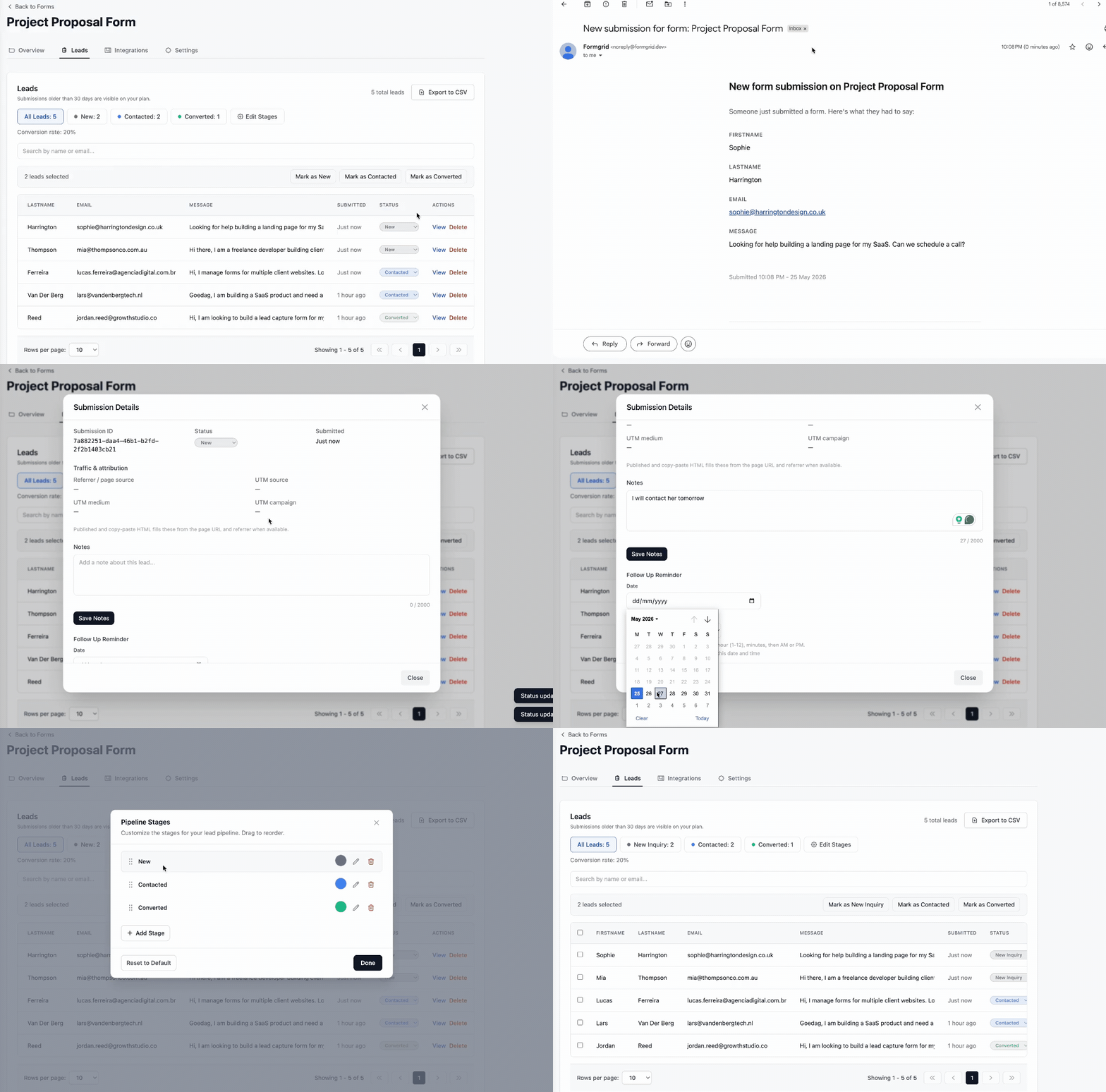
The client website sends submissions directly to Formgrid, which handles storage, spam checks, and configured notifications.
Step 1: Create a Formgrid Account
Start by creating a free account at formgrid.dev.
You can sign up with your email address or use Google.
If you sign up with email and password, you'll need to verify your email before logging in.
When your account is created, Formgrid automatically sets up a default project called My Project.
A project is a container for organizing your forms.
For example, if you're building a website for a local restaurant, you could use a project named Restaurant Website.
If you're only managing one client website, the default project is enough to get started.
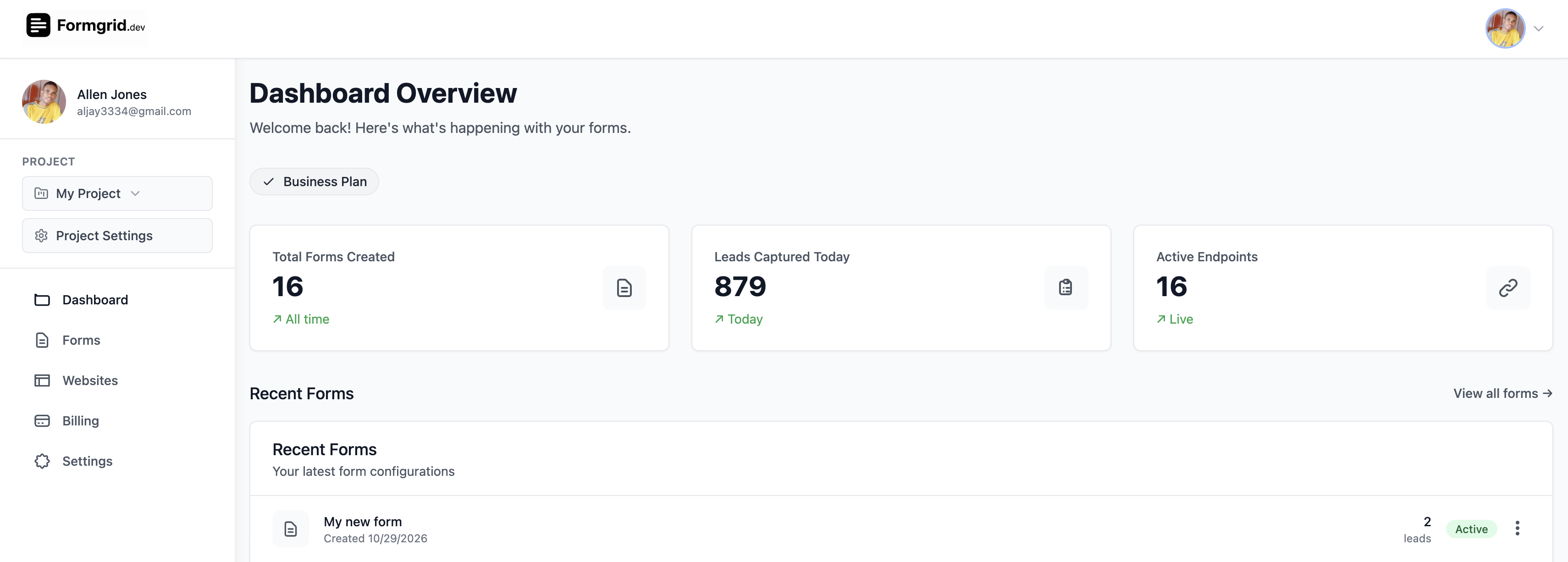
Formgrid creates a default project for your account. You can use it immediately or create a separate project for a client.
Should You Create a Separate Project for Each Client?
If you regularly build websites for clients, I recommend organizing their forms into separate projects.
For example:
- Client A: Restaurant Website
- Client B: Photography Portfolio
- Client C: Roofing Company
This keeps forms and submissions organized as your client list grows.
You don't need to do this for every small website, but it becomes useful when managing multiple projects.
Formgrid's Free plan supports one project, Premium supports up to ten, and Business supports unlimited projects.
The default project counts toward your project allowance.
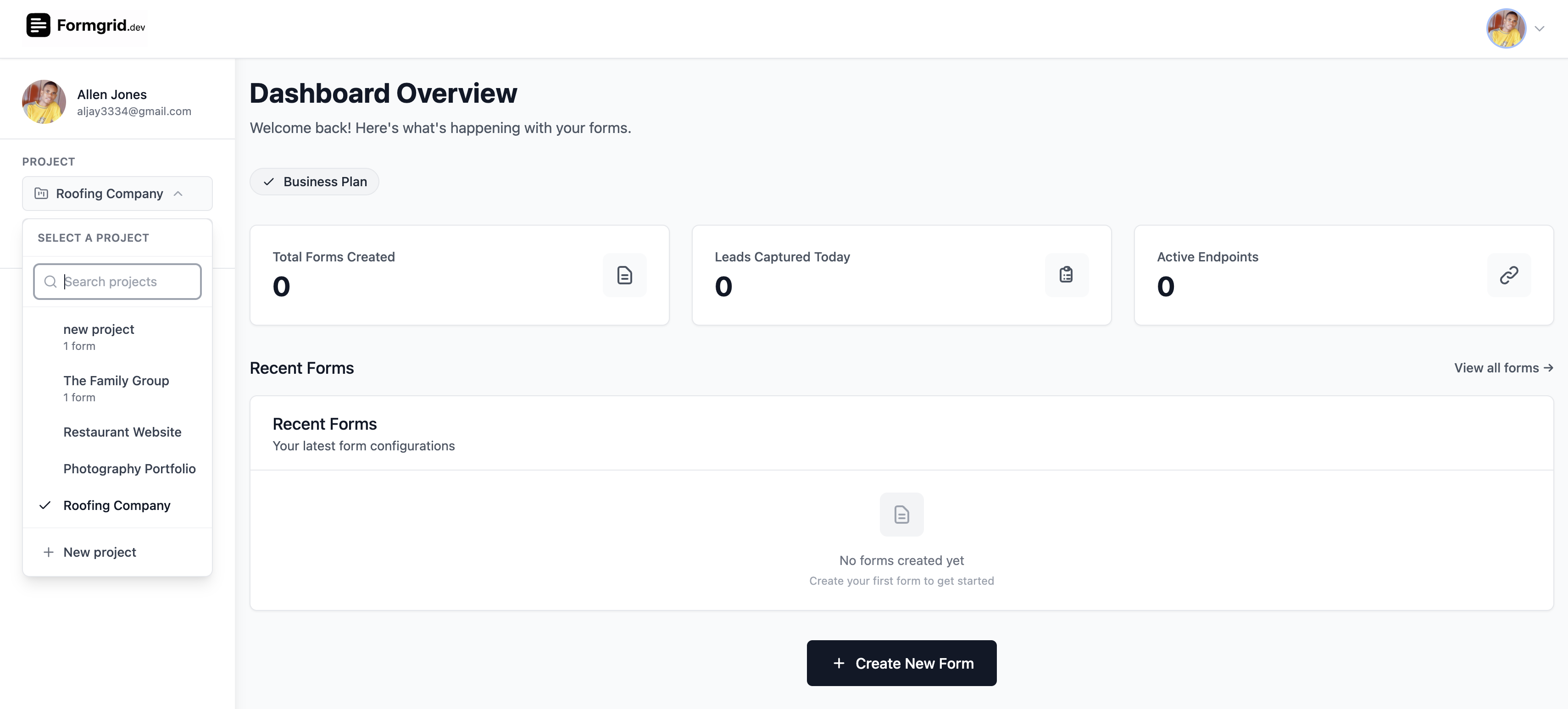
Organize forms by client so you don't have to manage every website's submissions in one project.
Step 2: Create a Contact Form
Once you're inside your project, open the Forms dashboard and click New Form.
Give the form a descriptive name.
For example:
Client Website Contact Form
You can also add a description to help identify its purpose.
Make sure the correct project is selected before creating the form.
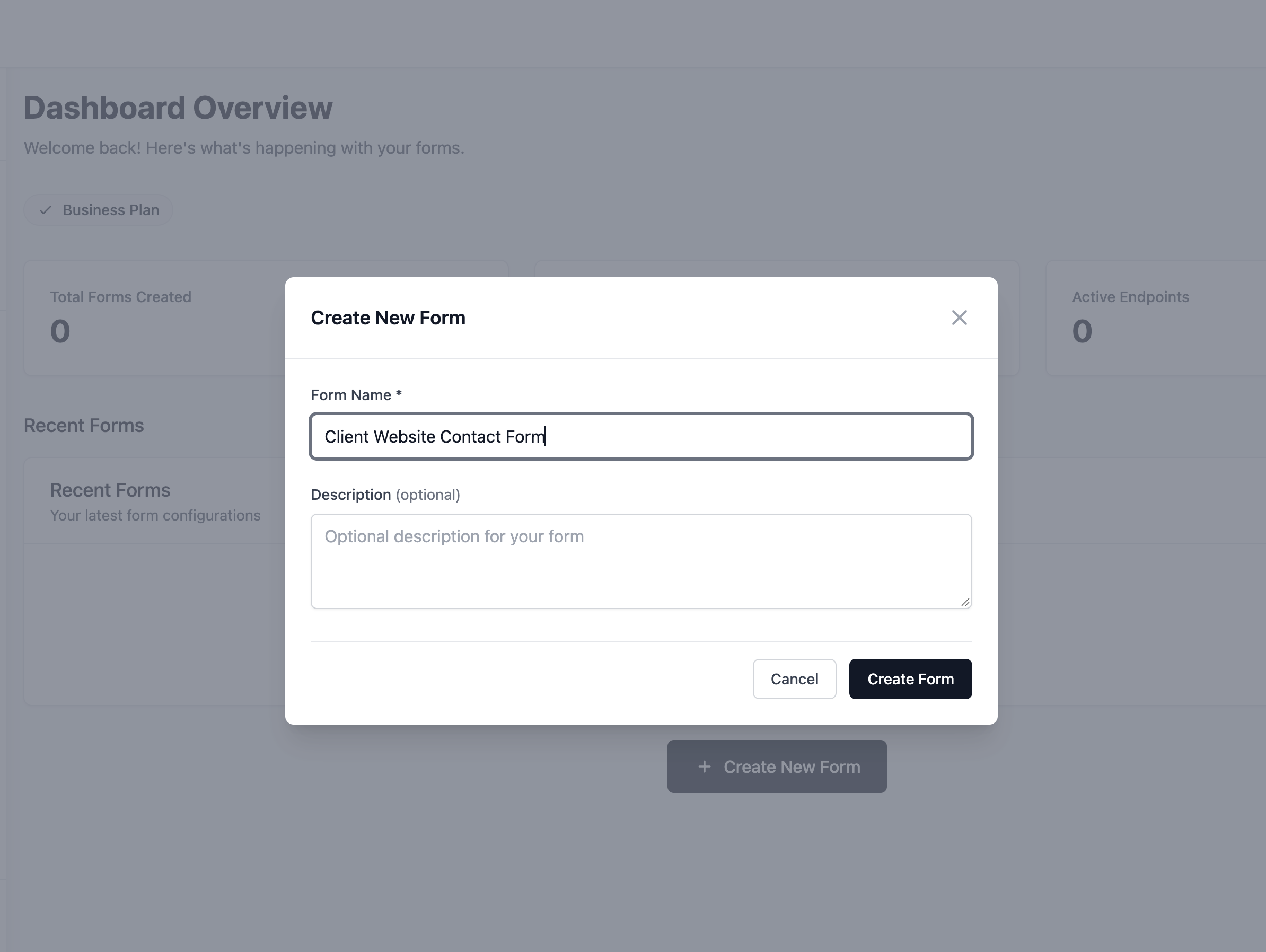
Create a form inside the project associated with your client's website.
After creating the form, Formgrid generates a unique submission endpoint.
It looks something like this:
https://formgrid.dev/api/f/your-endpoint-slugEvery form has its own endpoint.
You can find yours in the form's Overview section.
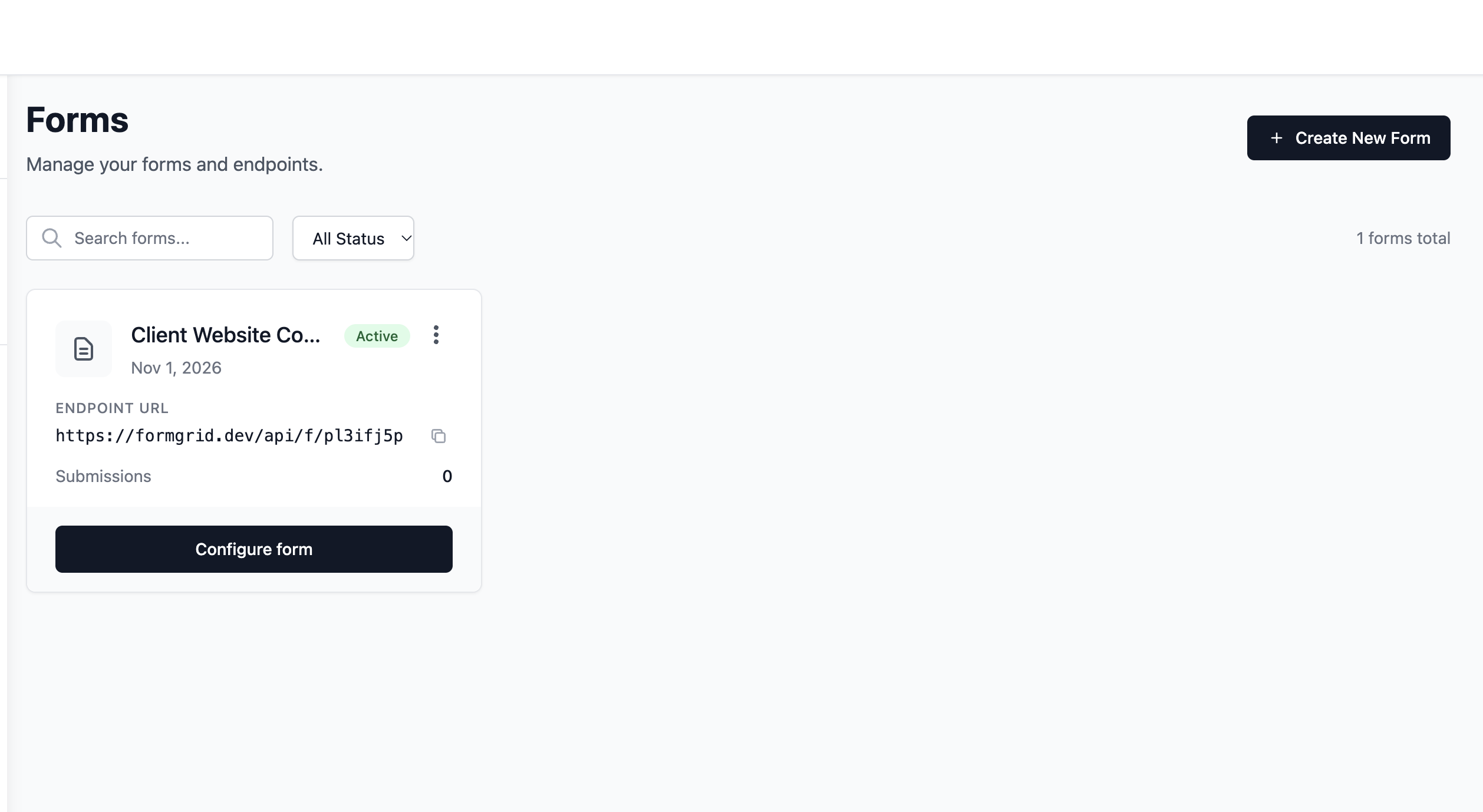
Copy the endpoint generated for your form. You'll use it in your client's website.
You don't need to generate an API key or configure a database connection to submit a public contact form.
The endpoint is designed to receive submissions from your website.
Step 3: Connect Your Existing HTML Form
Let's say your client's website already has this contact form:
<form>
  <label for="name">Name</label>
  <input
    type="text"
    id="name"
    name="name"
    required
  />

  <label for="email">Email</label>
  <input
    type="email"
    id="email"
    name="email"
    required
  />

  <label for="message">Message</label>
  <textarea
    id="message"
    name="message"
    required
  ></textarea>

  <button type="submit">Send Message</button>
</form>
The form looks fine, but it doesn't have anywhere to send its data.
To connect it to Formgrid, add two attributes to the opening <form> tag:
<form
  action="https://formgrid.dev/api/f/your-endpoint-slug"
  method="POST"
>
Replace your-endpoint-slug with the endpoint generated in your Formgrid dashboard.
That's the core integration.
Here's the complete form:
<form
  action="https://formgrid.dev/api/f/your-endpoint-slug"
  method="POST"
>
  <label for="name">Name</label>
  <input
    type="text"
    id="name"
    name="name"
    autocomplete="name"
    required
  />

  <label for="email">Email</label>
  <input
    type="email"
    id="email"
    name="email"
    autocomplete="email"
    required
  />

  <label for="message">Message</label>
  <textarea
    id="message"
    name="message"
    rows="5"
    required
  ></textarea>

  <button type="submit">Send Message</button>
</form>
When someone submits the form, their information is sent to Formgrid.
Formgrid processes the submission and stores accepted enquiries in your dashboard.
You can continue using your existing CSS, Tailwind classes, or component library.
This approach requires no frontend changes.
Why the name Attribute Matters
Notice that every input has a name attribute.
For example:
<input name="email" type="email" />The name attribute tells Formgrid which field is being submitted.
If an input doesn't have a name, its value won't be included in a normal HTML form submission.
You can add custom fields too:
<input name="company" type="text" />
<input name="phone" type="tel" />
<select name="service">
  <option value="website">Website Development</option>
  <option value="seo">SEO</option>
</select>
Formgrid accepts named form fields, so you're not limited to just name, email, and message.
Step 4: Send Notifications to Your Client
For many client websites, email notifications are essential.
Imagine building a website for a roofing company.
When a homeowner submits an enquiry, the business owner wants to know immediately.
You don't want every enquiry arriving in your own inbox and then having to forward it manually.
In Formgrid, open your form's Settings and find the email notification configuration.
Make sure notifications are enabled, then configure the recipient email address.
For example:
contact@clientwebsite.com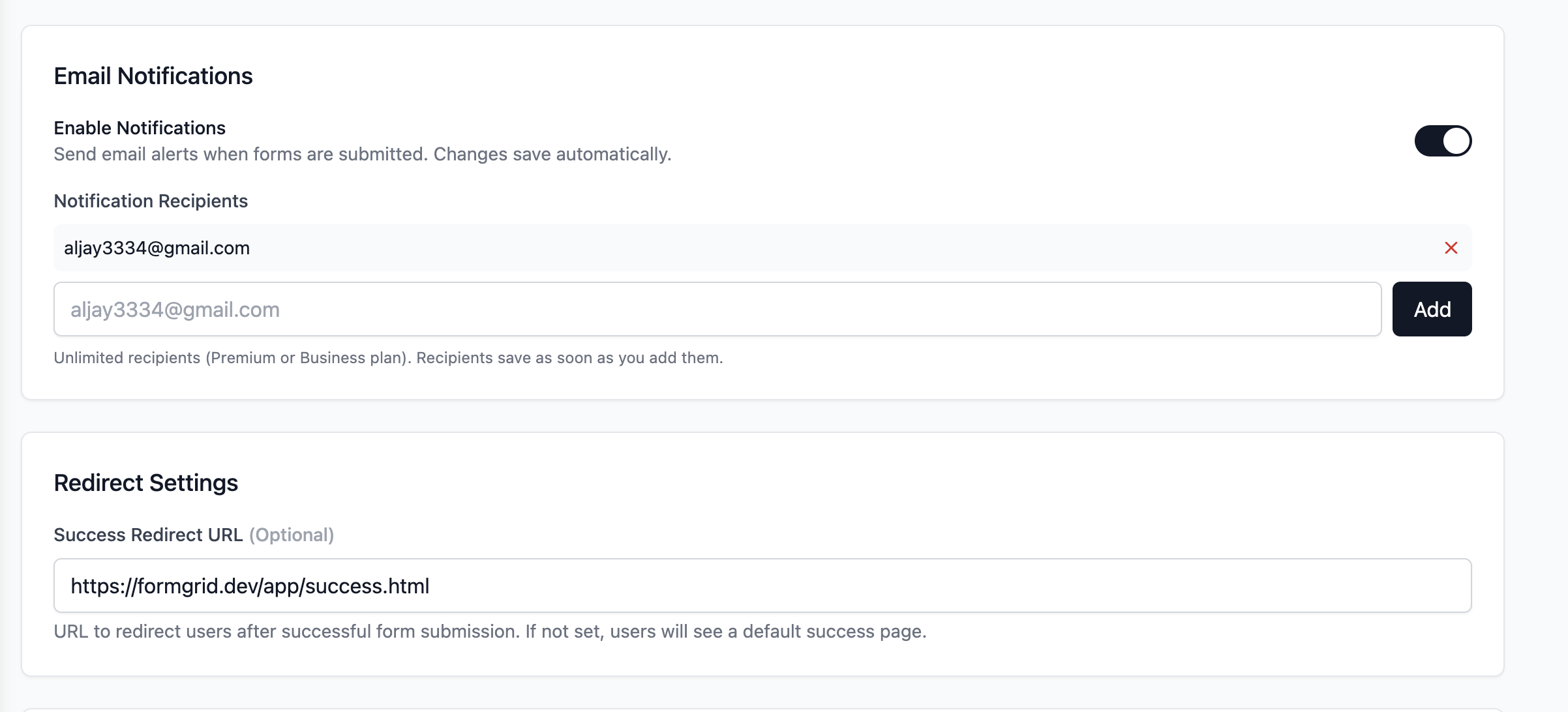
Configure the client's email address so they receive notifications when visitors submit the form.
On the Free plan, you can configure one notification recipient. Premium and Business support multiple configured recipients.
This means you can manage the technical setup while directing enquiries to the business owner.
The client doesn't need to be invited into your Formgrid project just to receive notification emails.
One important distinction: a stored submission and a delivered email are separate events. After setup, always test both the dashboard record and the client's inbox.
Step 5: Protect the Form From Spam
A public contact form can attract spam.
Bots may submit fake enquiries, promotional links, or repeated messages.
If you're building websites for paying clients, spam protection shouldn't be an afterthought.
Formgrid supports several protections, including honeypot fields, rate limiting, configurable CAPTCHA, and Allowed Domains.
Add a Honeypot Field
A honeypot is a field that normal visitors shouldn't fill out.
Some automated bots attempt to populate every input they find.
Formgrid recognizes the reserved field name honeypot.
Add this inside your form:
<div
  style="position:absolute;left:-10000px;width:1px;height:1px;overflow:hidden"
  aria-hidden="true"
>
  <label>
    Leave this field empty
    <input
      type="text"
      name="honeypot"
      tabindex="-1"
      autocomplete="off"
    />
  </label>
</div>
Legitimate visitors should leave it empty.
Formgrid can use it as one signal when identifying unwanted submissions.
Configure Allowed Domains
If your client's website is hosted at:
https://example-client.comYou can configure that domain in the form's Allowed Domains settings.
This helps restrict browser-origin submissions to approved websites.
However, Allowed Domains is not a substitute for authentication or complete bot protection. Public endpoints can still receive requests from non-browser clients.
Enable CAPTCHA When Needed
For forms experiencing persistent spam, Formgrid also supports configurable CAPTCHA protection.
If you enable mandatory CAPTCHA, make sure your website includes the corresponding CAPTCHA integration and submits the required token.
A plain HTML example without that integration may be rejected when mandatory CAPTCHA is enabled.
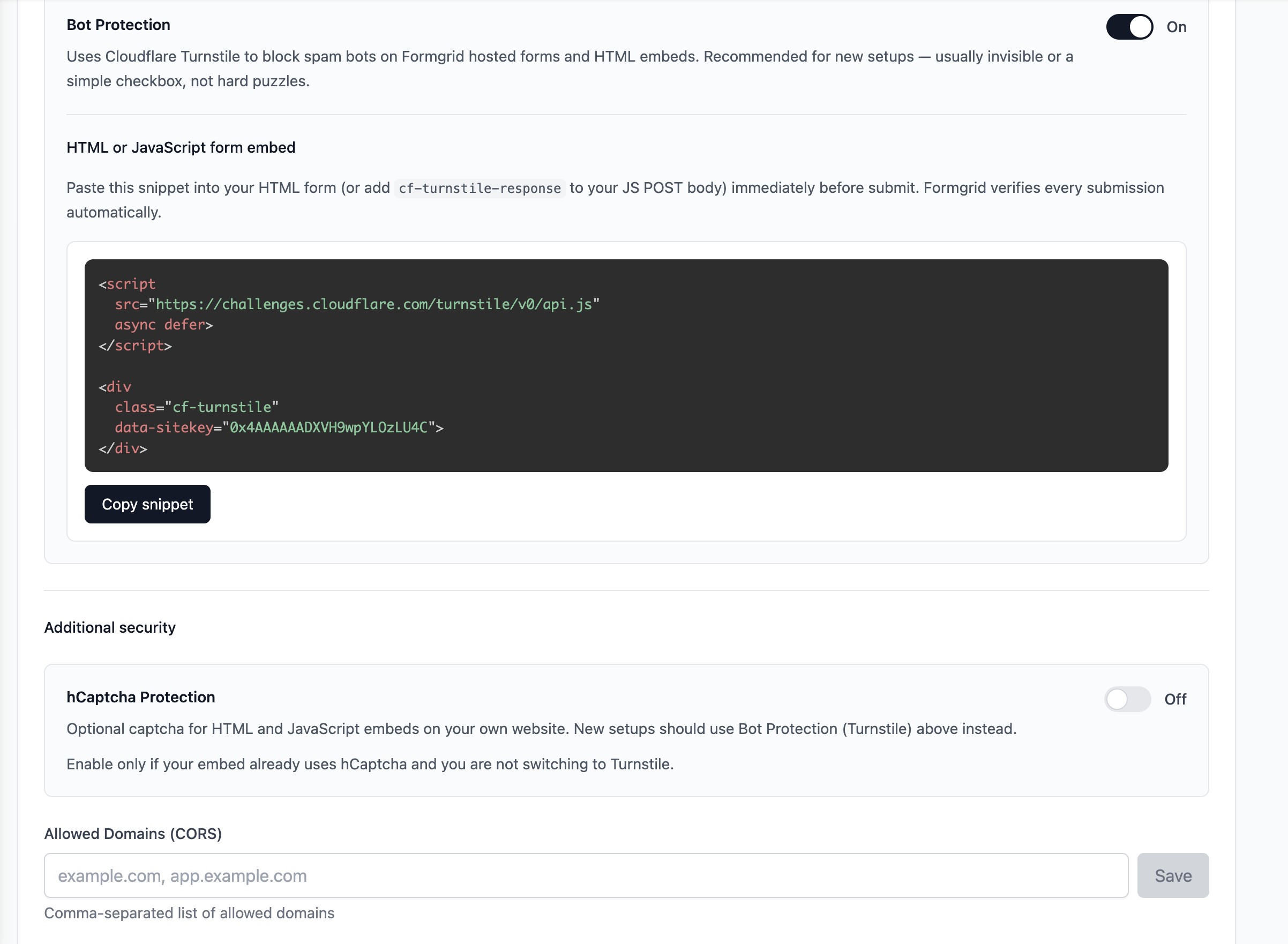
Review spam protection settings before launching a form on a client's website.
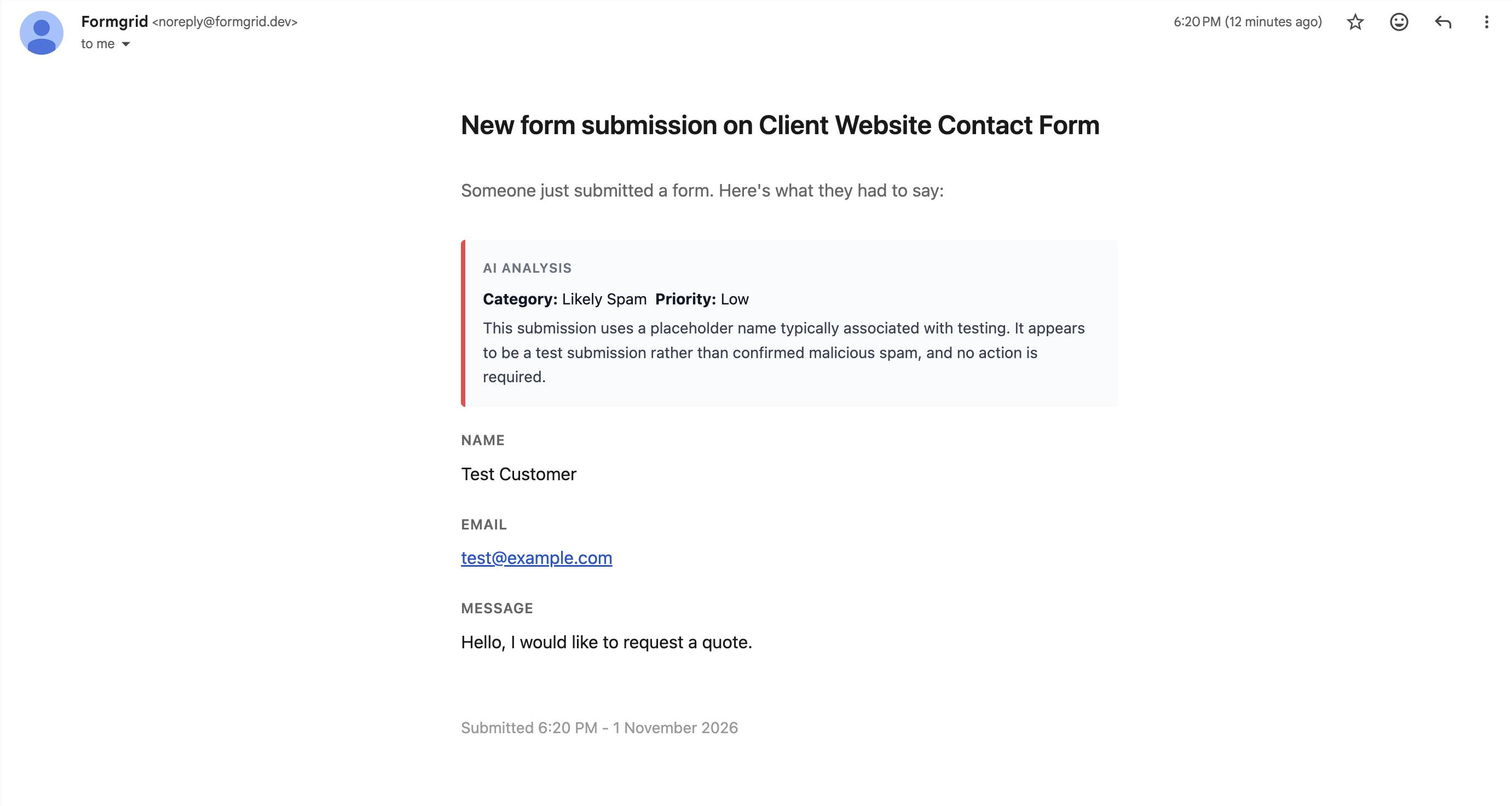
Step 6: Test the Contact Form
Before handing the website over to your client, test the complete submission flow.
Open the website and submit a realistic test enquiry.
For example:
Name: Test Customer
Email: test@example.com
Message: Hello, I would like to request a quote.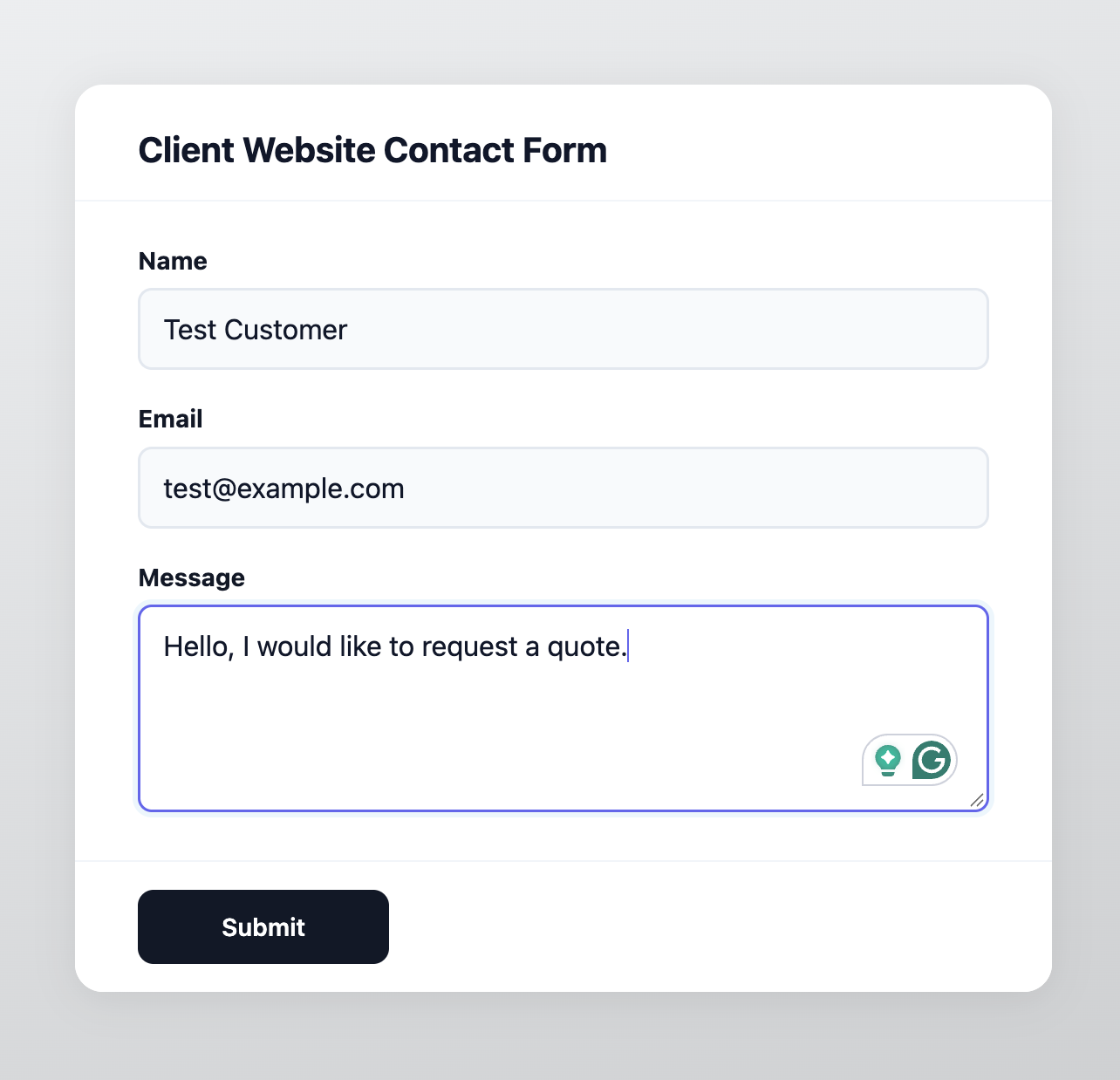
After submitting, check the following:
- The website shows the expected success or redirect behavior.
- The submission appears in the correct Formgrid form.
- The submitted fields contain the expected information.
- The client's configured email address receives the notification.
- The submission isn't incorrectly classified as spam.
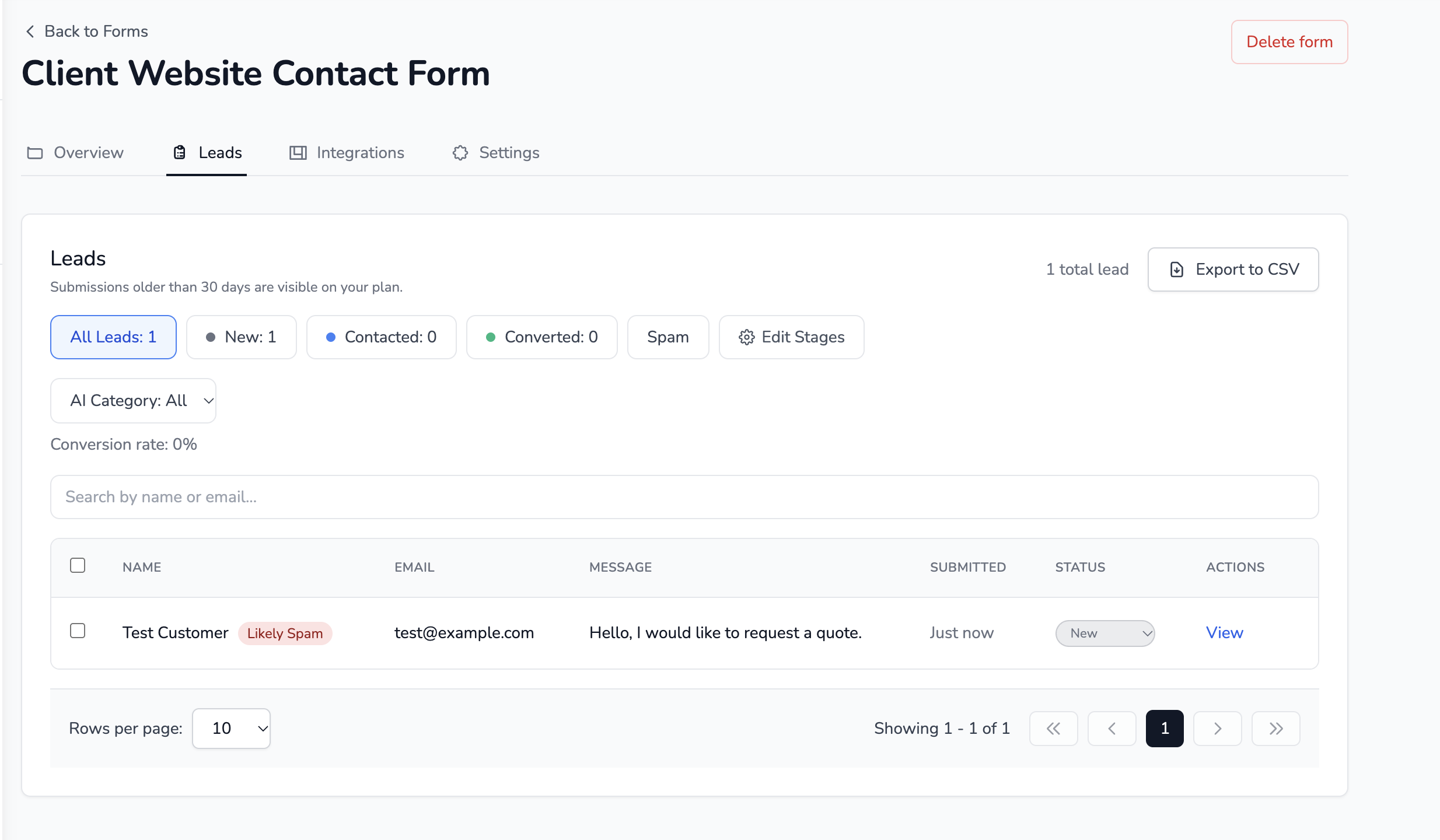
Confirm that the test enquiry appears in the correct form before launching the website.
Don't rely only on a success message in the browser.
Some spam protection checks intentionally return a generic success response without accepting the request as a normal lead.
Also, if your form is configured to restrict repeated submissions, sending several tests from the same IP address may trigger duplicate-submission protection.
Step 7: Submit the Form Without Reloading the Page
The native HTML approach works well, but you might want a smoother experience.
For example, after someone clicks Send Message, you may want to show:
Thanks! Your message has been received.
Without redirecting them away from the client's website.
You can do that with JavaScript and fetch.
First, give your form an ID and add a status element:
<form
  id="contact-form"
  action="https://formgrid.dev/api/f/your-endpoint-slug"
  method="POST"
>
  <!-- Your form fields -->

  <button type="submit">Send Message</button>

  <p
    id="contact-status"
    role="status"
    aria-live="polite"
  ></p>
</form>
Then add this script:
<script>
  const form = document.querySelector("#contact-form");
  const status = document.querySelector("#contact-status");
  const button = form.querySelector('button[type="submit"]');

  form.addEventListener("submit", async (event) => {
    event.preventDefault();

    if (!form.reportValidity()) return;

    button.disabled = true;
    status.textContent = "Sending...";

    try {
      const response = await fetch(form.action, {
        method: "POST",
        headers: {
          Accept: "application/json"
        },
        body: new FormData(form)
      });

      const result = await response.json();

      if (!response.ok || result.success !== true) {
        throw new Error(
          result.message || "Could not send your message."
        );
      }

      status.textContent = "Your message has been received.";
      form.reset();
    } catch (error) {
      status.textContent =
        error instanceof Error
          ? error.message
          : "Something went wrong. Please try again.";
    } finally {
      button.disabled = false;
    }
  });
</script>
This gives you a few improvements:
- The page doesn't need to reload.
- The submit button is disabled while the request is processing.
- Visitors receive feedback.
- You can style the success and error states to match the website.
The example assumes mandatory CAPTCHA isn't enabled.
Also, notice that we don't manually set the Content-Type header.
When sending FormData, the browser handles the multipart boundary automatically.
If you're using React or Next.js, you can apply the same approach inside your component's onSubmit handler.
You don't need a Next.js API route or server action simply to forward a contact form submission to Formgrid.
Step 8: Manage Enquiries After Submission
Receiving enquiries is only part of the process.
What happens after someone contacts the business?
Suppose a homeowner submits a quote request through your client's roofing website.
The business owner replies, schedules a visit, and eventually wins the job.
If the enquiry only exists in an email inbox, it can be difficult to track its progress.
Formgrid includes a lightweight lead management workflow.
Each accepted submission becomes a record in the dashboard.
The default stages are:
- New: A recently received enquiry.
- Contacted: Someone has followed up.
- Converted: The enquiry has become a customer or a completed outcome.
You can also add notes and set follow-up dates.
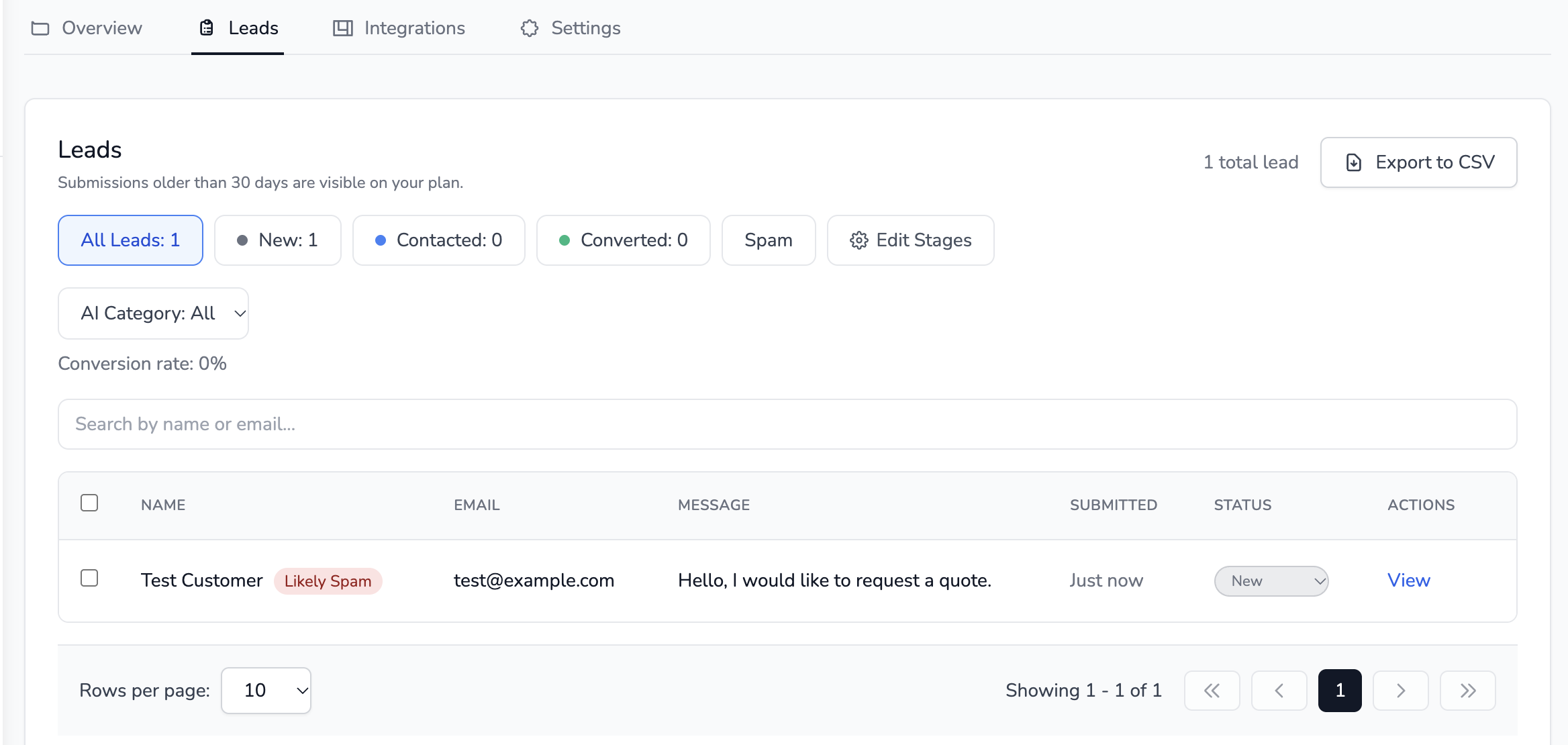
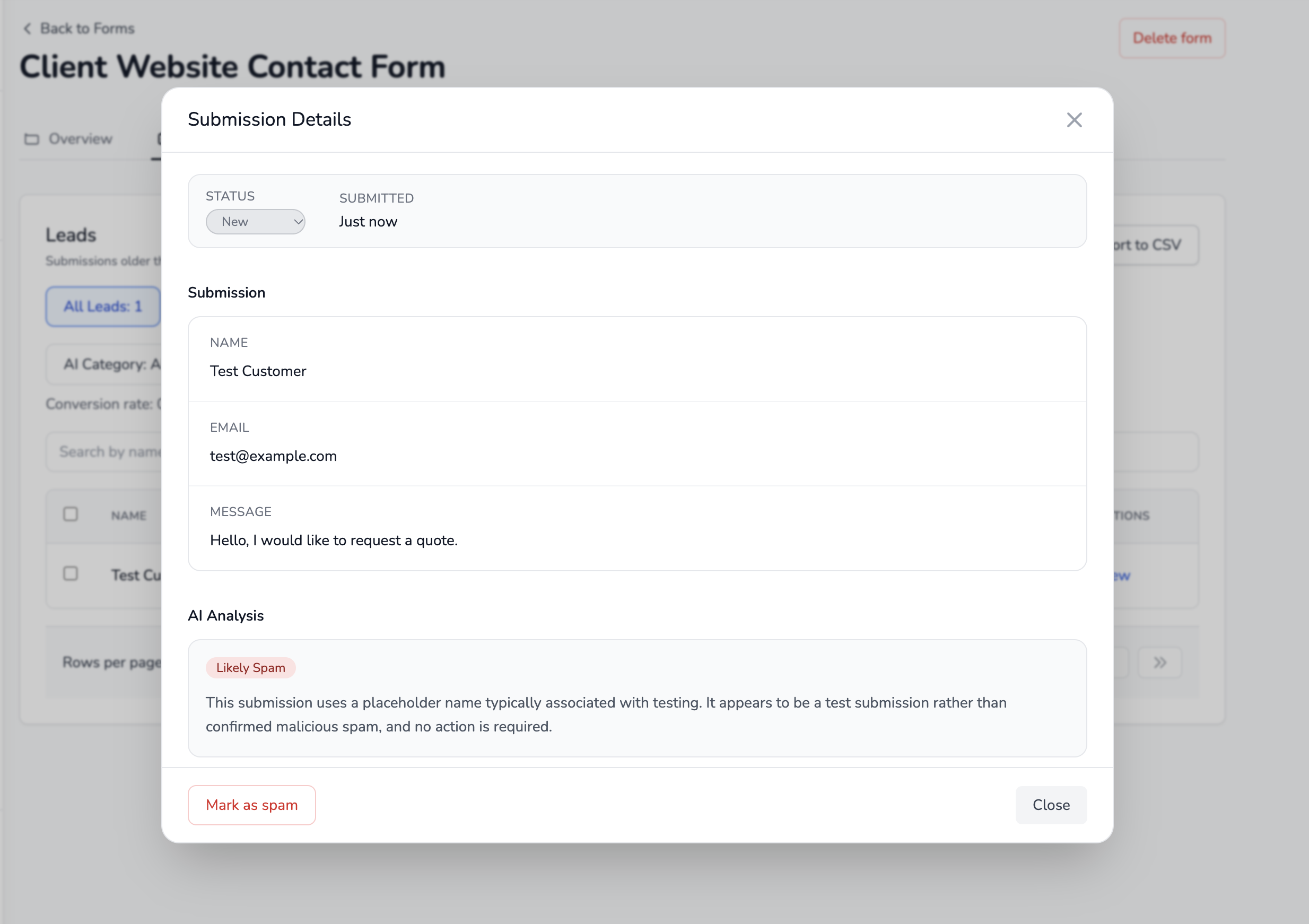
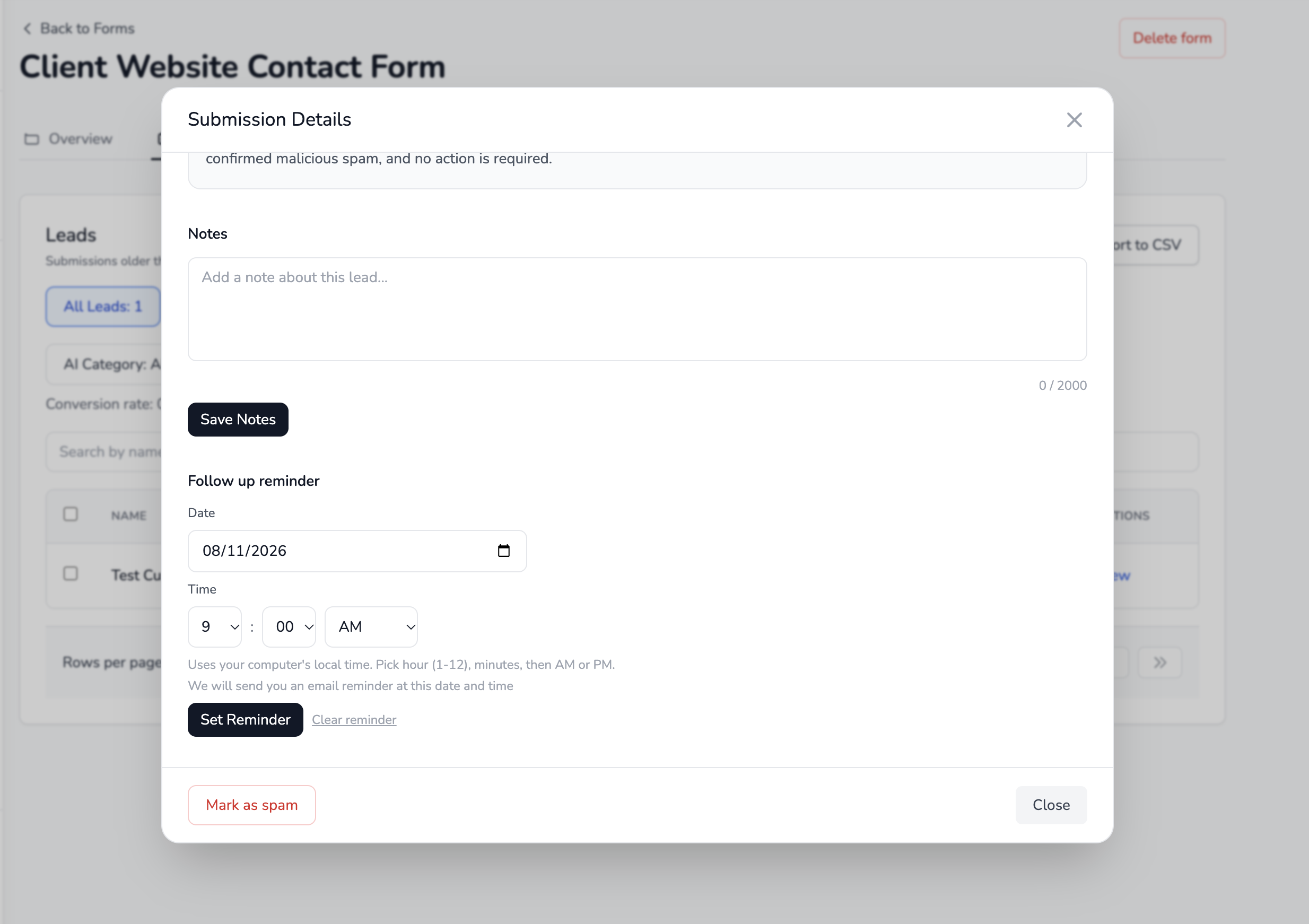
Manage enquiries after they arrive instead of relying entirely on email notifications.
For example, a business owner could open an enquiry and add a note:
Called the customer. Requested a site visit for Friday.
Then update its status to Contacted.
This is useful for clients who receive enquiries regularly and want to track what happens after someone submits a form.
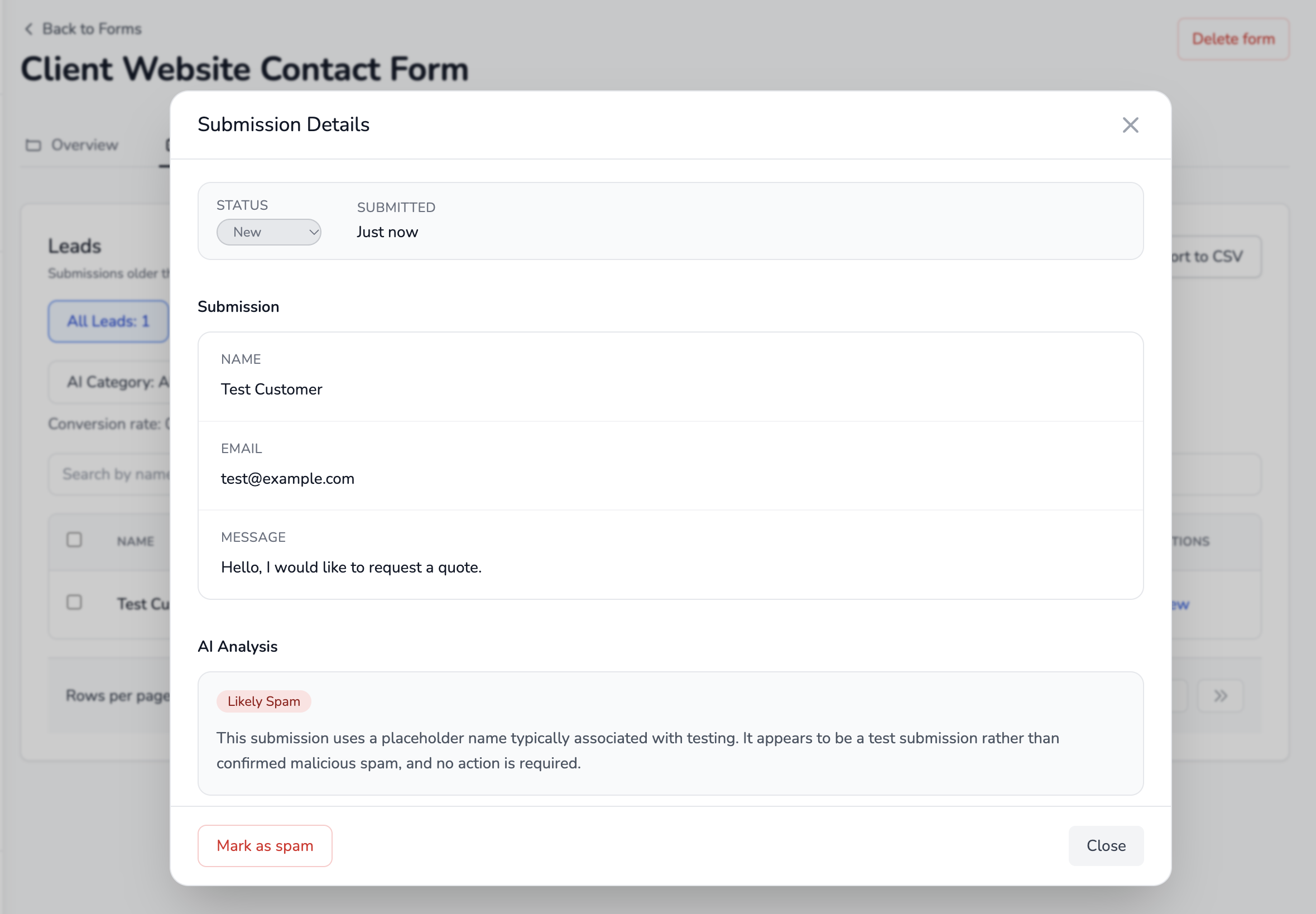
Keep the conversation history and next steps associated with the enquiry.
The client still receives an email notification when there is a submission.
Step 9: Manage Contact Forms for Multiple Client Websites
Here's where things become especially useful for freelancers and agencies.
Imagine you manage websites for five clients.
Each website needs its own contact form, notifications, and submission history.
You could create a separate form for each website and organize them by project.
For example:
| Project | Forms |
|---|---|
| Restaurant Website | Contact Form, Reservation Enquiry |
| Photography Website | Booking Enquiry, Contact Form |
| Roofing Company | Quote Request, Contact Form |
| Marketing Agency | Lead Enquiry |
| Local Gym | Membership Enquiry |
Each form gets its own submission endpoint.
You can reuse the same integration pattern across websites without writing a new submission-processing backend for every client.
The form markup and styling can remain different for each website.
Use separate projects to organize client websites and their forms.
Which Plan Do You Need?
For a single small client website, the Free plan may be enough.
Here are the relevant hosted plan limits identified in the Formgrid codebase:
| Feature | Free | Premium | Business |
|---|---|---|---|
| Projects | 1 | 10 | Unlimited |
| Forms | 3 | Unlimited | Unlimited |
| Submissions per usage period | 50 | 1,000 | 15,000 |
| Client project invitations | No | No | Yes |
| Email notification recipients | 1 | Multiple | Multiple |
| File uploads | No | Yes | Yes |
The plans are listed at $0, $12/month, and $29/month, respectively.
Submission allowances apply across forms owned by the same account, not separately to every project.
If you're managing multiple client websites but don't need to give clients dashboard access, Premium may be enough.
If you need to invite clients into individual projects, Business provides that collaboration workflow.
Invite Clients to Their Projects
On Business, a project owner can invite a client to a specific project.
For example, if you manage websites for Client A and Client B, you can invite Client A to the project associated with their website without adding them to Client B's project.
The invitation is sent to the client's email address.
Once they join, the project becomes available in their Formgrid account.
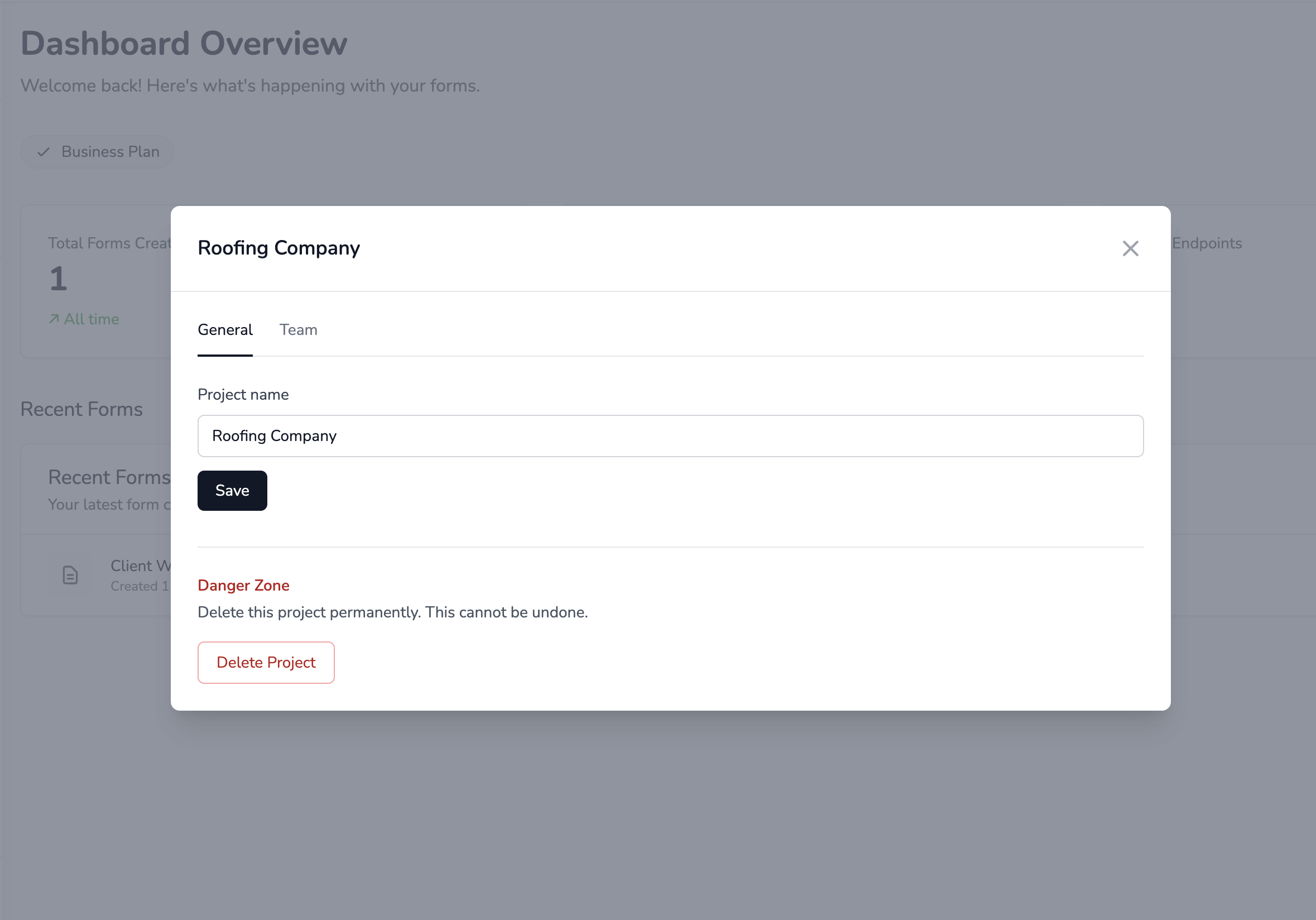
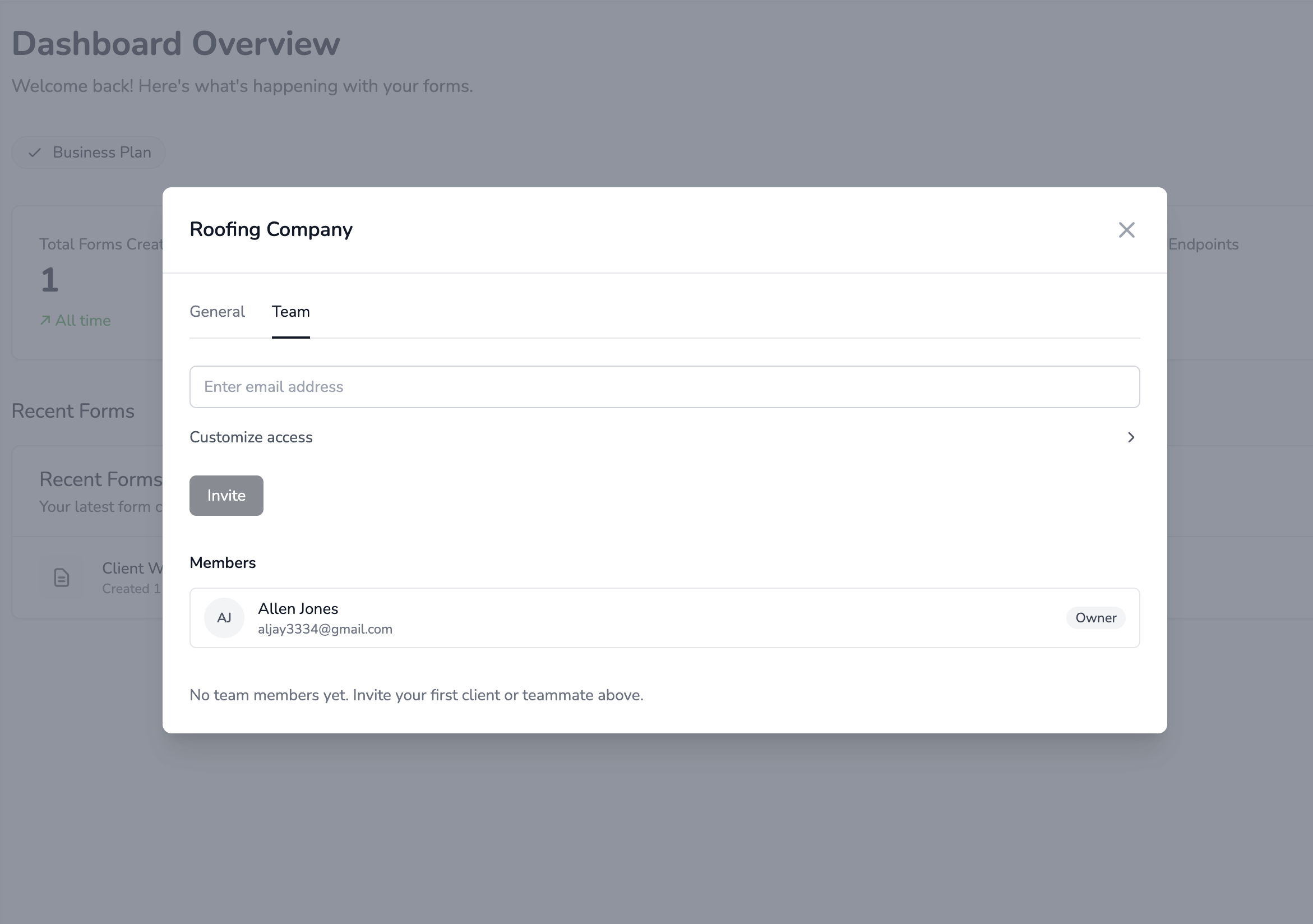
Business project owners can invite clients to individual projects.
Formgrid also exposes configurable member permission settings. However, fine-grained restrictions are not consistently enforced across all backend operations in the audited implementation, so don't treat an invited account as a guaranteed read-only login.
For now, use project invitations with collaborators you trust and review their access carefully.
Also note that project invitations are not the same as transferring ownership. If a client needs full independent ownership from the beginning, consider creating the forms under the client's own account.
Alternative: Use the Visual Form Builder
So far, we've assumed you already have an HTML contact form.
But what if you don't want to build the form yourself?
Formgrid also includes a drag-and-drop form builder.
You can create a form visually, configure its fields, publish it, and use a hosted link or embed it on a website. On the overview page, you can see a button that can lead you to open the visual builder.
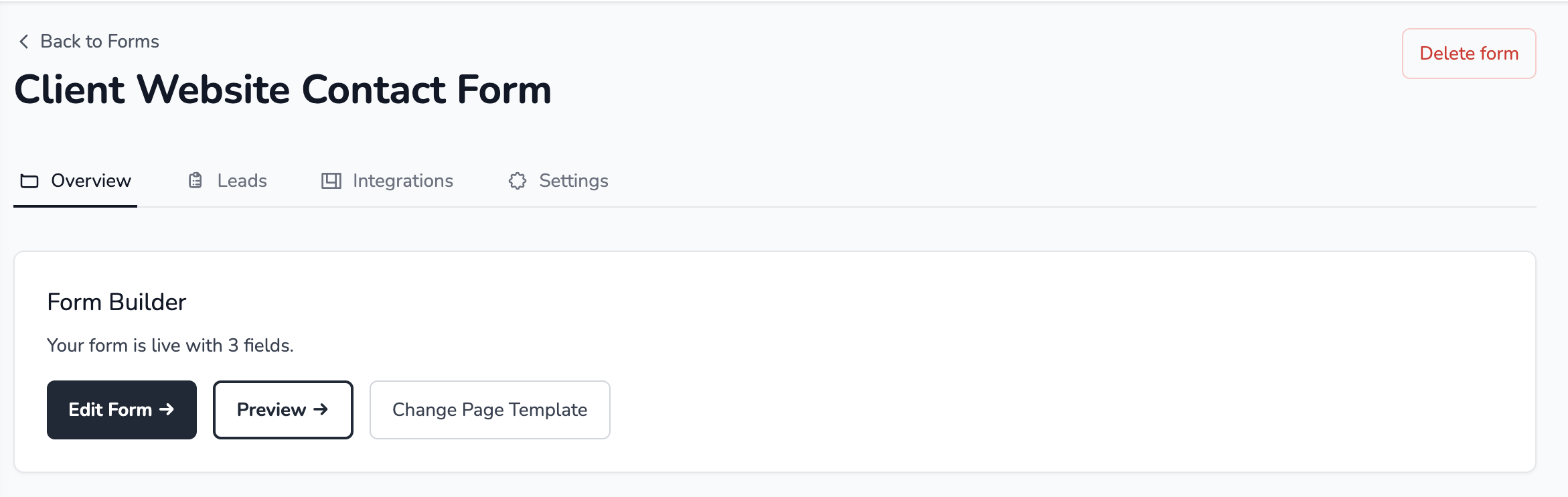

Create a form visually when you don't need to maintain custom form markup.
This can be useful when a client wants a registration form, enquiry form, or another form that doesn't need to be hand-coded.
For developers who want complete control over the website's design, the HTML endpoint approach remains a good fit.
Common Problems and How to Fix Them
The Form Returns a 404 Error
Check that you copied the correct endpoint from Formgrid.
Your URL should follow this structure:
https://formgrid.dev/api/f/your-endpoint-slugDon't confuse the endpoint slug with the form's internal database ID.
The Form Returns a 403 Error
Check whether the form is active and whether your client's website domain is permitted by the Allowed Domains configuration.
If CAPTCHA is mandatory, also verify that the required integration is present.
The Form Returns a 429 Error
You may have reached a submission allowance or rate limit.
Review your Formgrid usage and rate-limiting settings.
The Submission Doesn't Appear in the Dashboard
First, verify that you're looking at the correct project and form.
Then check the spam view and any enabled protection settings.
Don't assume a generic HTTP success response always means a normal lead was stored.
The Client Isn't Receiving Email Notifications
Check that notifications are enabled, and the recipient email address is correct.
Also check the recipient's spam folder.
If the submission appears in the Formgrid dashboard but no email arrives, the submission may have been stored successfully while notification delivery failed.
Do You Need a Separate Backend for Every Client Website?
Not necessarily.
For many contact forms, your main requirements are straightforward:
- Receive submitted fields.
- Store enquiries.
- Send notifications.
- Prevent spam.
- Let someone review and follow up.
You don't need to deploy and maintain a custom API for every website just to handle those tasks.
Using a hosted form backend lets you focus on the website itself while keeping the submission workflow separate.
And when you're managing several client websites, project-based organization helps keep things manageable.
Final Thoughts
Building a contact form is easy.
Maintaining the infrastructure behind it often takes more time than expected.
For freelance developers and agencies, that extra work adds up when every client website needs a working form.
With Formgrid, you can keep your existing HTML, React, or Next.js frontend, connect it to a hosted endpoint, configure notifications, and manage enquiries from a dashboard.
You can start with one website and reuse the same approach for future clients.
Create your first form with Formgrid
No credit card required.
Disclosure: I'm the developer behind Formgrid. I wrote this tutorial to demonstrate the workflow supported by the product. The technical steps are based on an inspection of Formgrid's implementation.

Comments
Leave a comment