
You have just built a beautiful website using Lovable.
The design looks great, the pages are responsive, and your contact form has all the fields you need.
But there is one problem.
Where does the information go when someone submits the contact form?
Having a contact form on your website does not automatically mean that it can receive enquiries or send email notifications.
You still need a way to process submissions, store them, and notify the appropriate person.
You could set up Supabase, create database tables, configure server-side functions, and integrate an email delivery service like Resend.
However, if you just need a working contact form for a business website, portfolio, or landing page, that may be more infrastructure than you need.
In this tutorial, I will show you how to connect your Lovable contact form to Formgrid.dev, receive email notifications, protect your form against spam, and manage customer enquiries without setting up Supabase or Resend.
You can keep your existing website design.
Why Your Lovable Contact Form May Not Be Working
AI website builders like Lovable make it easy to generate professional-looking websites from natural language prompts.
However, generating a contact form is different from implementing a working form submission system.
A functional contact form needs to handle several things:
- Collecting information from visitors.
- Sending the information to a backend.
- Validating incoming submissions.
- Storing submissions.
- Sending email notifications.
- Protecting the form against spam.
- Handling successful and failed submissions.
Depending on how your website was generated, your contact form might only display a success message without actually sending the information anywhere.
In other cases, Lovable may suggest connecting a backend service to handle form submissions.
If you only need to receive and manage website enquiries, there is a simpler approach.
Do You Need Supabase or Resend for a Lovable Contact Form?
No. You do not necessarily need either service to make your contact form work.
Supabase and Resend are useful tools, but they serve different purposes.
| Service | Primary purpose |
|---|---|
| Supabase | Database, authentication, storage, and backend infrastructure |
| Resend | Email delivery |
| Formgrid.dev | Form submission processing, email notifications, spam protection, and lead management |
Supabase is a good choice when you are building an application that requires a database, user authentication, or complex backend functionality.
Resend is useful when you need to send transactional emails from your application.
However, a standard business contact form does not necessarily require you to configure both services.
A dedicated form backend can handle the submission workflow for you.
How the Integration Works
Instead of creating your own backend, you connect your Lovable contact form to a unique Formgrid.dev endpoint.
The workflow looks like this:
Visitor fills out your Lovable contact form
                    |
                    v
Formgrid.dev submission endpoint
                    |
                    v
Submission processing and spam checks
                    |
                    v
Accepted submission
                    |
          +---------+---------+
          |                   |
          v                   v
Email notification       Lead dashboard
Your website continues to use the design generated by Lovable.
Formgrid.dev handles the form submission infrastructure.
You do not need to rebuild your website, create a database, or configure a separate email delivery service.
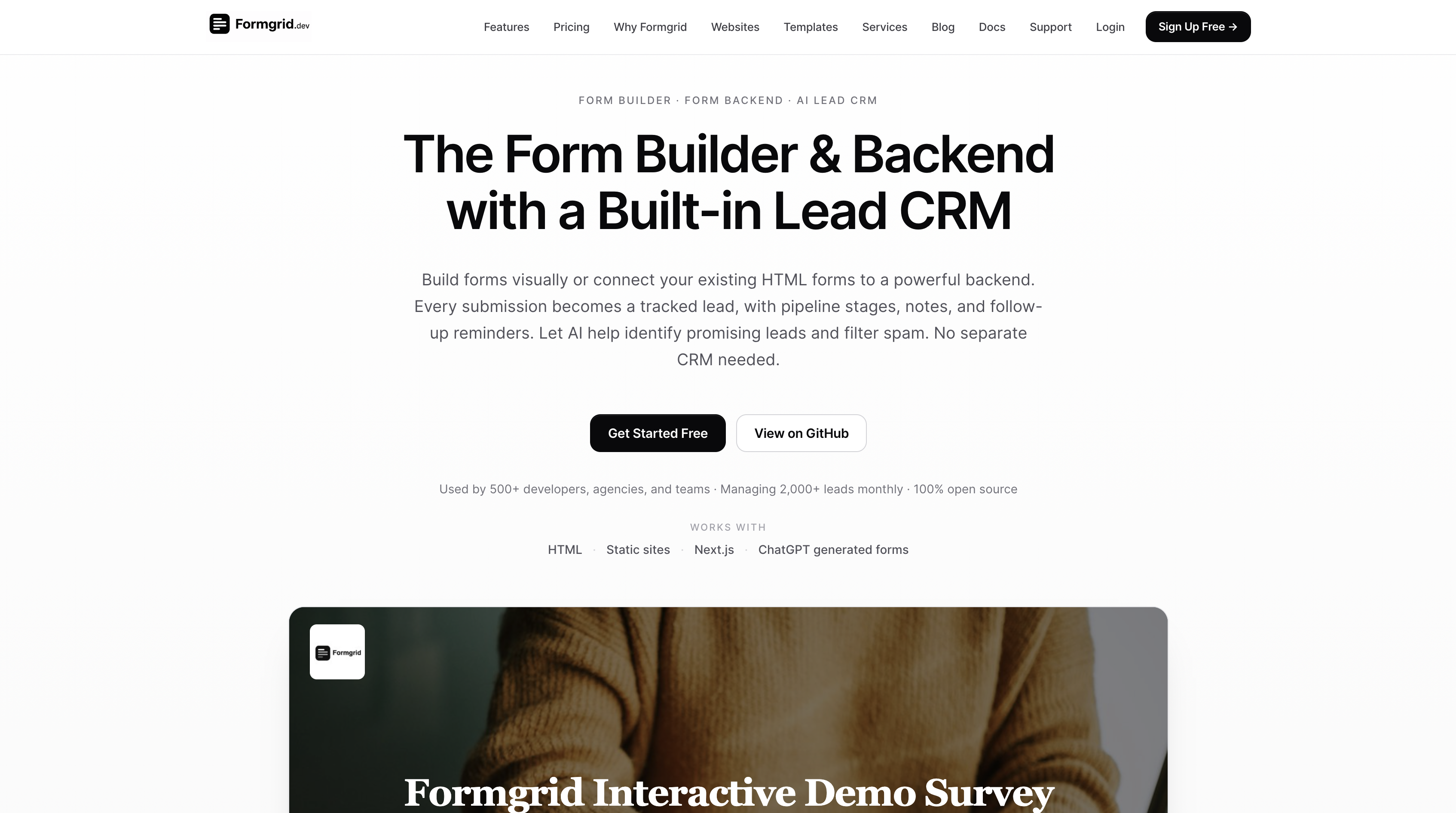
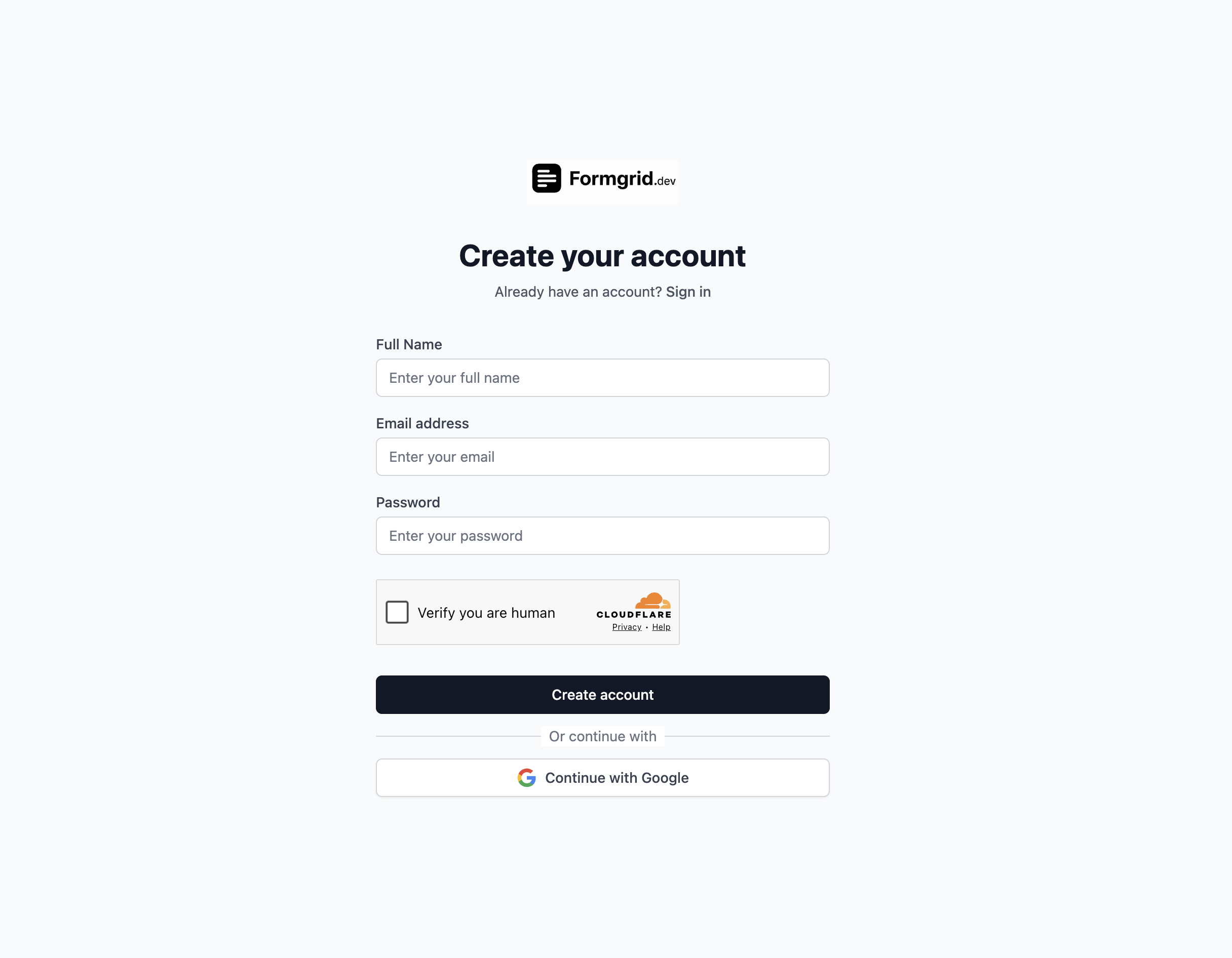
Step 1: Create a Free Formgrid.dev Account
Visit Formgrid.dev and create an account using your Google account or email address.
No credit card is required.
Once you have signed up and completed any required verification, you will be directed to your dashboard.
Formgrid.dev is an open-source form backend, visual form builder, and lead management platform designed to help developers and businesses collect and manage website enquiries.
Step 2: Create a New Form
From your dashboard, click New Form.
Give your form a name, such as:
Lovable Website Contact FormYou can also add a description, although this is optional.
Click Create Form.
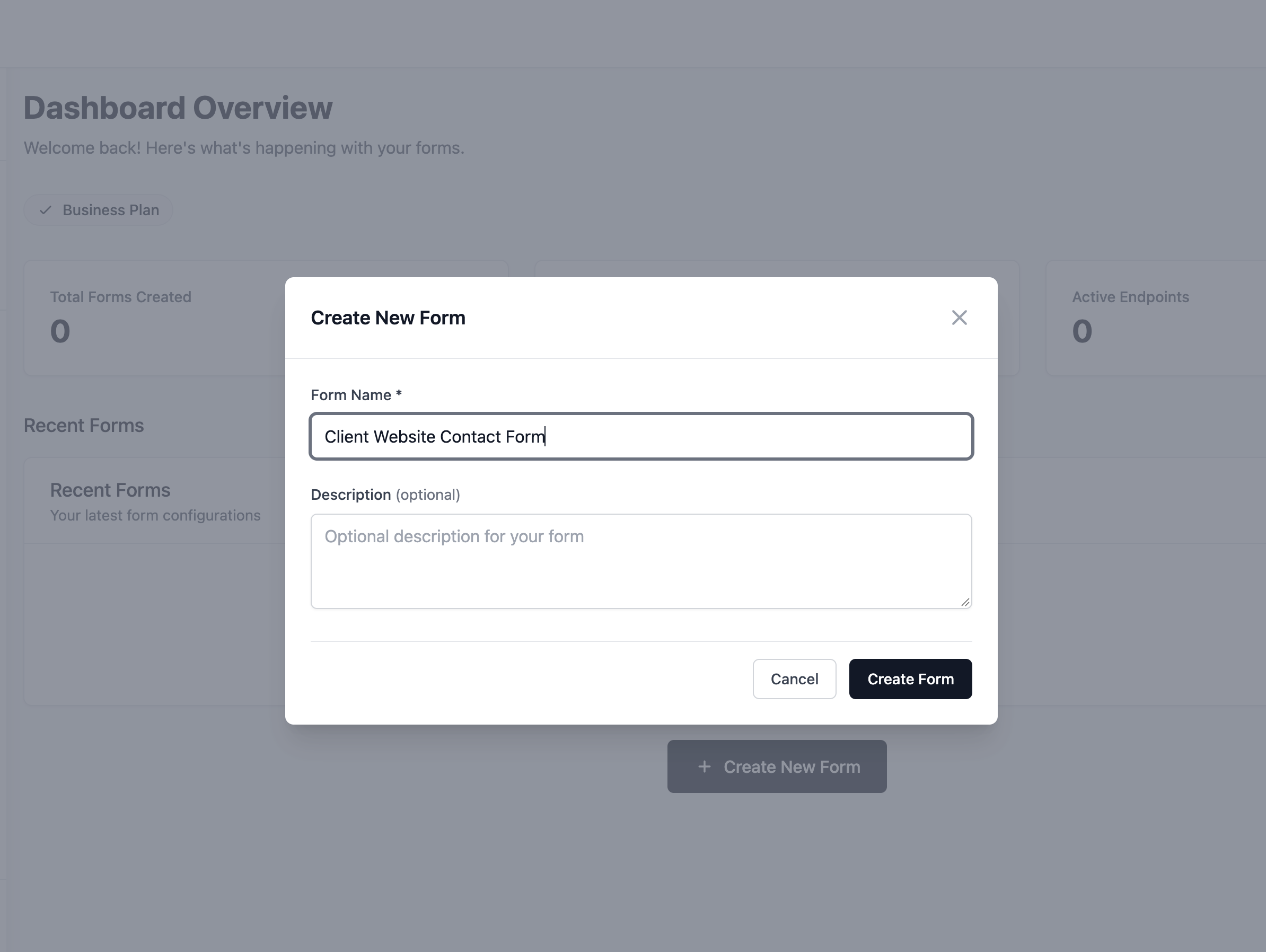
Create a form to receive submissions from your Lovable website.
Once the form has been created, you will be directed to its details page.
Step 3: Copy Your Form Backend Endpoint
From your form's Overview page, locate your unique form submission endpoint.
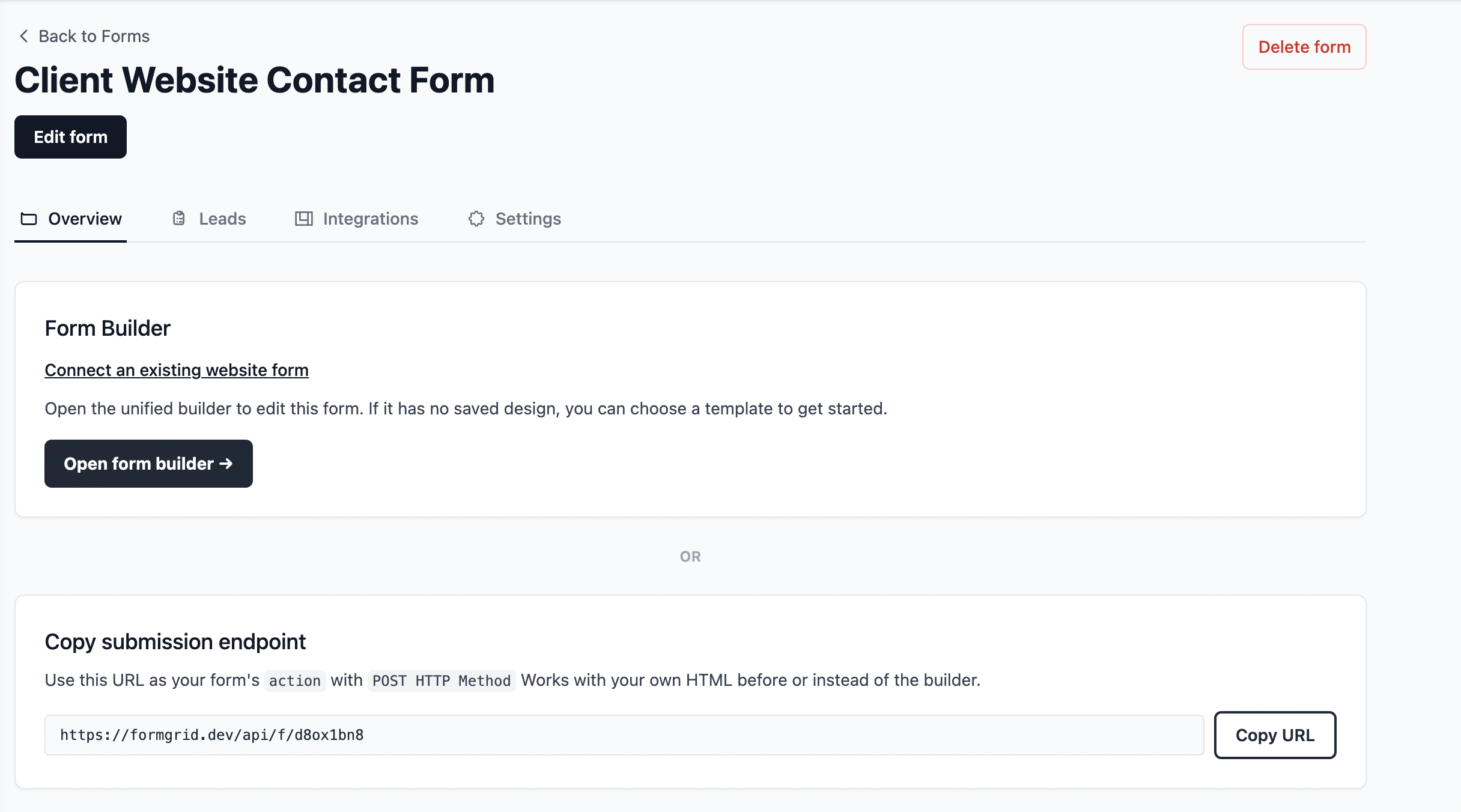
Copy the unique endpoint generated for your contact form.
Your endpoint will look something like this:
https://formgrid.dev/api/f/your-endpoint-slugEvery form has its own endpoint.
Copy the actual endpoint from your dashboard because you will need it in the next step.
Step 4: Connect Your Contact Form in Lovable
Open your existing website project in Lovable.
If your website already has a contact form, you do not need to create another one.
You can simply ask Lovable to update the existing form's submission logic while preserving its design.
Copy the following prompt into your Lovable chat.
Replace your-endpoint-slug with the actual endpoint you copied from Formgrid.dev.
Lovable Contact Form Integration Prompt
Connect my existing contact form to the following
Formgrid.dev submission endpoint:

https://formgrid.dev/api/f/your-endpoint-slug

Keep the existing contact form design, styling,
layout, and input fields.

Requirements:

1. Submit the form data to the endpoint using
   an HTTP POST request.

2. Use the existing form field names, including
   name, email, phone, and message where applicable.

3. Validate required fields before submission.

4. Show a loading state while the request is
   being processed.

5. Disable the submit button during submission
   to prevent duplicate requests.

6. Display a success message only when the
   endpoint confirms a successful submission.

7. Display a helpful error message if the
   submission fails.

8. Clear the form fields after a successful
   submission, but preserve them if it fails.

9. Do not introduce Supabase, Resend, a database,
   or additional backend services for this form.

10. Follow the request format and response-handling
    examples provided in the Formgrid.dev dashboard.

Preserve the existing responsive design.
Illustrative mockup showing how to instruct Lovable to connect an existing contact form to a Formgrid.dev endpoint. This is not an actual screenshot of a tested Lovable project.
Lovable should update your existing contact form to send submissions to the provided endpoint.
Review the generated changes and make sure it has not unnecessarily modified your website's design or other functionality.
The generated implementation should be tested before publishing.
What If You Don't Already Have a Contact Form?
If your Lovable website does not have a contact form yet, you can ask Lovable to create one and connect it to Formgrid.dev at the same time.
Use the following prompt:
Create a modern, responsive contact section
that matches my existing website design.

Include the following fields:

- Full name
- Email address
- Phone number (optional)
- Message

Connect the form to this endpoint using POST:

https://formgrid.dev/api/f/your-endpoint-slug

Use the request format supported by Formgrid.dev.

Add required field validation, a loading state,
duplicate submission prevention, success feedback,
and error handling.

Only display a success message after the endpoint
confirms that the submission was successful.

Do not use Supabase or Resend for this form.
This allows you to create a contact form and connect it to a form backend using a single prompt.
Step 5: Configure Email Notifications
Receiving form submissions is useful, but most businesses also want to receive an email whenever someone contacts them.
By default, the email address associated with your Formgrid.dev account is used as your notification recipient.
You can also configure a different recipient from your form's settings.
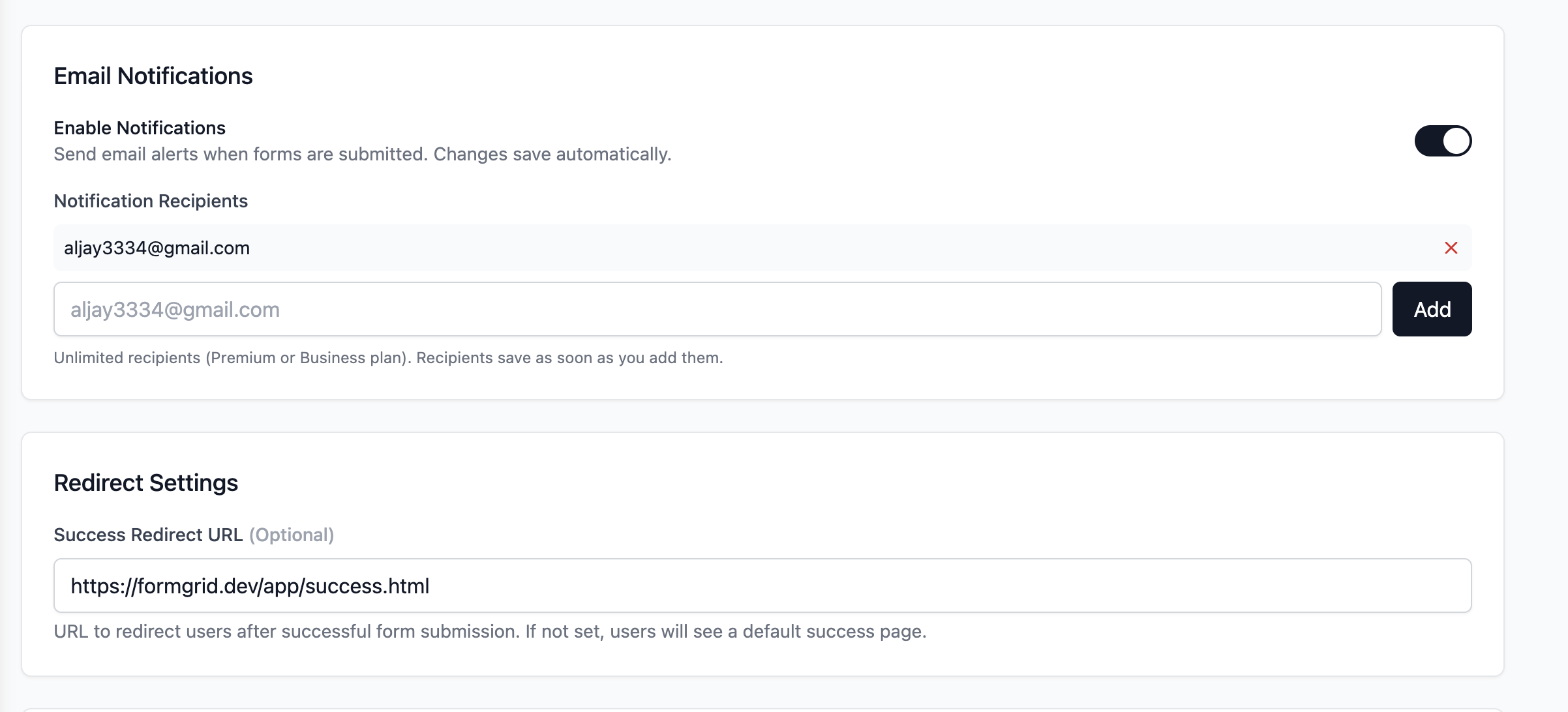
Configure where email notifications should be sent when someone submits your Lovable contact form.
For example, if you are building a website for a photography business, you can configure notifications to be sent directly to the photographer's business email address.
If you are building a website for a client, you do not need to receive their enquiries in your own inbox and manually forward them.
Configure the intended recipient, enable notifications, and save your settings.
You do not need to create a Resend account, configure a Resend API key, or implement your own email-sending function for this workflow.
Step 6: Protect Your Lovable Contact Form Against Spam
Once your website is publicly accessible, its contact form may attract unwanted submissions.
These can include:
- Automated bot submissions.
- Unsolicited marketing offers.
- Fake customer enquiries.
- Suspicious promotional links.
- Repeated submissions.
Building a working contact form is important, but protecting it against spam is equally important.
Formgrid.dev provides multiple layers of spam protection, including:
- Honeypot protection.
- Rate limiting.
- Allowed Domains configuration.
- CAPTCHA integrations.
- Content-based spam detection.
- AI-powered lead classification.
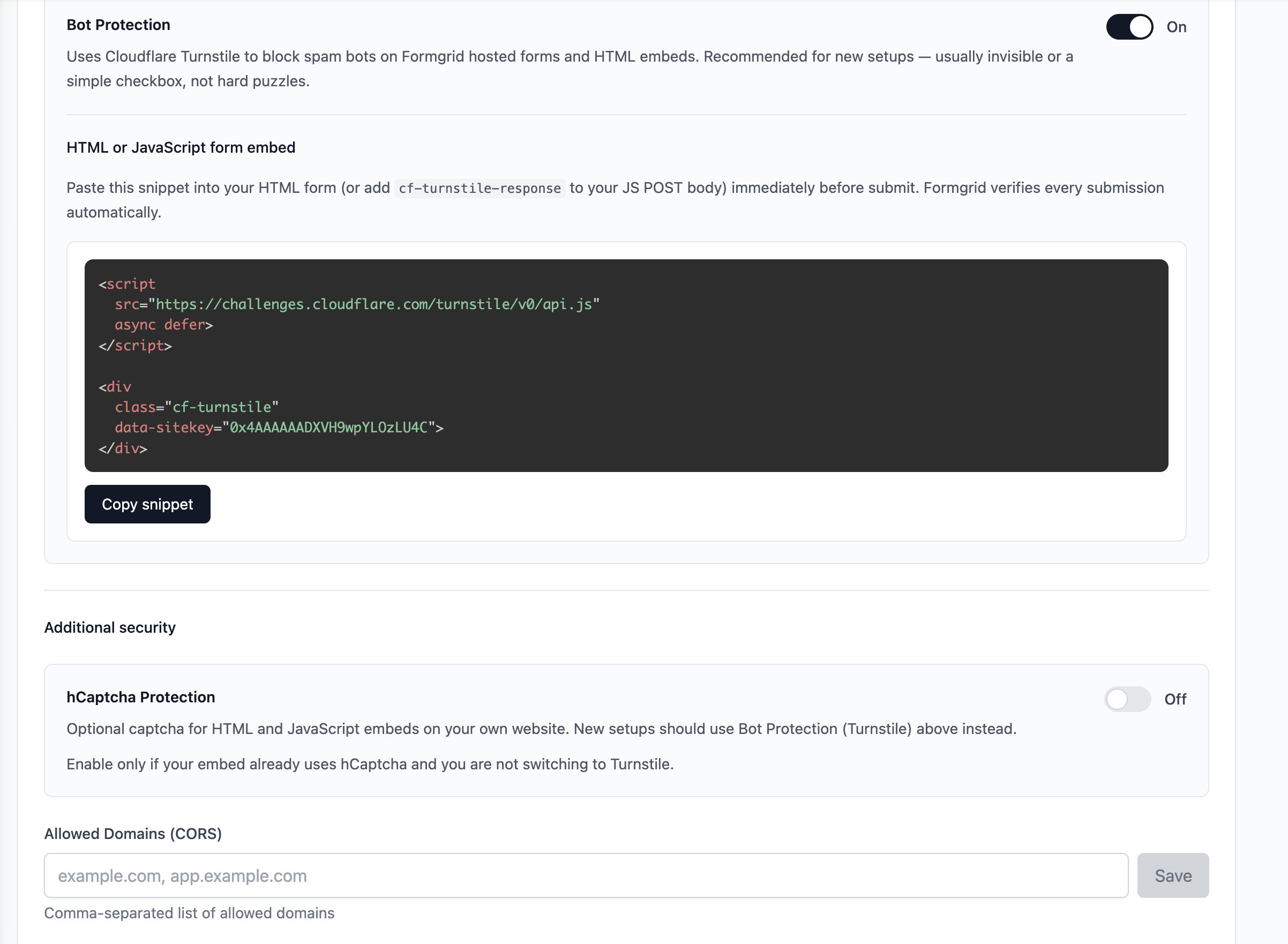
Configure additional spam protection for your Lovable contact form.
Configure Allowed Domains
If your contact form should only receive submissions from your website, you can configure allowed domains in your form's settings.
For example, if your website uses a Lovable subdomain:
your-website.lovable.appIf you have connected a custom domain:
example.com
www.example.com
Use the actual domains associated with your website.
Remember that your preview environment and published website may use different domains. Test your configuration accordingly.
Allowed Domains adds another layer of protection, but it should not be treated as a complete security mechanism for a public submission endpoint.
Add CAPTCHA Protection
Formgrid.dev supports hCaptcha integration for custom website forms.
If you enable mandatory CAPTCHA protection, your Lovable contact form must also include the corresponding frontend integration and submit the required verification token.
You can provide Lovable with the CAPTCHA integration instructions from your Formgrid.dev dashboard and ask it to update your form accordingly.
Do not simply enable mandatory CAPTCHA without updating your website, as this can prevent legitimate submissions from being accepted.
Some advanced spam protection features depend on your subscription plan.
Step 7: Test Your Lovable Contact Form
Before publishing your website, open the contact page in Lovable's preview environment and submit a test enquiry.
For example:
Name: Sarah Johnson

Email: sarah@example.com

Message:
Hello, I would like to learn more about
your website design services.
Use an email address you control when testing email-related features.
After submitting the form, open your Formgrid.dev dashboard and confirm that the submission has been received.
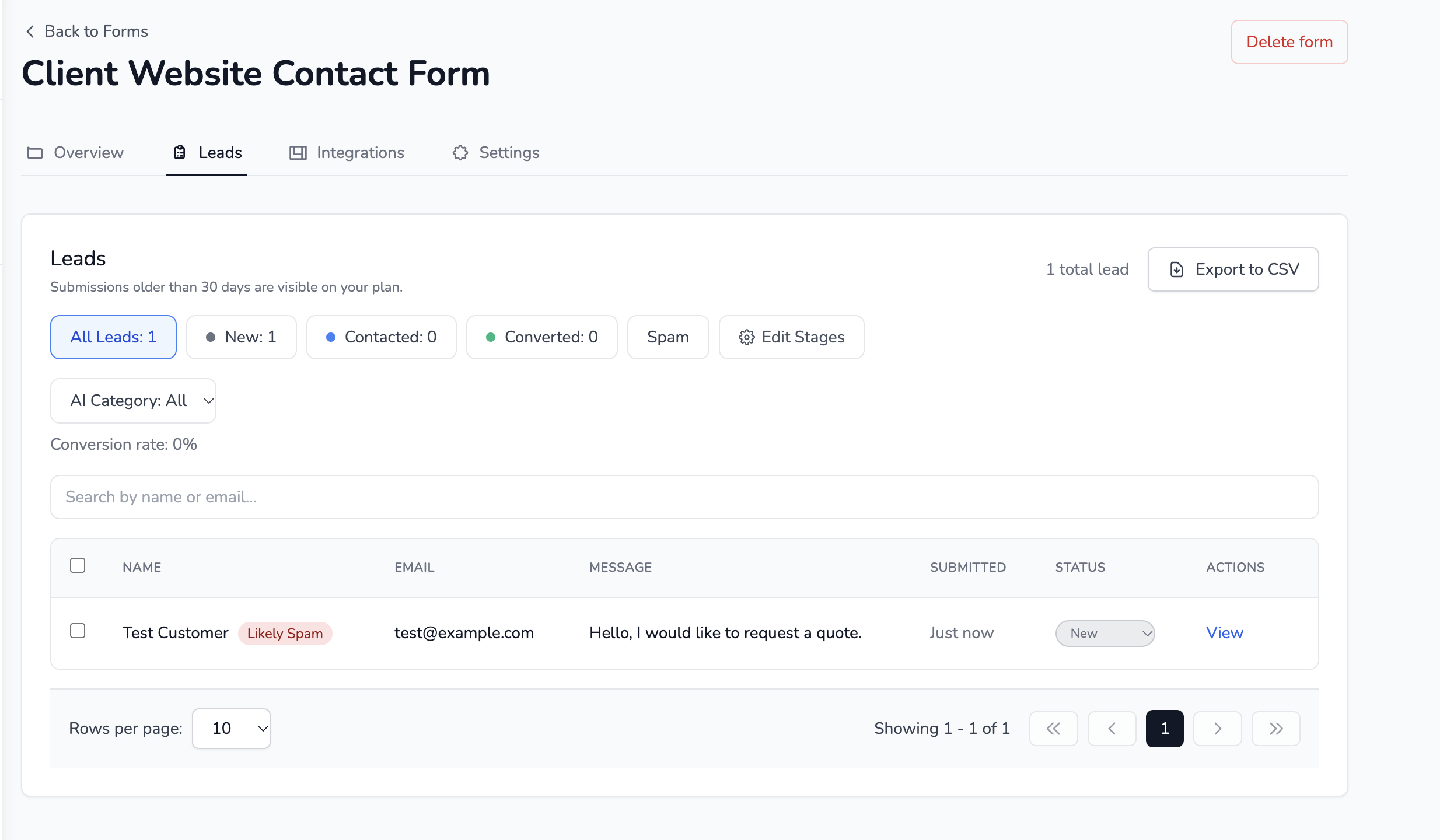
Verify that submissions from your Lovable website appear in your Formgrid.dev dashboard.
You should also check that the configured notification recipient receives an email.
Before moving on, verify the following:
- The form submits to the correct endpoint.
- All expected fields appear in your dashboard.
- Email notifications are delivered.
- A success message appears after a successful submission.
- An appropriate error message appears when submission fails.
- The form does not submit multiple times when the button is clicked repeatedly.
- The form works on desktop and mobile devices.
A success message in Lovable does not necessarily prove that a submission was stored or that an email was delivered.
Always verify the complete submission workflow.
Step 8: Publish Your Lovable Website
Once you have confirmed that the contact form works correctly, publish your website using Lovable's publishing workflow.
Open the published website and submit another test enquiry.
This is important because a form that works in a preview environment may encounter different domain restrictions or configuration issues after deployment.
If you have configured Allowed Domains in Formgrid.dev, make sure your published website's domain is included.
Once the published website successfully submits enquiries and notifications are delivered, your contact form is ready to receive customer enquiries.
You have now connected your Lovable website to a form backend without setting up Supabase or Resend.
What Happens After Someone Submits Your Lovable Contact Form?
A working contact form is only the beginning.
Imagine you have built a website for a local roofing company using Lovable.
A homeowner visits the website and submits a quote request.
With a traditional contact form, the business owner might simply receive an email.
However, what happens if the owner receives 20 enquiries in a week?
How do they remember which customers they have contacted, which customers need a follow-up, and which enquiries have turned into actual jobs?
This is where Formgrid.dev's built-in lead management system becomes useful.
When an accepted submission arrives, two things happen:
- An email notification is sent to the configured recipient when notifications are enabled.
- The enquiry appears in the Leads tab, where it can be managed.
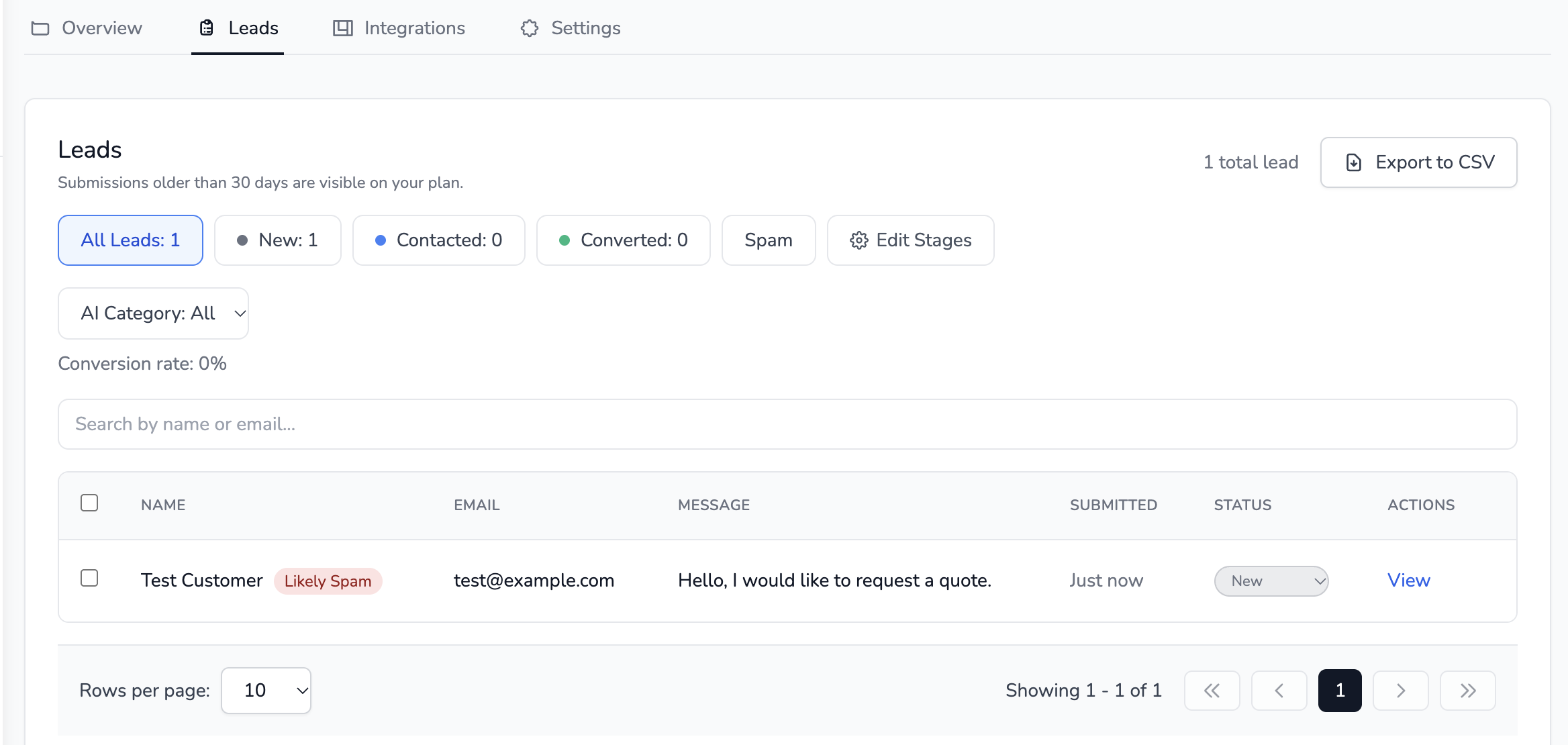
Manage enquiries from your Lovable website without connecting a separate CRM.
Manage Customer Enquiries With a Built-In Lead Pipeline
Formgrid.dev provides three default lead stages:
| Stage | Meaning |
|---|---|
| New | A recently received customer enquiry |
| Contacted | You have responded to the potential customer |
| Converted | The enquiry has become a customer or reached a successful outcome |
Here is a demonstration of how the lead pipeline works:
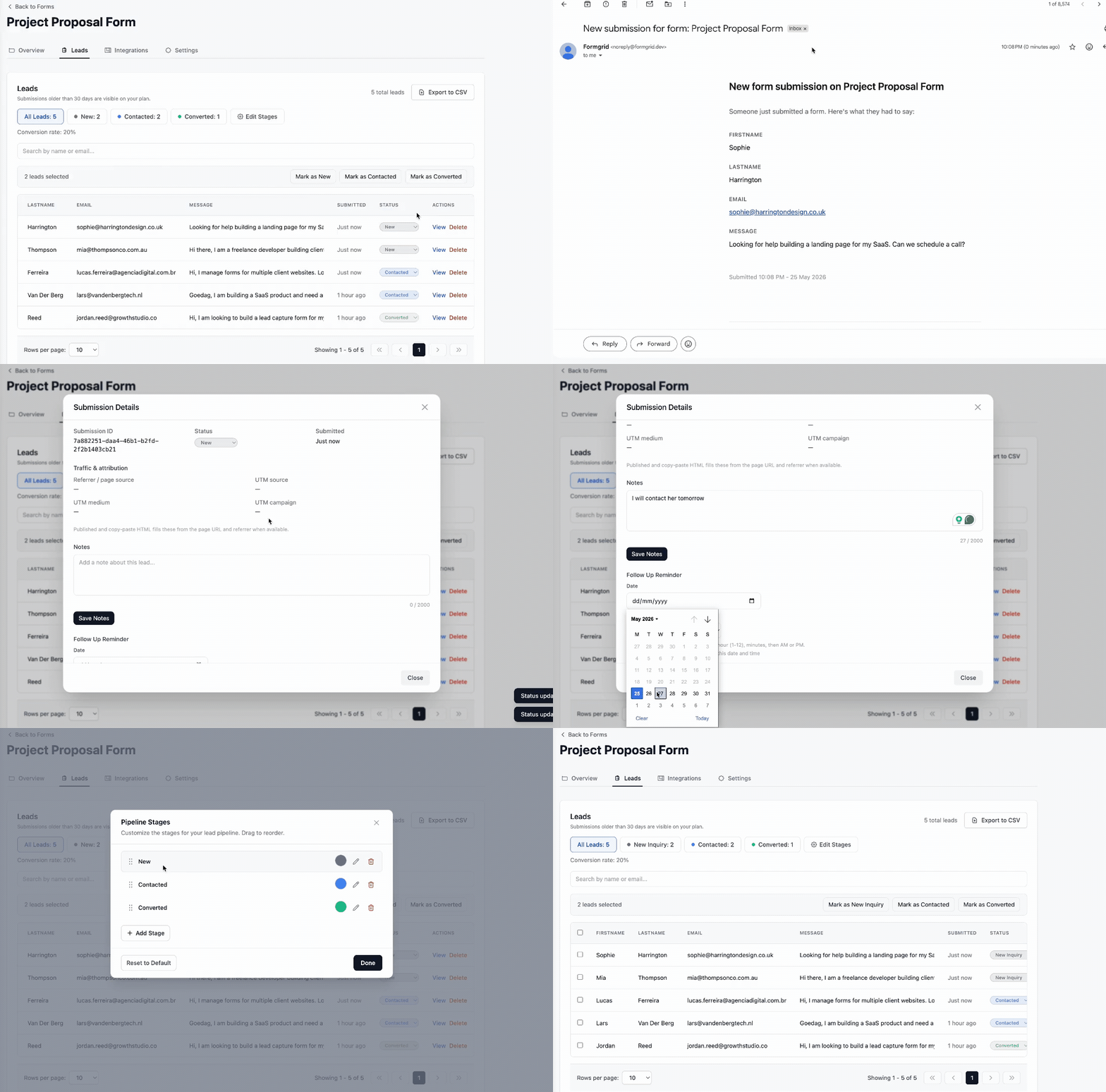
For example, a customer submits a quote request through your Lovable website.
The enquiry appears in your Leads tab with the status New.
After responding to the customer, you can update the status to Contacted.
You can also add notes, such as:
Customer needs a website for a new restaurant.

Discussed the project requirements.

Send a proposal and follow up on Friday.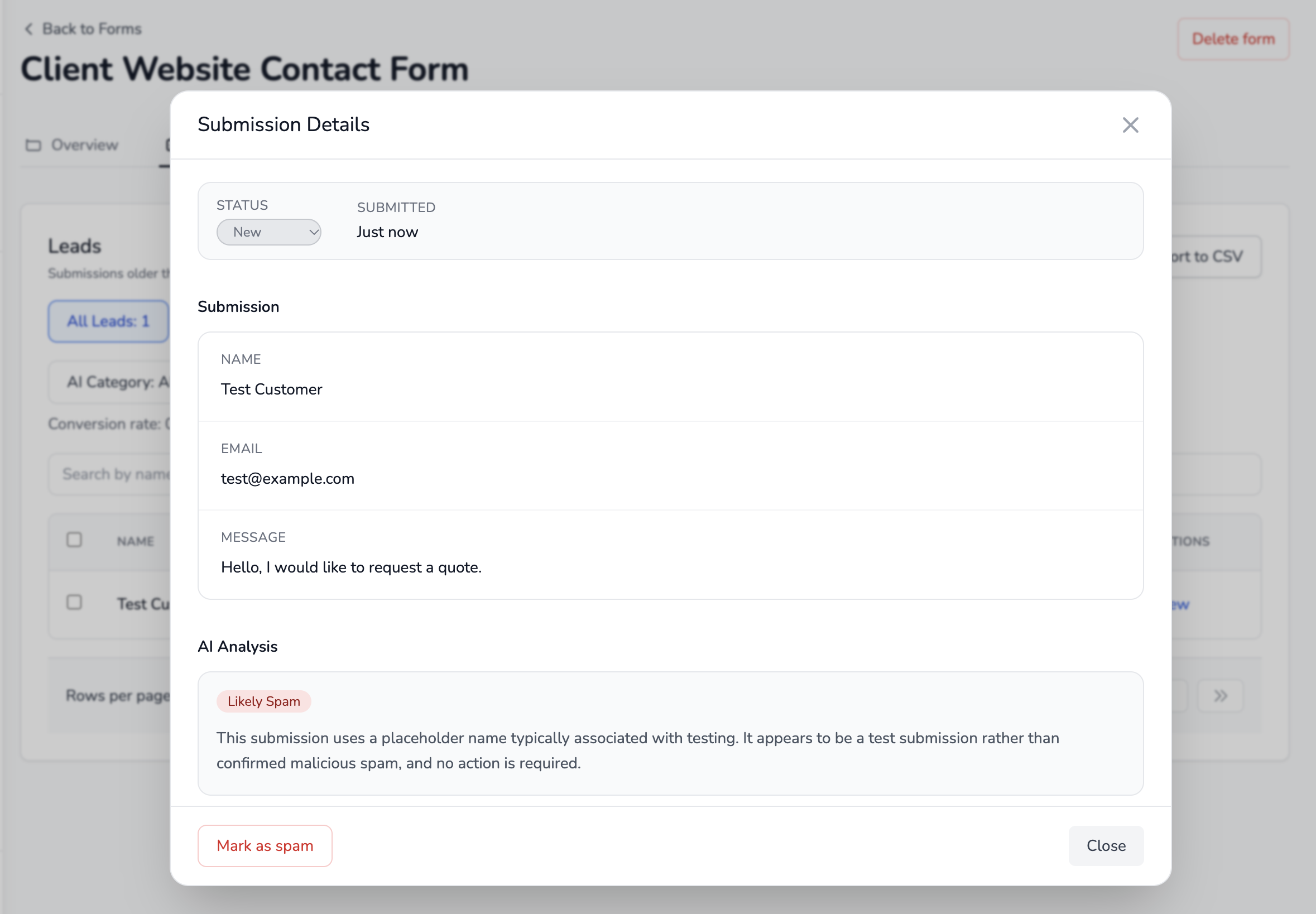
Keep customer information, notes, and follow-up dates attached to each enquiry.
If the customer accepts your proposal, you can mark the enquiry as Converted.
You can also schedule follow-up reminders so that promising enquiries do not get forgotten.
Instead of building a website that simply sends emails, you can build one that helps businesses manage potential customers.
Use AI to Identify Genuine Customer Enquiries
Not every submission from your Lovable contact form will be a potential customer.
Some visitors might be requesting support. Others might be promoting their own services or submitting spam.
Formgrid.dev provides AI-powered lead classification to help identify the apparent intent behind incoming submissions.
| Classification | Meaning |
|---|---|
| Hot Lead | A potentially valuable customer enquiry |
| Likely Spam | A suspicious or potentially unwanted submission |
| Sales Pitch | Someone promoting their own product or service |
| Support Request | Someone requesting assistance |
For example, imagine receiving these two submissions:
Submission 1:
Hello, I need a website for my new business. Could you send me a quote?
Submission 2:
We offer guaranteed Google rankings and affordable backlink packages. Contact us today.
Both messages could have been submitted by real people.
Traditional bot protection may not distinguish between them.
AI-powered lead classification can help you identify the first as a potential customer enquiry and the second as a sales pitch.
This allows businesses to prioritize genuine opportunities rather than manually sorting through every incoming message.
AI classification complements spam protection. It does not guarantee that every suspicious submission will be blocked or quarantined.
Availability and usage allowances depend on your subscription plan.
An Alternative: Build Your Contact Form Visually
You do not necessarily need Lovable to generate the contact form itself.
Formgrid.dev also provides a drag-and-drop visual form builder.
If you prefer to create and manage your contact form separately, you can build it using Formgrid.dev.
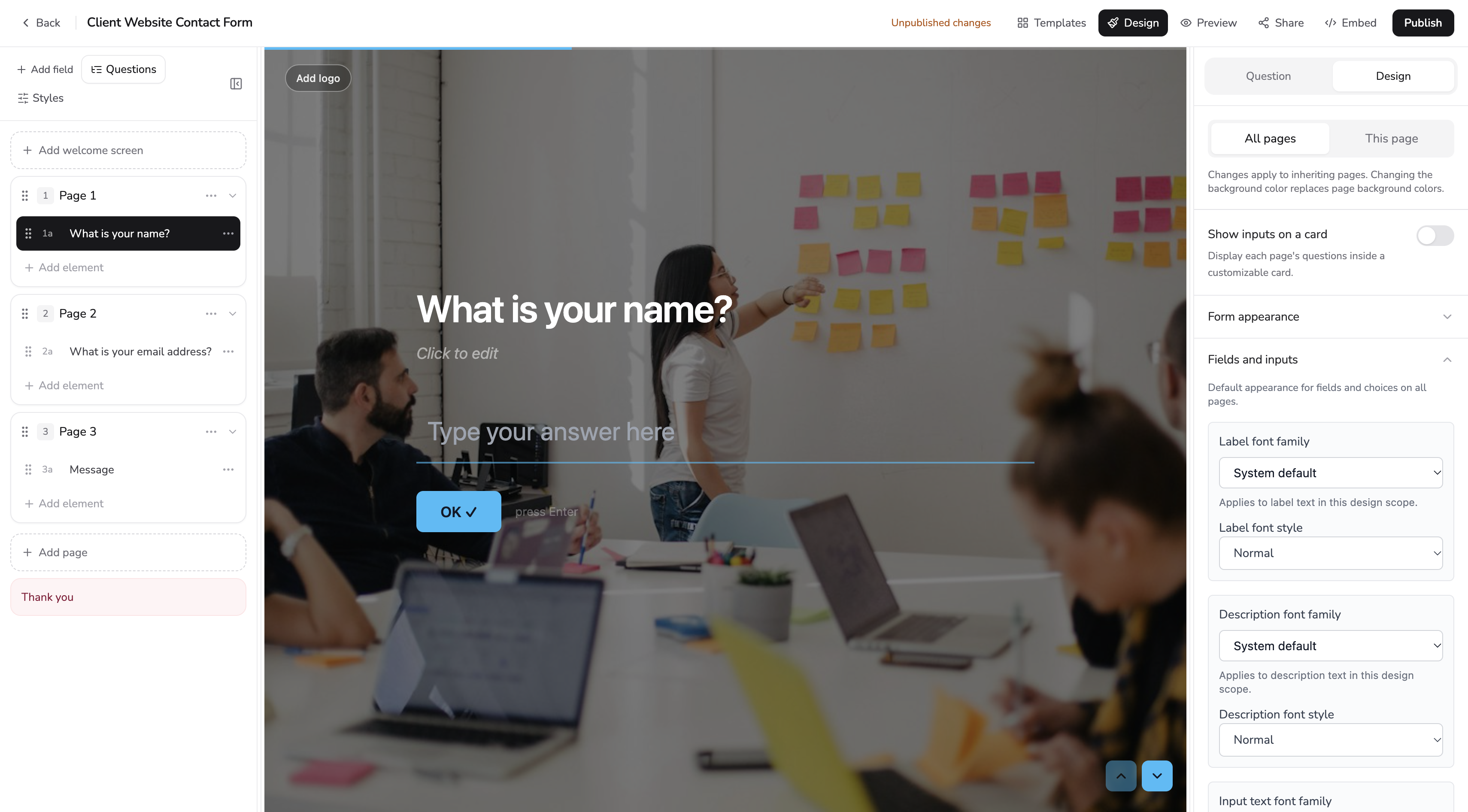
You can add fields such as:
- Name.
- Email address.
- Phone number.
- Message.
- Service selection.
- Project budget.
- File uploads.
Customize the appearance of your form and publish it.
Once published, copy the available embed code and provide it to Lovable.
You can use a prompt like this:
Replace the existing contact form with the
following Formgrid.dev embed code.

[Paste the embed code here]

Keep the existing contact section, heading,
background, and surrounding layout.

Make sure the embedded form is responsive
and displays correctly on mobile devices.
The endpoint approach is usually preferable if you want to retain complete control over the contact form design generated by Lovable.
The visual builder approach is useful if you want to manage the form's fields and configuration separately from your website.
Managing Multiple Lovable Websites
If you are a freelancer or agency building websites with Lovable, you may eventually need to manage contact forms for multiple clients.
For example:
- A roofing company's quote request form.
- A photographer's booking enquiry form.
- A restaurant's private event enquiry form.
- A consulting company's contact form.
- A gym's membership enquiry form.
You do not need to configure a separate Supabase database and email integration for every website.
Formgrid.dev allows you to organize forms into separate projects, subject to your subscription plan.
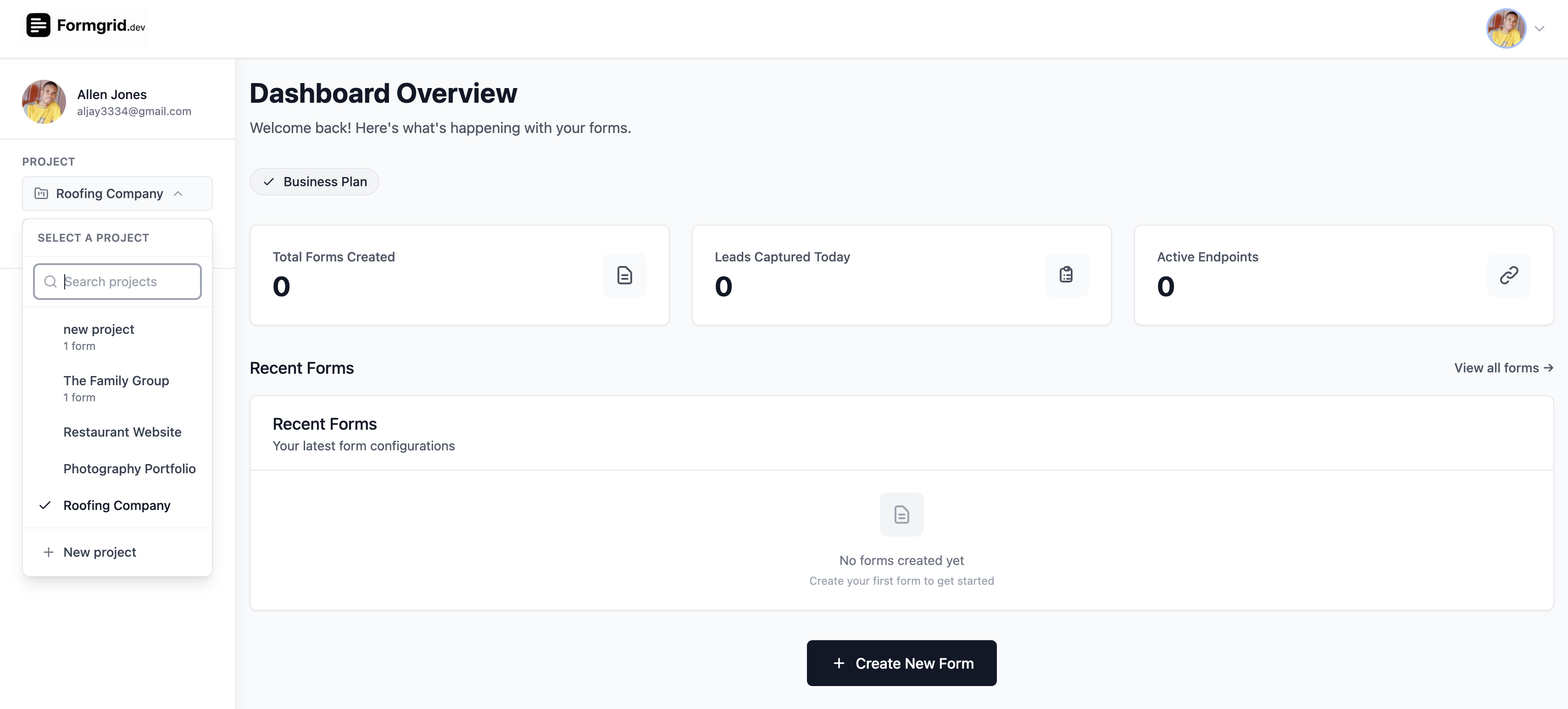
Each client can have their own project, form endpoints, notification recipients, and lead records.
This gives you a repeatable workflow for connecting contact forms across multiple Lovable websites.
Instead of rebuilding the same submission infrastructure for every client, you can create a new form, copy its endpoint, and connect it to the corresponding website.
Lovable Contact Form: Supabase and Resend vs a Dedicated Form Backend
There is nothing wrong with using Supabase and Resend.
They are useful services, particularly when your application needs more advanced backend functionality.
However, the right solution depends on what you are building.
| Requirement | Supabase + Resend | Formgrid.dev |
|---|---|---|
| Store contact form submissions | Requires database setup | Built-in |
| Receive email notifications | Requires email integration | Built-in |
| Submission endpoint | Requires implementation | Generated automatically |
| Spam protection | Requires configuration or implementation | Built-in protection options |
| View submissions | Database interface or custom dashboard | Built-in dashboard |
| Lead management | Requires implementation or another service | Built-in lead pipeline |
| AI lead classification | Requires additional implementation | Available |
| Follow-up reminders | Requires additional implementation | Available |
| Custom application backend | Suitable | Not a general-purpose backend |
Supabase may be the better choice if your Lovable application needs user accounts, complex database relationships, custom business logic, or other application-specific functionality.
Resend may be the better choice if you primarily need a programmable email delivery service.
But if your main requirement is to collect website enquiries, receive notifications, protect forms against spam, and manage leads, a dedicated form backend can simplify the setup considerably.
Troubleshooting Your Lovable Contact Form
My Contact Form Shows Success, but I Don't Receive Any Submissions
Ask Lovable to review the form submission logic.
Make sure it is actually sending an HTTP POST request to your Formgrid.dev endpoint.
A success message should only be displayed after the endpoint confirms a successful submission.
Check your browser's network requests to verify that the form is communicating with the correct endpoint.
Also check the Formgrid.dev dashboard to confirm whether the submission was stored.
My Submission Appears in the Dashboard, but I Don't Receive an Email
Open your form's notification settings and verify that:
- Email notifications are enabled.
- The recipient email address is correct.
- The notification has not been delivered to your spam folder.
A successfully stored submission and a successfully delivered notification are different things.
My Form Works in Lovable Preview but Not After Publishing
Check whether you have configured Allowed Domains.
Your preview environment may use a different domain from your published website.
Make sure the published domain is included in your allowed-domain settings.
Also inspect the browser's network requests for any submission errors.
My Form Stopped Working After Enabling CAPTCHA
Mandatory CAPTCHA protection requires the corresponding frontend integration.
Make sure your Lovable website generates and includes the required verification token when submitting the form.
Provide Lovable with the current CAPTCHA integration instructions from your Formgrid.dev dashboard and ask it to update the implementation.
My Contact Form Returns a 403 Error
Review your form's security settings, including allowed domains and CAPTCHA requirements.
Make sure your website is sending all required information.
Inspect the actual error response rather than assuming that every 403 error has the same cause.
My Contact Form Returns a 429 Error
A 429 response generally indicates that a rate limit has been reached.
Avoid repeatedly submitting the form within a short period.
Review your form's rate limits and account usage allowances.
Frequently Asked Questions
Can I create a Lovable contact form without Supabase?
Yes. You can connect your Lovable contact form to a hosted form backend such as Formgrid.dev.
This allows you to receive and store form submissions without configuring a Supabase database specifically for your contact form.
Can Lovable send contact form emails without Resend?
Yes. You can connect your form to a service that provides built-in email notifications.
Formgrid.dev handles notification delivery, so you do not need to configure a separate Resend integration for standard contact form notifications.
Do I need a backend for my Lovable contact form?
A contact form needs somewhere to send and process its data.
However, you do not need to build or maintain that backend yourself.
A hosted form backend provides a submission endpoint that your website can use.
Can I keep my existing Lovable contact form design?
Yes. You can connect your existing form to a Formgrid.dev endpoint while preserving its layout, styling, and input fields.
You only need to update how the form submits its data.
Is it safe to include a Formgrid.dev endpoint in frontend code?
Form submission endpoints are designed to receive public form submissions.
You can include your form's public submission endpoint in your frontend.
However, private API keys, administrative credentials, and other secrets should never be exposed in browser code.
Configure appropriate spam protection for your public form.
Can I use Formgrid.dev if my Lovable website already uses Supabase?
Yes. You do not need to remove Supabase from your entire application.
You can continue using Supabase for authentication, database functionality, and other application features while using Formgrid.dev specifically for your contact form.
Can I protect my Lovable contact form against spam?
Yes. Formgrid.dev provides several spam protection mechanisms, including honeypots, rate limiting, allowed domains, CAPTCHA integrations, and content-based spam checks.
It also provides AI-powered lead classification to help identify potentially unwanted submissions.
Some features require additional frontend configuration or a paid plan.
Can I receive contact form submissions for free?
Yes. Formgrid.dev offers a free plan with a monthly submission allowance.
You can create an account, generate a form endpoint, and test the integration without providing a credit card.
Check the Formgrid.dev pricing page for current limits and feature availability.
Can I manage enquiries from multiple Lovable websites?
Yes. Formgrid.dev allows you to organize forms into projects, with separate endpoints and notification settings for each form.
Project and usage allowances depend on your subscription plan.
Do I need a separate CRM for my Lovable website?
Not necessarily.
Formgrid.dev includes a built-in lead management pipeline that allows you to track enquiries, update lead statuses, add notes, and schedule follow-up reminders.
For businesses that primarily need to manage website enquiries, this can reduce the need for a separate CRM.
Final Thoughts
Lovable makes it easy to build beautiful websites without writing every line of code yourself.
However, a beautiful contact form is not enough if customer enquiries are not being received, stored, or followed up.
You do not necessarily need to configure Supabase, Resend, database tables, and server-side functions just to make a standard contact form work.
With Formgrid.dev, you can:
- Connect your existing Lovable contact form to a unique endpoint.
- Receive and store form submissions.
- Receive email notifications.
- Protect your forms against spam.
- Identify potential customers with AI lead classification.
- Manage enquiries through a built-in lead pipeline.
- Track follow-ups and conversions.
All without building and maintaining your own form submission infrastructure.
Whether you are building a portfolio, a business website, a landing page, or websites for multiple clients, you can focus on building the website while Formgrid.dev handles the form submission workflow.
Don't just build a beautiful website. Build one that helps businesses capture and convert customer enquiries.
Try Formgrid.dev for free. No credit card required.
Disclosure: I am the developer behind Formgrid.dev, an open-source form backend, visual form builder, and lead management platform.

Comments
Leave a comment