
You don't need to build a backend or manually copy enquiries into a spreadsheet to collect information from your website. With a form builder that integrates with Google Sheets, you can publish a form, collect responses, and keep your data organized automatically.
But collecting responses is only half the job. If someone requests a quote, books a consultation, or asks about your services, you also need to know who should follow up and what happens next.
In this guide, you'll learn how to create a form with Formgrid, connect submissions to Google Sheets, and manage incoming enquiries using its built-in lead pipeline.
Want to try it as you read? Create a free Formgrid account.
What you'll build
By the end, you'll have a workflow like this:
Visitor fills out form → Formgrid receives submission → Google Sheets stores a row → You review and follow up with the lead.
This setup is useful for contact forms, quote requests, event registrations, client intake, and feedback forms. You can use Formgrid's hosted form builder or connect an existing HTML form to a Formgrid endpoint.
Step 1: Create a form in Formgrid
Start by signing up for Formgrid. Create a project to organize your forms, then add a new form.
If you want a hosted form without writing code, open the Form Builder. Add the questions you need and adjust their order. For a service-business enquiry form, a useful starting point is:
- Name
- Email address
- Service needed
- A short message describing the project
Keep the form focused. Asking for information you don't actually need can make it harder for visitors to complete.

Formgrid's visual builder lets you create and customize a form without building your own backend.
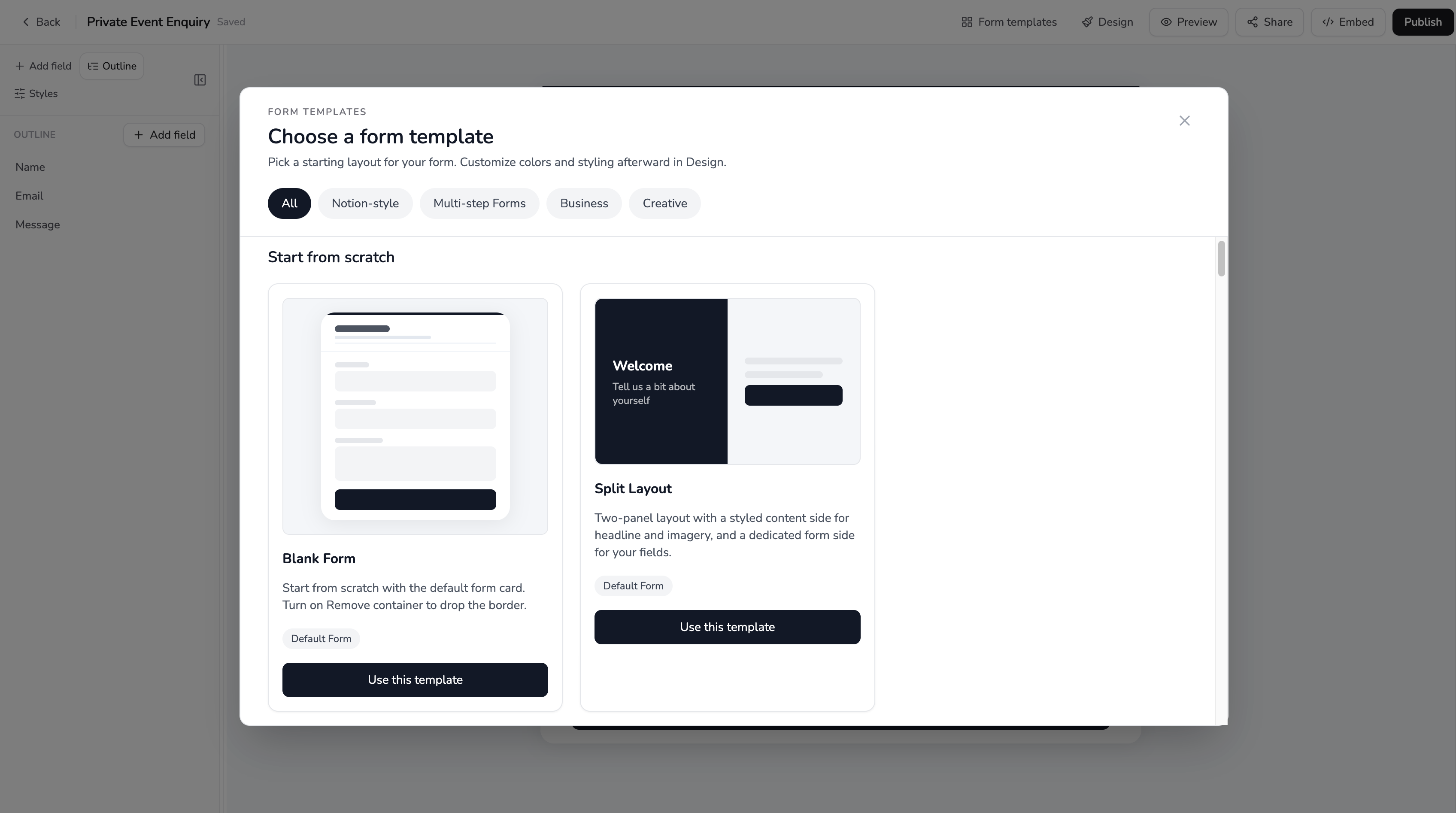
You can also start from a template and customize it for your use case.
Step 2: Customize and publish your form
Make your form easy to understand before you share it. Use descriptive labels, clearly mark required fields, and preview it on both desktop and mobile.
In Formgrid's builder, click Preview to check the respondent experience. When you're ready, click Publish. Formgrid provides a hosted form URL that you can copy and share with customers or clients.
You can also use the existing Embed option to place a form on a website.
Tip: Open the published link in a private browser window and complete the form yourself. That helps you catch missing fields or unclear instructions before real visitors arrive.
Step 3: Connect Formgrid to Google Sheets
If you want your team to work with submissions in a spreadsheet, configure the Google Sheets integration for the relevant form or project using the integration controls available in your Formgrid account.
The exact labels and authorization steps may vary as the product evolves, but the general workflow is:
- Open your form's Integrations area.
- Find the Google Sheets integration and connect your Google account if prompted.
- Select the destination spreadsheet and worksheet using the available integration options.
- Configure any required field mapping or synchronization settings.
- Save the integration and submit a test response.
- Open the spreadsheet to verify that the response was added correctly.
Important: Confirm the available Google Sheets options and plan limits in your account before relying on the integration for a production workflow. Do not assume that historical responses are automatically backfilled or that every spreadsheet layout is supported.
A spreadsheet is especially helpful when you need to share structured responses with colleagues, filter records, or create your own reporting workflow.
Step 4: Use an existing website form instead (optional)
Already have a contact form built with HTML, React, or Next.js? You don't need to rebuild it in a visual editor.
Create a form in Formgrid, open Configure Form, and copy its submission endpoint. The form details page includes HTML and JavaScript integration examples.
A simple HTML form can look like this:
<form action="YOUR_FORMGRID_ENDPOINT" method="POST">
  <label for="name">Name</label>
  <input id="name" name="name" required />

  <label for="email">Email</label>
  <input id="email" name="email" type="email" required />

  <label for="message">Message</label>
  <textarea id="message" name="message" required></textarea>

  <button type="submit">Send enquiry</button>
</form>
Replace YOUR_FORMGRID_ENDPOINT with the URL generated for your own form. Match field names to your configured submission requirements and test the actual response flow before deploying.
This approach is useful for developers who want to keep full control over their website's design without maintaining a separate form-processing API.
Step 5: Turn submissions into leads, not just spreadsheet rows
Google Sheets is useful for storing and organizing information. But when someone submits a quote request, the next question is usually: Has anyone followed up?
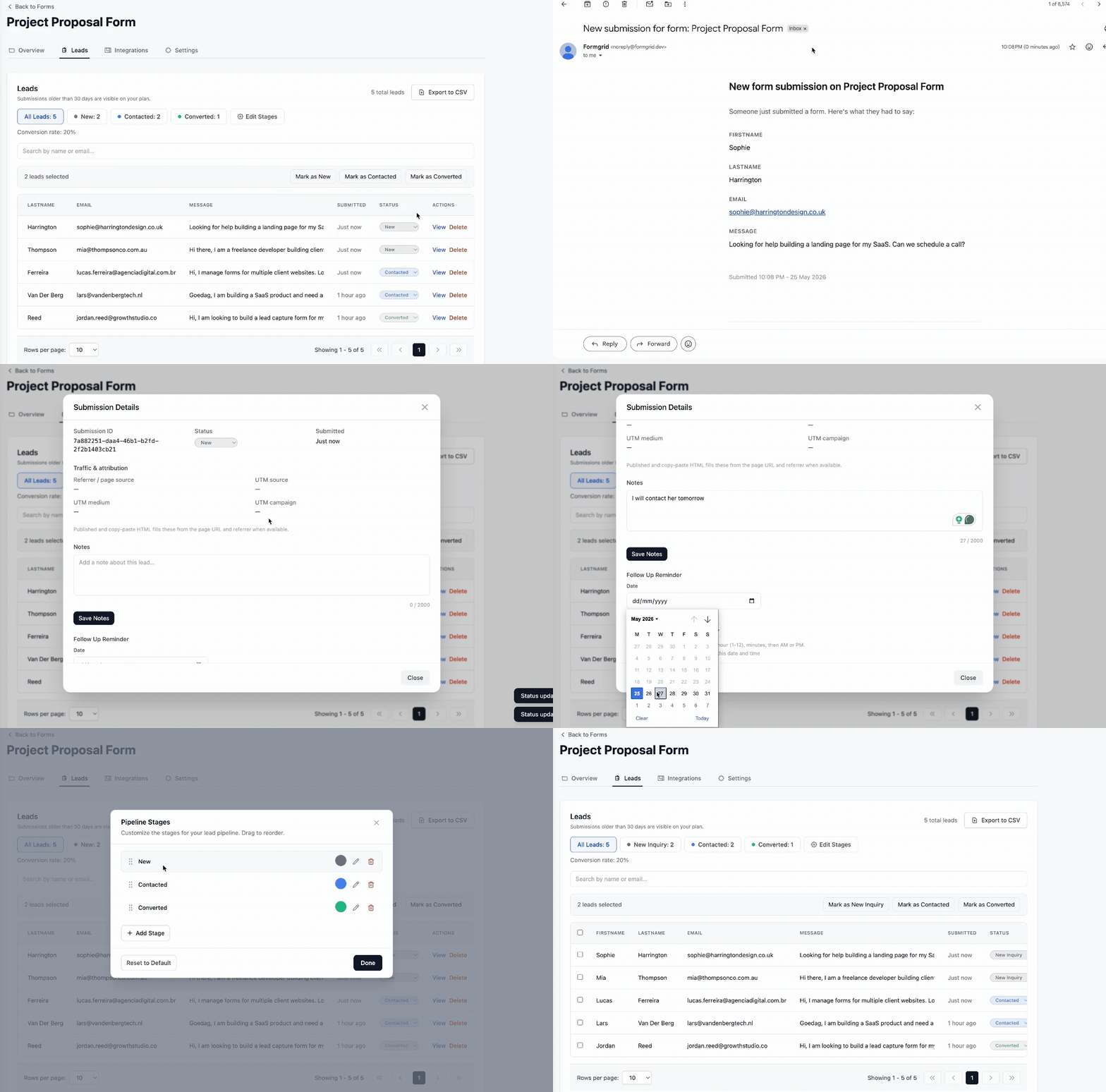
Formgrid includes a lead pipeline alongside form submissions. You can review enquiries and organize follow-up work without immediately moving everything into a larger CRM.
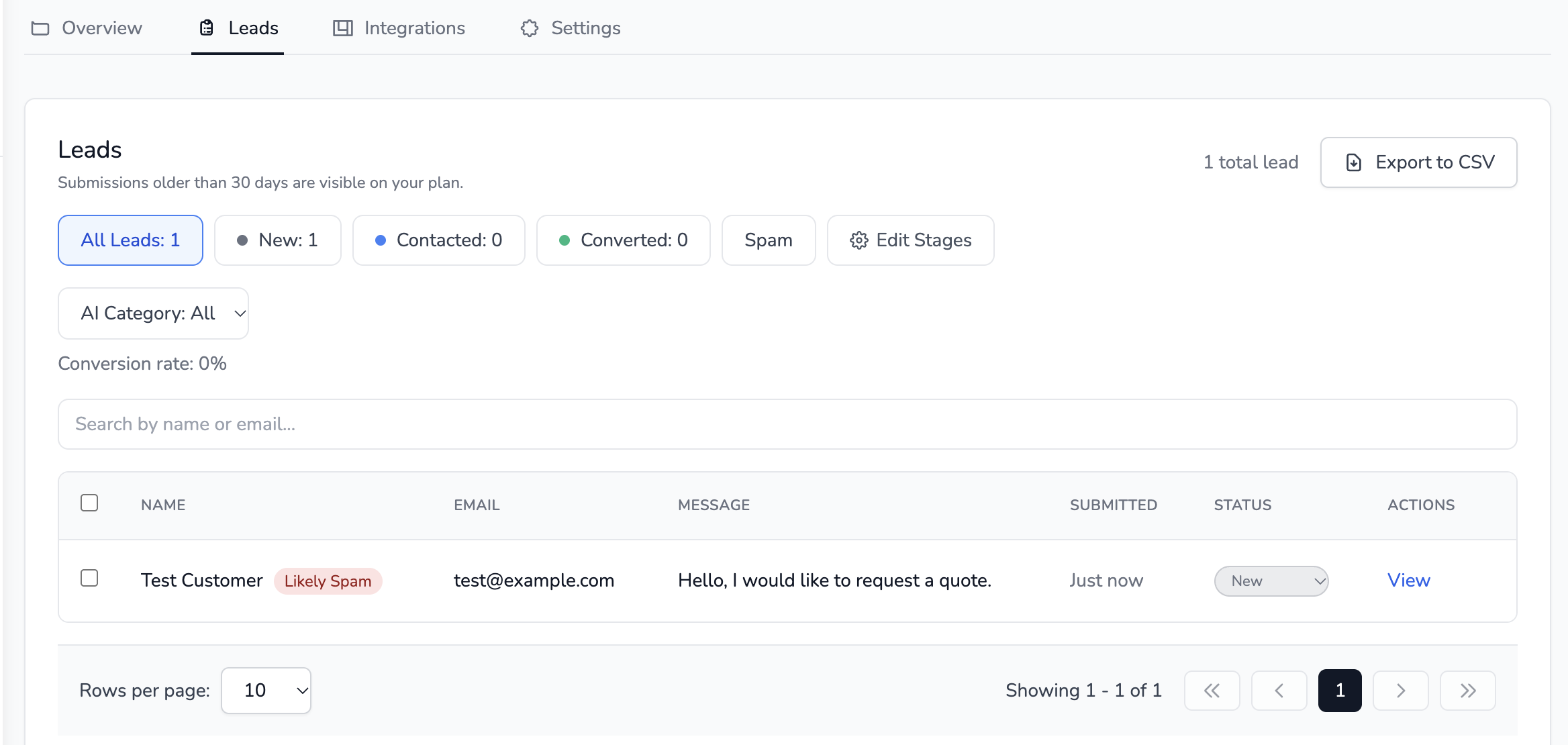
Use the lead pipeline to see incoming enquiries and keep track of what needs attention.
For example, a web design agency might receive a new website enquiry, contact the prospect, and then move the lead through stages such as New, Contacted, and Converted.
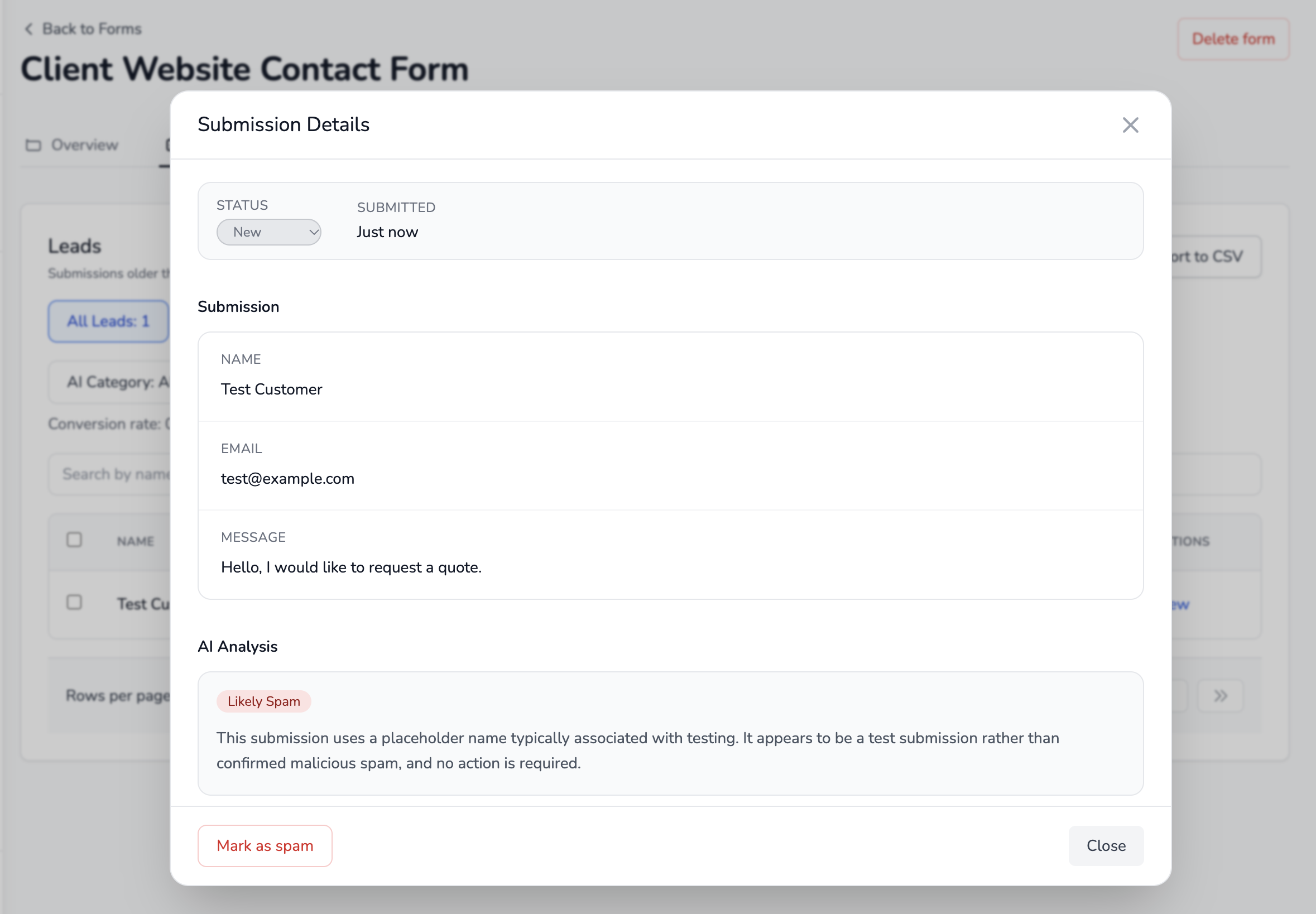
Lead details can help keep conversations and next steps connected to the original submission.
That means your workflow can serve two purposes: Google Sheets for structured data and Formgrid for following up on potential customers.
Step 6: Set up email notifications and spam protection
A spreadsheet connection is helpful, but you probably don't want to keep opening a sheet just to check whether someone contacted you.
Configure Formgrid's notification settings so the appropriate recipient knows when a new submission arrives. Send a test submission and confirm the notification is delivered as expected.
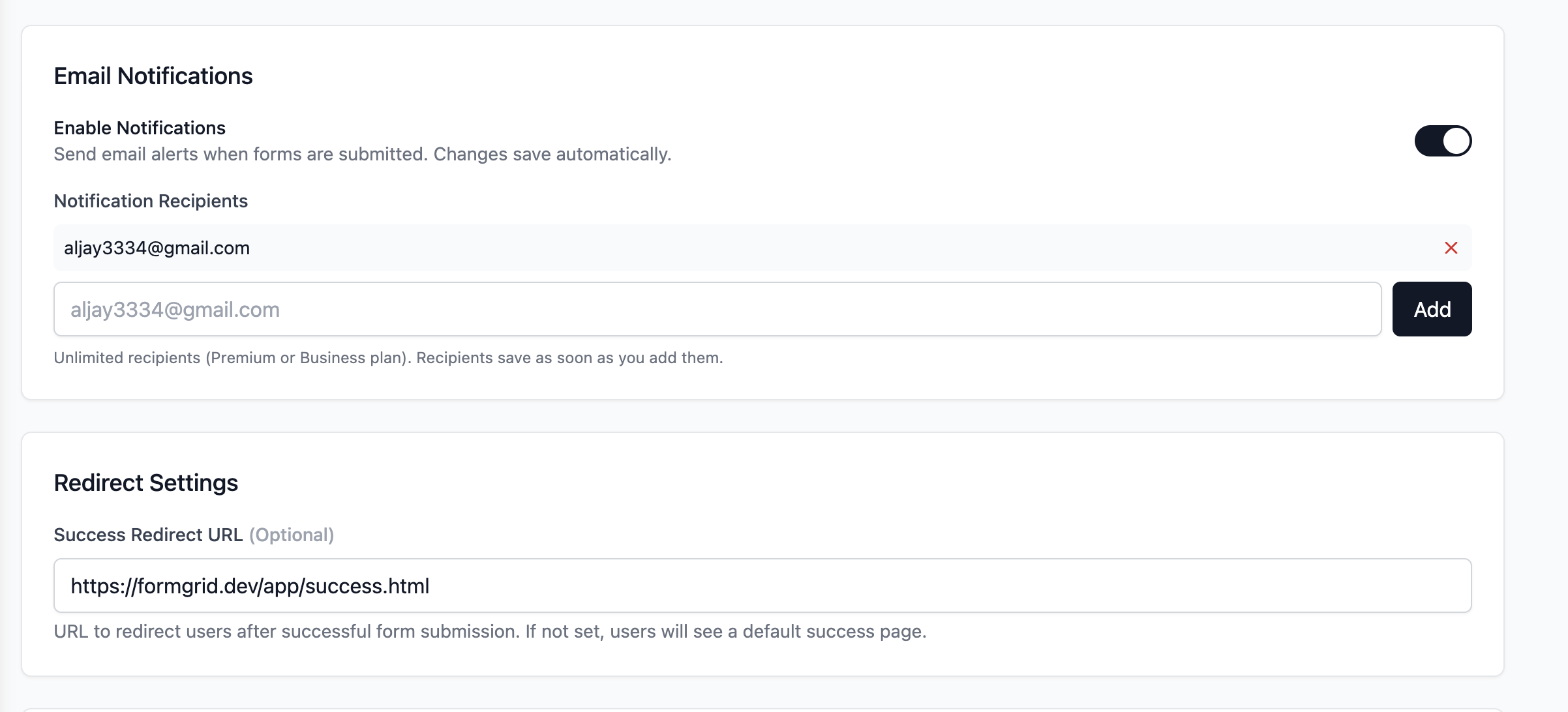
Configure submission notifications so new enquiries don't go unnoticed.
Also review the spam protection options available for your form, such as honeypot fields, rate limiting, and CAPTCHA integrations where supported.
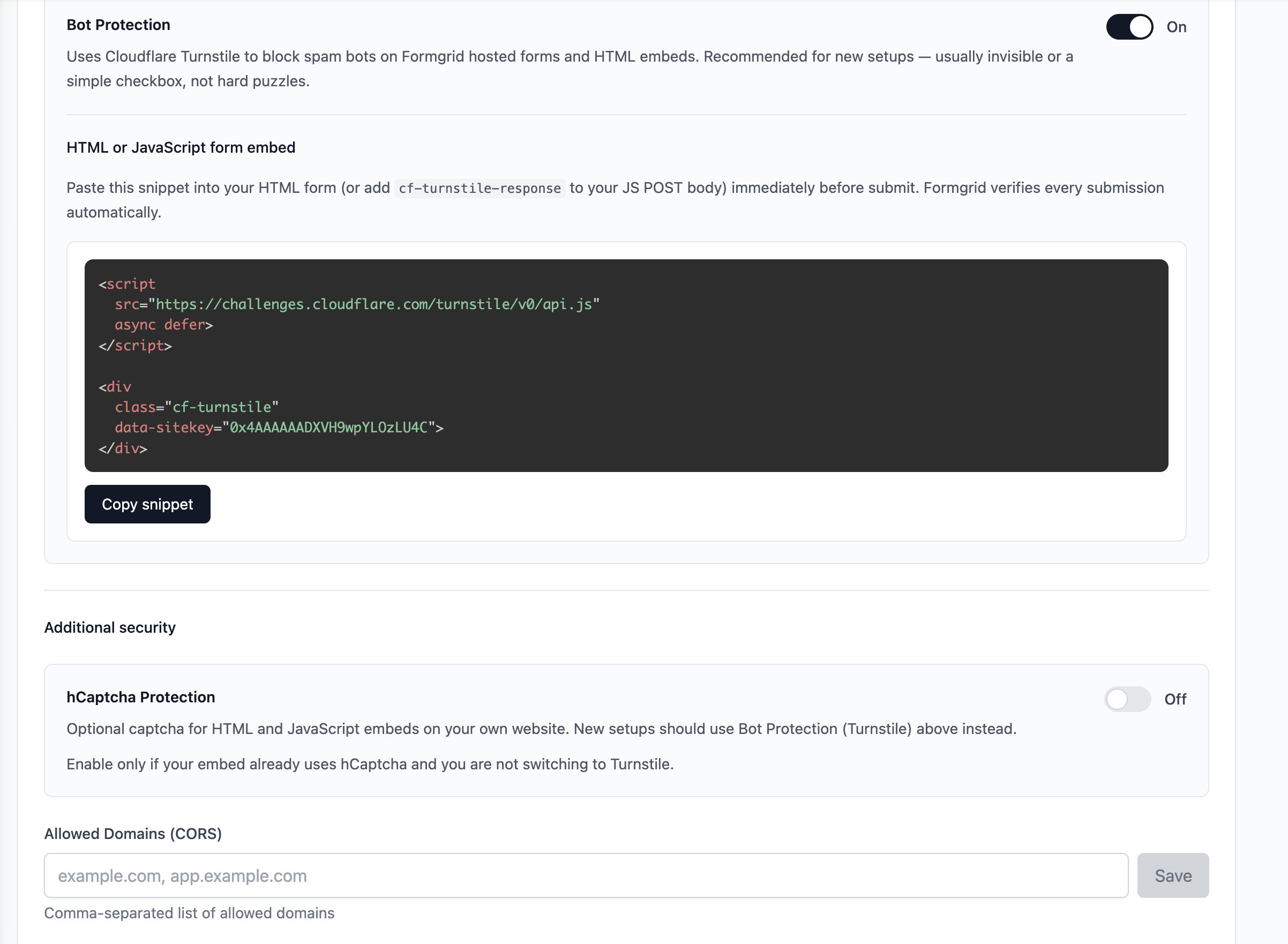
Spam controls can help reduce unwanted submissions before they reach your workflow.
Common use cases
| Use case | Information to collect | What happens next |
|---|---|---|
| Website contact form | Name, email, message | Notify the team and follow up |
| Quote request | Service, project details, contact information | Review and qualify the enquiry |
| Event registration | Attendee details and preferences | Organize registrations in a sheet |
| Client intake | Contact details and project requirements | Assign next steps and track progress |
| Feedback form | Rating and comments | Review patterns in the spreadsheet |
Choose the simplest form that captures enough information for the next action.
Google Sheets alone vs. Google Sheets with a lead pipeline
A spreadsheet is often enough for a list of registrations or survey answers. But it can become harder to manage when every row represents a potential customer who needs a response.
| Need | Google Sheets | Formgrid lead pipeline |
|---|---|---|
| Store structured responses | Yes | Submissions are available in Formgrid |
| Filter and analyze rows | Yes | Focused on managing enquiries |
| Track whether someone was contacted | Requires your own process | Lead stages support follow-up tracking |
| Keep notes on a specific enquiry | Possible, but manual | Lead notes are part of the workflow |
| Organize next steps | Requires your own process | Follow-up functionality is available |
You don't necessarily have to choose one or the other. Use Sheets for spreadsheet workflows and Formgrid when you want a place to manage incoming enquiries.
Frequently asked questions
Can I send website form submissions to Google Sheets automatically?
Yes, when your form platform supports a Google Sheets integration and the connection is configured correctly. In Formgrid, check the integration options for your account, connect the destination sheet, and verify the result with a test submission.
Do I need to write code to create a form?
No. Formgrid offers a visual form builder for creating and publishing hosted forms. Developers can also connect an existing HTML or JavaScript form using a Formgrid submission endpoint.
Can I receive an email when someone submits my form?
Formgrid supports submission email notifications. Configure the recipients and settings, then test delivery before relying on notifications for important enquiries.
What happens after someone fills out the form?
The submission is received by Formgrid. Depending on your configured integrations, you can also send data to Google Sheets and review the enquiry in Formgrid's lead management interface.
Is Formgrid free?
Formgrid offers a free tier and paid plans. Limits and integration availability vary by plan, so check the current pricing and features before choosing a plan for a live workflow.
Can I use Formgrid with React or Next.js?
Yes. You can submit data to a Formgrid endpoint from a custom form. Use the integration example that matches your frontend and test the submission behavior, validation, and error handling.
Build your first form and connect the workflow
You don't need a complicated stack to collect website enquiries. Start with a short form, publish it or connect your existing website, and verify that a real submission reaches the right place.
Then decide how your team will act on the response. Google Sheets can keep the data organized, while Formgrid's built-in lead pipeline helps you follow up instead of leaving enquiries sitting in a spreadsheet.
Create your first form with Formgrid and test the complete workflow from submission to follow-up.
Comments
Leave a comment